 DigiUsher Documentation
Savings
Find, triage, and close cost optimization opportunities across every connected cloud, with the evidence behind each one and thresholds that you can tune.
Savings is the workspace of the cost optimization. It gives every opportunity that DigiUsher finds in your connected clouds, with the evidence behind each one. Open it from Optimize > Savings in the left sidebar.
Use Savings when you need to:
- See the annual saving that nobody claims yet, and the place where it concentrates.
- Sort the opportunities by rule, severity, service, region, or account.
- Read the utilization metrics that started a rule before you act on it.
- Give the work to an owner, and follow an opportunity from open to applied.
- Change the thresholds of a rule, so that they match the behavior of your workloads.
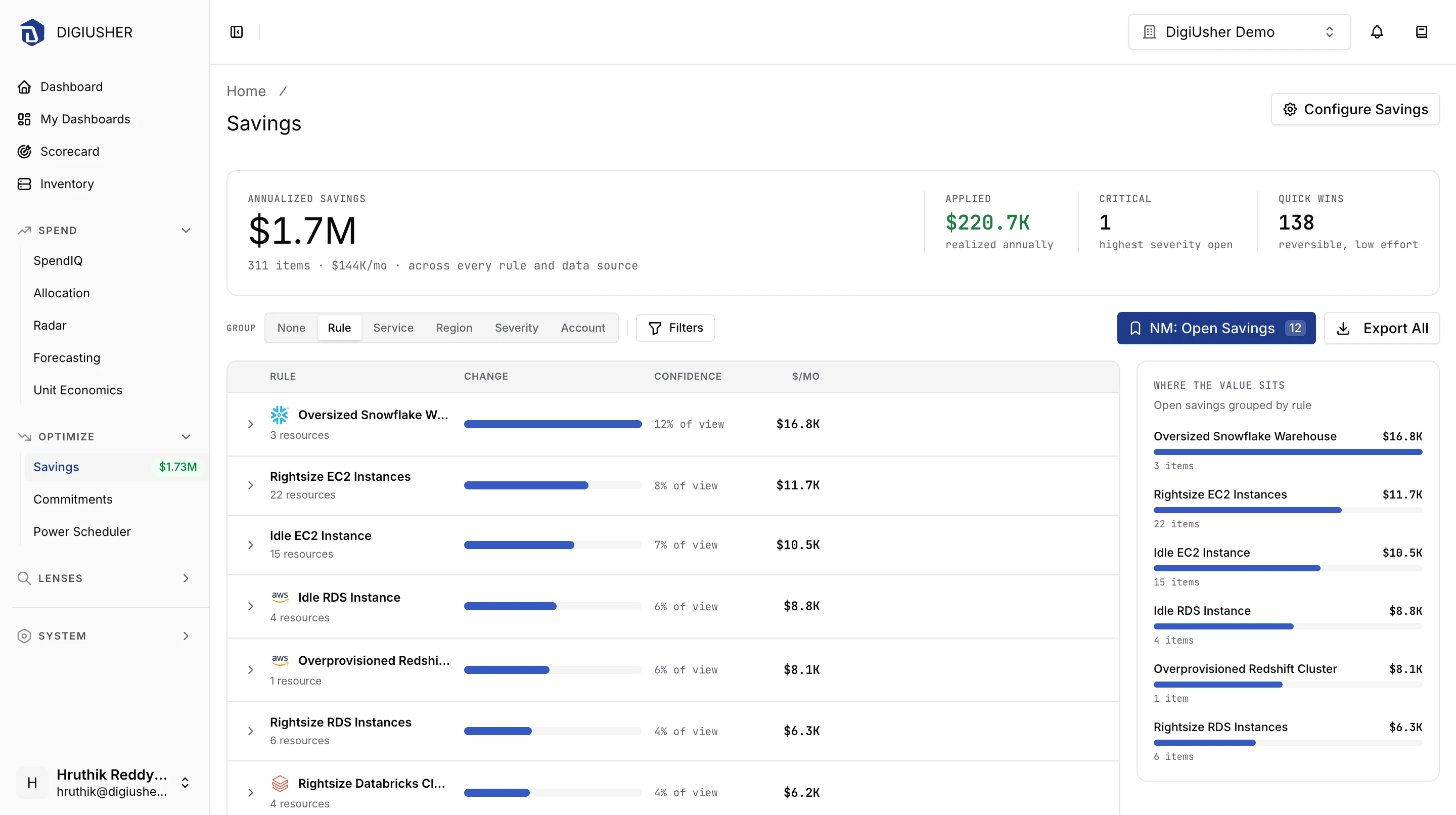
Every opportunity comes from a scenario. A scenario is a built-in rule that compares one resource type against a set of thresholds. When the page opens, it shows the Open opportunities, grouped by Rule.
Overview
Four values stand at the top of the page. They always follow your active filters.
| Card | What it shows |
|---|---|
| Annualized savings | Total annual saving of the matching opportunities, with the number of items and the monthly value |
| Applied | Annual saving that you already get from the opportunities with the status applied |
| Critical | Number of open opportunities with the severity Critical |
| Quick wins | Number of opportunities with a change that is reversible and needs little effort |
Beside the table, the Where the value sits rail sorts your rules by open annual saving. You can therefore see which scenarios hold the money before you open a row.
Group by
The Group control above the table changes the grouping of the rows:
- None gives a flat list of the opportunities.
- Rule (default)
- Service
- Region
- Severity
- Account
The groups always start with the largest saving. Open a group to see its opportunities, also with the largest saving first.
Filters
Click Filters to open the filter panel. Each facet is a multi-select list. The search box at the top reduces the options of all facets at the same time. The footer gives the number of results and a Clear all action.
| Facet | Filters on |
|---|---|
| Status | Lifecycle state of the opportunity |
| Severity | Low, Medium, High, or Critical |
| Rule | One scenario |
| Rule tag | The category tags of a scenario |
| Service | Cloud service of the affected resource |
| Region | Cloud region |
| Account | Connected data source |
| Resource type | Type of the marked resource |
| Environment | Value of the environment tag of the resource |
| Cost center | Value of the CostCenter tag of the resource |
| Owner | Value of the Owner tag of the resource |
The active facets appear as chips beside the Filters button, and you can remove them there. The URL of the page holds the filters, so you can share a filtered view as a link. Use the perspectives control to save a set of filters and to apply it again later.
Status is the only facet with a default value. The page starts with the filter Open. Clear all returns to that default. It does not open the view to every status.
Status values
| Status | Meaning |
|---|---|
| Open | Active, and it waits for a decision |
| Applied | Someone made the change. DigiUsher records it, or a person records it |
| Dismissed | Rejected with a reason. You cannot open it again |
| Snoozed | Hidden until a date that you select. Then it returns to Open automatically |
| Stale | Not relevant any more: the resource is gone, or the rule does not fire |
Rule tags
The tags of a scenario say what kind of change the rule asks for, how much effort the change needs, and why the rule marked the resource.
| Group | Tags |
|---|---|
| Action type | Commitment, Delete, Resize, Migrate, Upgrade |
| Effort level | Quick win, Requires planning |
| Resource state | Orphaned, Idle, Oversized, Outdated, Legacy |
| Concern | Security, Reliability |
Recommendations table
| Column | Description |
|---|---|
| Resource | Provider badge, resource identifier, and environment pill. Under them, the rule name, the region, and the approval gate. In a grouped view, this column becomes Rule or Group |
| Change | The current configuration with a line through it, then the recommended configuration. A destructive rule reads Delete, Remove, or Stop |
| Confidence | Four levels that say how far the usage of the resource is under the thresholds of the rule |
| $/mo | Estimated monthly saving. An em dash means that the opportunity is preventive and gives no direct monthly saving |
| Assignee | Owner of the opportunity, or Unassigned |
| Action | Dismiss and Apply. An opportunity without an owner shows Review in place of Apply. Review opens the detail view, where you can set an owner. A row that is not open shows its status |
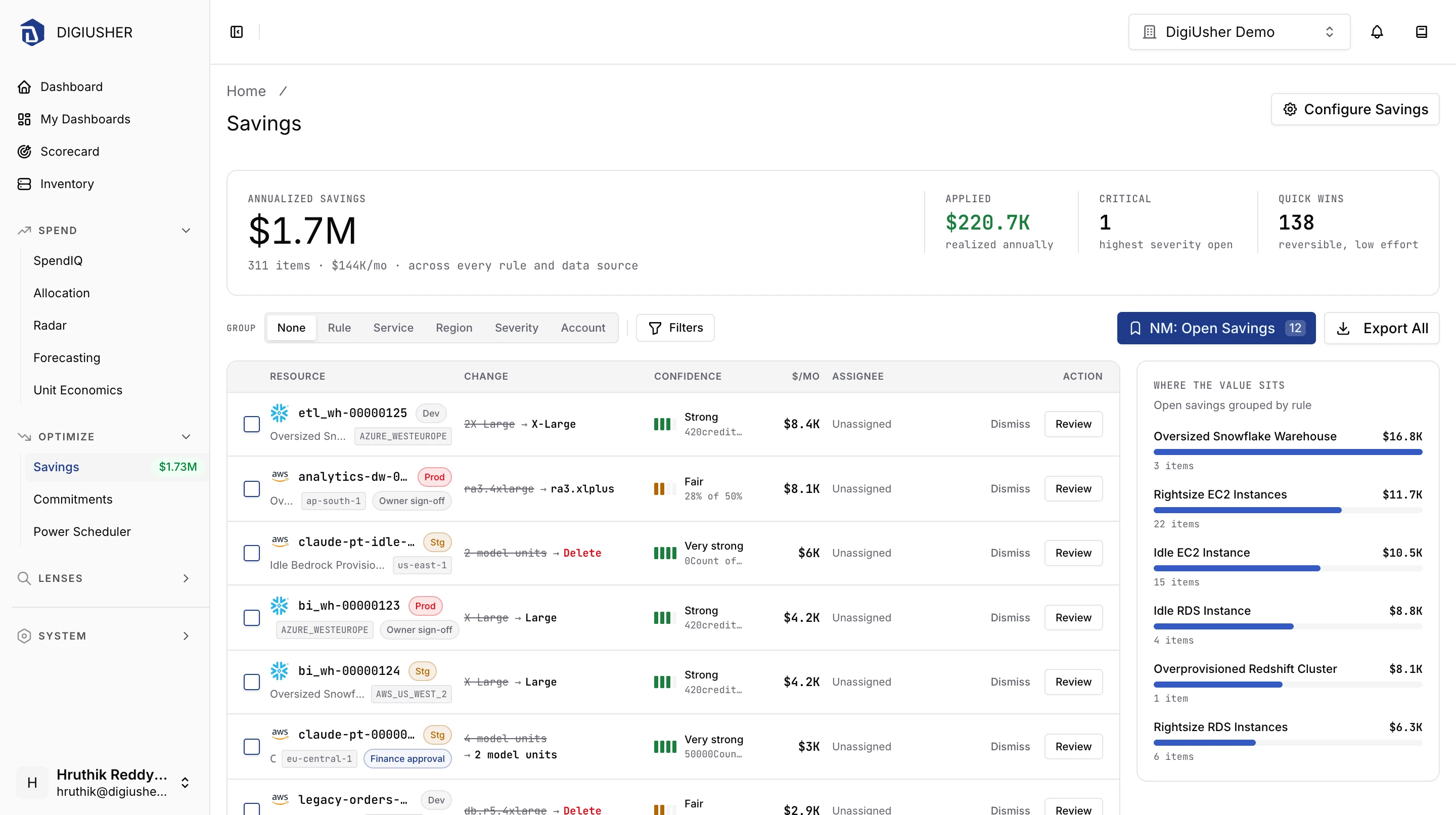
The table sorts by annual saving, from high to low. In the footer, select 25, 50, or 100 rows for each page.
Approval gates
When a change needs an approval, a pill appears beside the resource:
- Finance approval, for commitment decisions and discount decisions.
- Needs planning, for migrations and for coordinated rollouts.
- Owner sign-off, when the resource has a production environment tag.
An opportunity without a gate has no pill.
Confidence
DigiUsher calculates the confidence from the evidence metrics of the opportunity. It does not store the confidence. The value is Very strong, Strong, Fair, or Weak. It depends on the distance between the measured value and the threshold of the rule. The line under the value names the metric with the smallest distance, for example 22% of 60%.
Some rules fire on the state of a resource alone and report no utilization metrics. For these rules, the column gives the severity word with the mark SEV, and the line under it reads resource state.
Managing opportunities
Assignee
Set an owner with the Assignee control in the detail view of a row. You can also set the owner of several rows at the same time, in the bulk toolbar. After you set an owner, the button Review of the row becomes Apply.
Bulk actions
Select rows with their checkboxes. A floating toolbar then appears. It gives the number of selected rows and their total monthly saving and annual saving. It has these actions:
- Assign to sets one owner for the selection.
- Snooze works on open opportunities only.
- Reopen works on snoozed, stale, and applied opportunities.
- Dismiss works on every opportunity that is not dismissed.
- Export writes the selection to a CSV file.
- Apply works on open opportunities only.
The status Applied records that someone made the change. DigiUsher does not run anything in your cloud.
Export
Export All in the toolbar downloads the full filtered result as a CSV file, and not only the page on the screen. The file has columns for the identity, the status, the configuration, the cost, and the saving. It also has a Metric:, a Meta:, and a Tag: column for every key in the exported set.
An export has a limit of 10,000 rows. If your filter matches more rows, DigiUsher exports the rows with the largest savings and gives you a warning. Make the filter narrower.
Opportunity detail
When you select a row, the detail view opens in a side panel. Full page opens the same view as its own page, and you can link to that page.
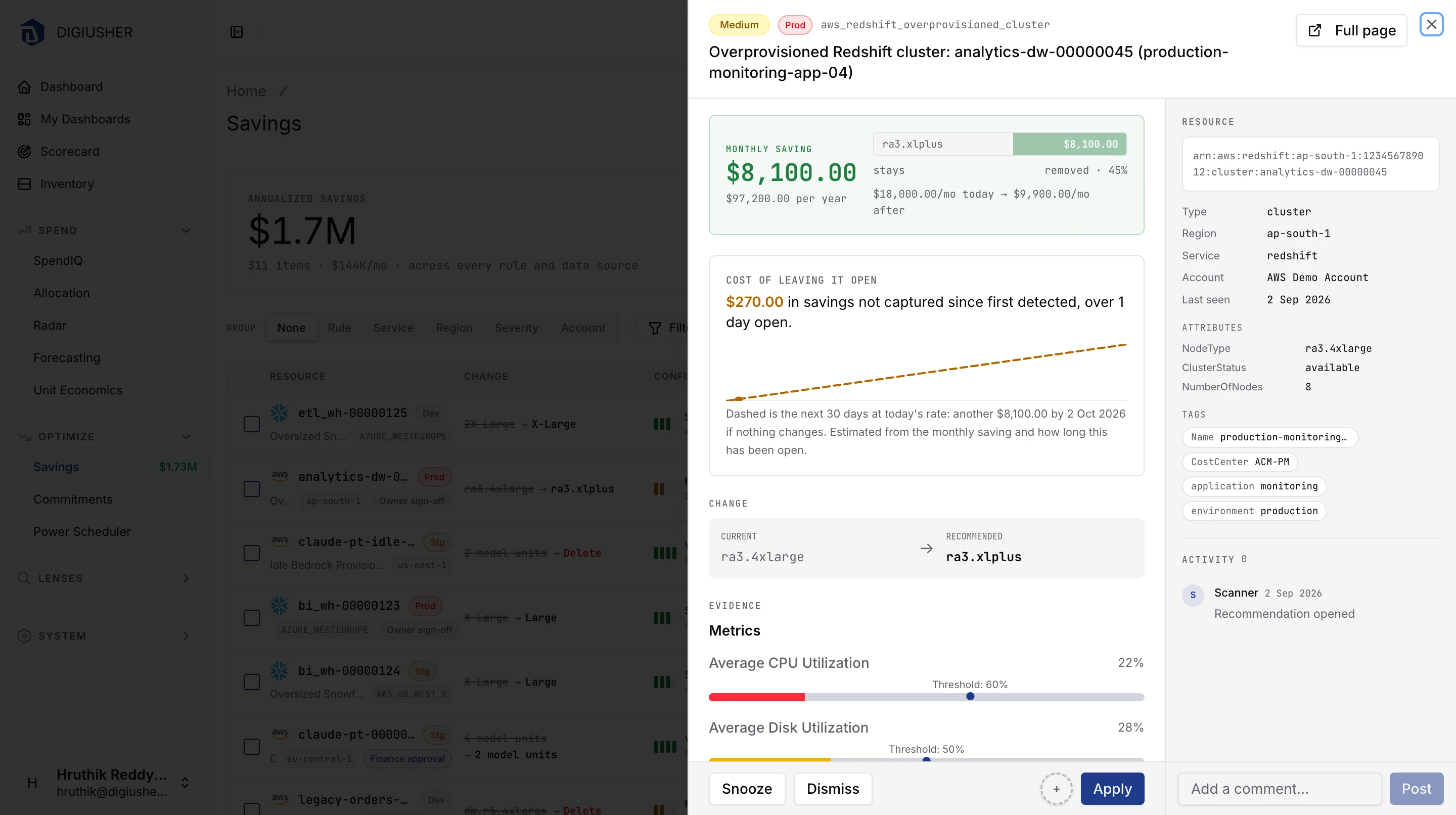
| Section | Contents |
|---|---|
| Monthly saving | Monthly and annual saving, the saving in percent, and the monthly cost of today against the cost after the change |
| Cost of leaving it open | An estimate of the saving that you lose since the detection, and a projection of 30 days at the current rate |
| Change | CURRENT and RECOMMENDED, side by side |
| Evidence | Each metric against its threshold, and then time-series charts of the metrics of the resource, with the threshold in the chart |
| Why this fired | The explanation of the rule, with the criteria that matched |
| Resource | Full resource identifier, and the Type, Region, Service, Account, and Last seen values. Under them, the Attributes and the Tags |
| Activity | The time when the opportunity opened, the changes of the assignment, and the comment thread |
A preventive opportunity has no direct monthly saving, and it says so in place of the saving block. Next month the bill does not fall, but the change stops a future charge.
When other resources match the same rule, the detail view has the action Review as a group. It returns to the list with the filter of that rule.
To add a comment, write it in the footer and click Post. The comment appears in the Activity thread. Teams use this thread to record the reason for a decision.
Status workflow
The footer gives the actions of the current status.
| From | Available actions |
|---|---|
| Open | Apply, Dismiss, Snooze |
| Applied | Reopen |
| Snoozed | Reopen, Apply, Dismiss |
| Stale | Reopen |
| Dismissed | None |
CAUTION: Do not dismiss an opportunity that you need again. A dismissal is final for that detection, and you cannot open the opportunity again. To get it back later, use Snooze.
Dismiss needs a reason. Select one of the given reasons, which are Not applicable, Already optimized, Business constraint, and Inaccurate data. You can also write your own reason. DigiUsher stores the reason on the opportunity and puts it in the export.
Snooze needs a date. It has presets for 1 week, 2 weeks, 1 month, and 3 months. After that date, the opportunity returns to Open by itself.
Apply opens a confirmation. The confirmation gives the objects of the change, the claimed saving, the method of the change, and the reversibility. For a destructive change, you must type DELETE to continue.
What makes an opportunity stale
DigiUsher evaluates every scenario again on a schedule. It closes the opportunities that are not valid any more:
- Resource deleted. The collector does not see the resource for three days.
- Conditions changed. The resource still exists, but the rule does not fire on it any more.
- Commitment deleted. The commitment is not in the inventory any more.
The same pass can also move an opportunity to Applied without a person. This happens for a rule with the tag delete when the resource disappears. It also happens for the other rules when the configuration of the resource matches the recommended value.
To change a status, to set an assignee, and to create a threshold override, you need the manage permission of the organization. A user without this permission sees the opportunity and its evidence, but no actions.
Rules
Rules in the page header opens the scenario catalog. There you see every rule of DigiUsher, and you can change the thresholds of a rule.
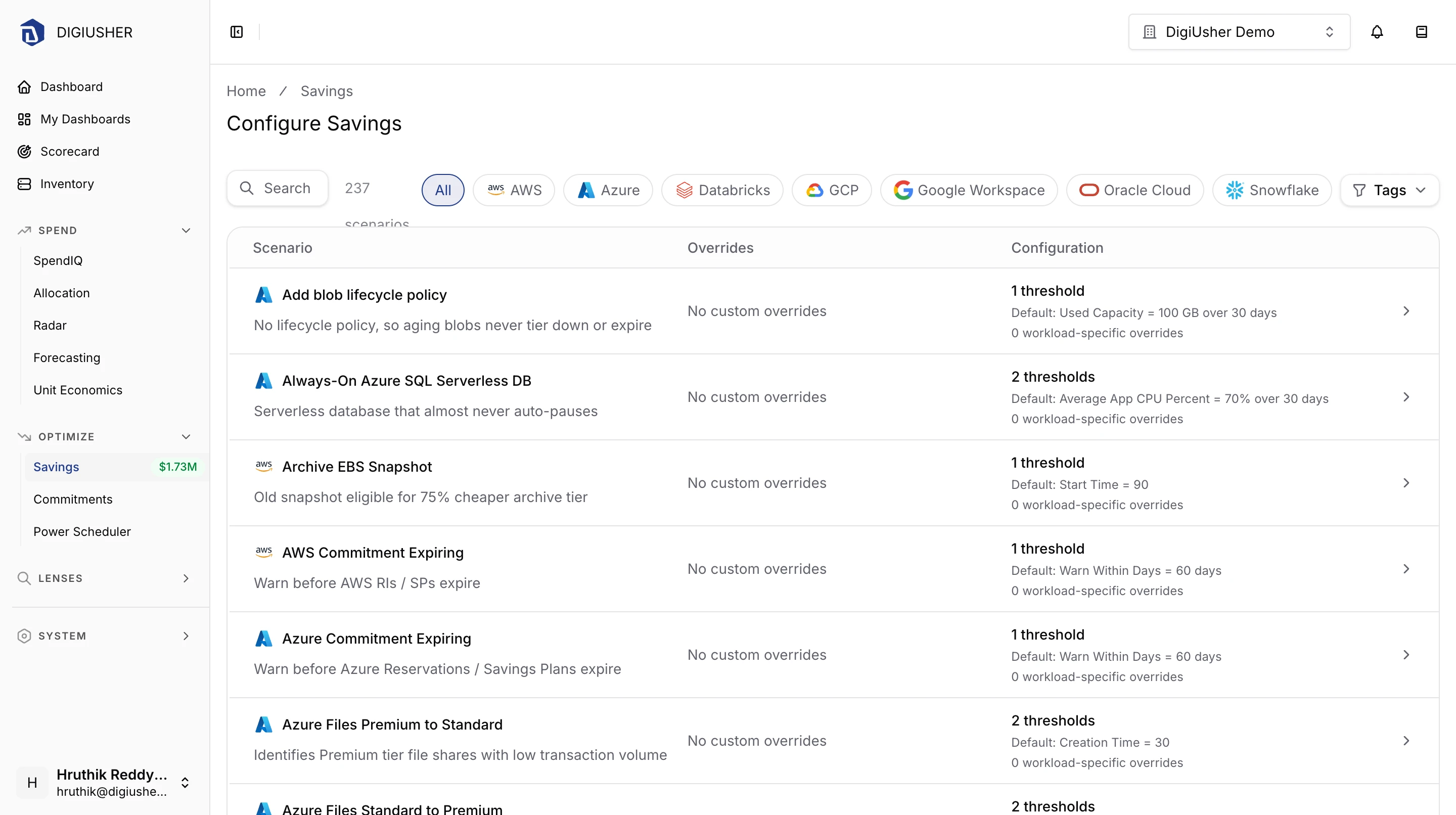
DigiUsher has more than 200 built-in scenarios for these providers:
| Provider |
|---|
| AWS |
| Azure |
| GCP |
| Oracle Cloud |
| Databricks |
| Snowflake |
| Google Workspace |
You can search by name and by description, and filter by provider chip and by tag. The table gives these columns:
| Column | Description |
|---|---|
| Scenario | Provider badge, rule name, and the object of the detection |
| Overrides | Your overrides of the rule, as a summary of each scope. Select a summary to edit it. A rule with fixed logic reads Fixed logic - no overrides |
| Configuration | The number of thresholds of the rule, its first default value and lookback window, and the number of overrides for specific workloads |
Select a row to open its configuration panel. The panel has two tabs: Default Thresholds and Overrides.
Thresholds
Default Thresholds gives each configurable threshold as a trigger condition. A condition has the field, the comparison, and the value. A measured threshold also has the window of the average. Every threshold has an id in the form <kind>:<field>:<qualifier>. The kind gives the object of the comparison:
| Kind | Compares against |
|---|---|
meta | A metadata attribute of the resource, with an operator such as older than days or less than |
metric | A usage measurement, aggregated over a lookback window |
commitment | A plain number for the whole organization |
Some scenarios have no configurable threshold. They have the mark Fixed logic, and they use fixed criteria.
Overrides
An override replaces one or more default threshold values of a scenario, for a scope that you select. Click Add Override and set these three fields:
- Threshold is the threshold of the scenario that you replace.
- Value is the number in place of the default value.
- Lookback (Days) is optional, and it exists for a
metricthreshold only. The value must be between 7 and 90 days. Leave the field empty to keep the window of the scenario.
You can add several threshold overrides to one override set. Each threshold can appear one time in that set.
Apply to specific workloads sets the scope:
| Scope | Effect |
|---|---|
| Both fields empty | The override applies to all workloads of the organization |
| Data Source ID | The override applies to the resources of that connected account only |
| Tag Match | The override applies to the resources with every listed tag key and value only |
To apply an override to the tagged workloads of one data source, set both fields. You can edit and delete an override in the same panel.
A commitment scenario has the scope of the organization. For such a scenario you can override the organization-wide default only. DigiUsher rejects a data source scope and a tag match.
Related
- EC2 Memory Metrics explains how to enable the memory evidence for the rightsizing of EC2 instances.
- MCP Tools Reference explains how to query the savings opportunities from an AI assistant.