 DigiUsher Documentation
My Dashboards
Browse, build, and manage dashboards in DigiUsher. Start from a ready-made persona, cloud-provider, or framework dashboard, or build your own from perspective, KPI, anomaly summary, and forecast widgets.
In My Dashboards, you browse and manage every dashboard of your organization. DigiUsher gives you pre-defined dashboards for common personas and clouds. You can also build a custom dashboard from the views that you need. Open My Dashboards in the left sidebar.
Use My Dashboards when you need to:
- Start from the same set of charts and metrics each time that you open DigiUsher.
- Combine perspectives, KPIs, an anomaly overview, and a spend forecast on one page.
- Give a team, a persona, or a stakeholder the same view.
- Export a dashboard to PDF for offline reading or for distribution.
Browsing Dashboards
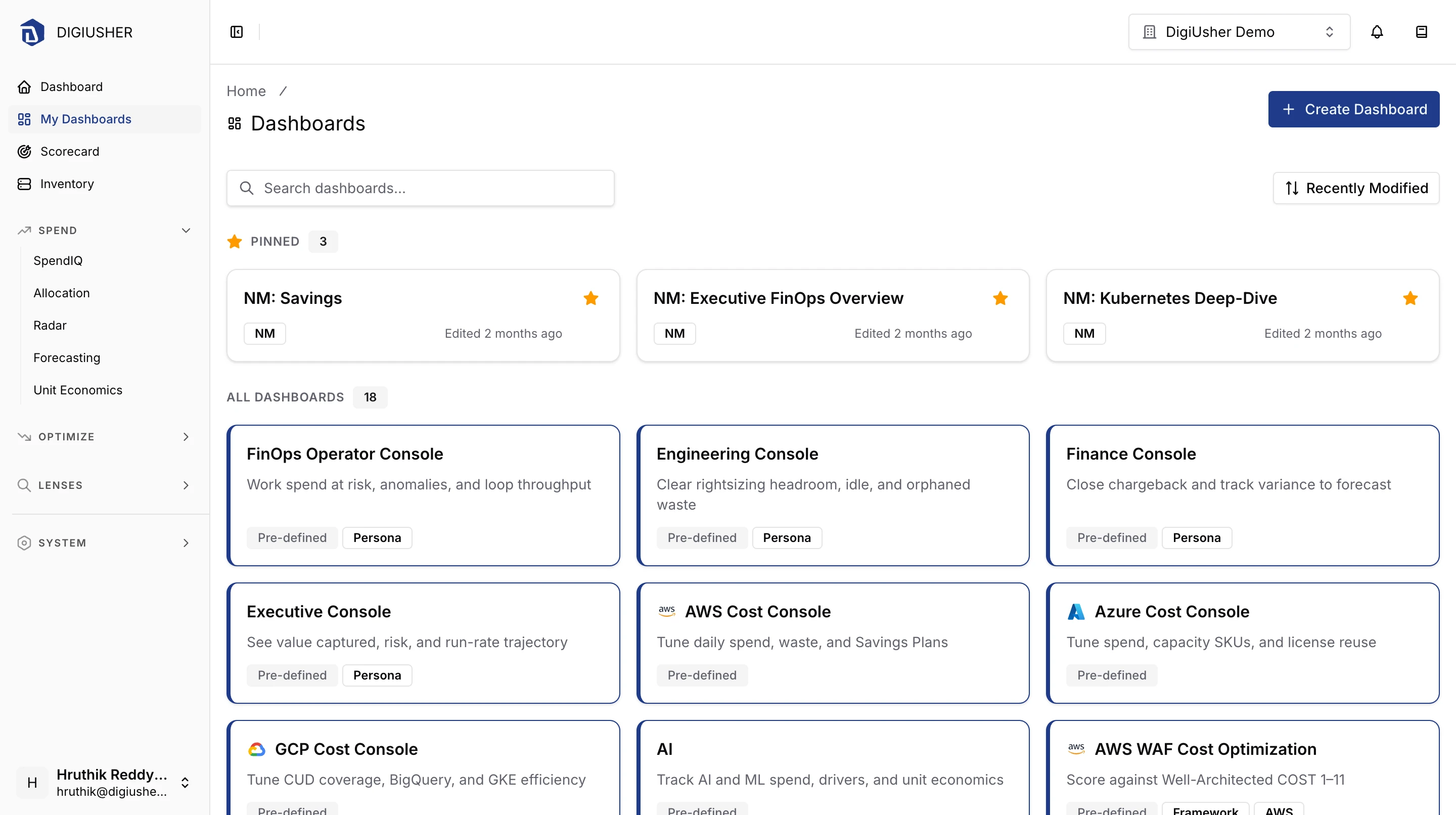
The My Dashboards page shows the pre-defined dashboards and the custom dashboards together, as cards.
- Search by name, description, or tag in the search box at the top.
- Sort by Recently Modified, Name (A-Z), or Name (Z-A).
- Pinned dashboards appear in their own section at the top of the list. Pin a custom dashboard to keep it there.
Each card gives the name, the description, the tags, and the time of the last change.
Pre-defined Dashboards
DigiUsher gives you ready-made dashboards for common personas, clouds, and cost-optimization frameworks. They appear together with your custom dashboards in the browser, and they need no setup.
| Dashboard | What it covers |
|---|---|
| FinOps Operator Console | Work spend at risk, anomalies, and loop throughput. |
| Engineering Console | Clear rightsizing headroom, idle, and orphaned waste. |
| Finance Console | Close chargeback and track variance to forecast. |
| Executive Console | See value captured, risk, and run-rate trajectory. |
| AWS Cost Console | Tune daily spend, waste, and Savings Plans. |
| Azure Cost Console | Tune spend, capacity SKUs, and license reuse. |
| GCP Cost Console | Tune CUD coverage, BigQuery, and GKE efficiency. |
| AI | Track AI and ML spend, drivers, and unit economics. |
| AWS WAF Cost Optimization | Score against Well-Architected COST 1–11. |
| Azure WAF Cost Optimization | Score against WAF cost checks CO:01–CO:14. |
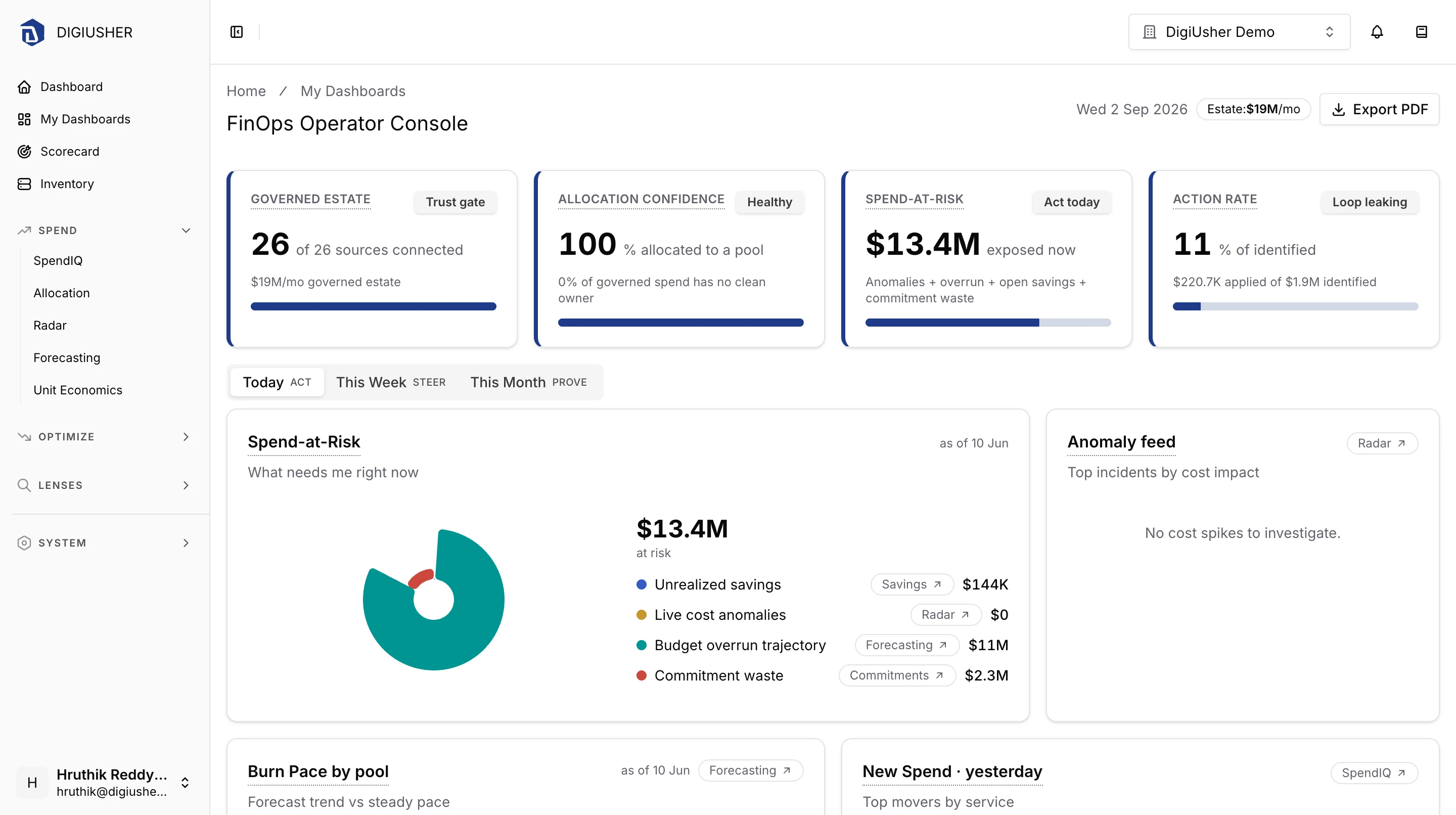
A persona console reads every connected source. It works with one cloud and with several clouds. A provider dashboard belongs to one connector family. It appears in the browser only when you connect at least one matching data source:
- The AWS Cost Console and the AWS WAF Cost Optimization dashboard need an AWS source.
- The Azure Cost Console and the Azure WAF Cost Optimization dashboard need an Azure source.
- The GCP Cost Console needs a GCP source.
- The AI dashboard needs a source from any AI vendor.
Creating a Custom Dashboard
Click Create Dashboard at the top right of the My Dashboards page.
Name and describe the dashboard
- The Name is necessary. It can have up to 255 characters.
- The Description is optional. It can have up to 1000 characters.
- Add up to 20 tags. The tags make the dashboard easier to find in a search. Each tag can have up to 100 characters.
Optionally add an initial widget
In the Widget section of the create form, you can select a Perspective as the first widget. For a billing perspective, select the Cost Metric: Billed Cost, Effective Cost, or List Cost. You can also leave this section empty and add the widgets later.
Create
Click Create Dashboard. The detail page of the new dashboard opens. There you can add more widgets, change the date range, and configure each widget.
Widgets
A dashboard can hold up to 20 widgets. There are four widget types.
| Widget | What it shows | Views |
|---|---|---|
| Perspective | A saved perspective as a chart, a table, or a scorecard. | The views depend on the perspective type. The next table gives them. |
| KPI | Up to 8 KPI definitions, grouped by category. | Scorecard. A KPI widget has no chart type control. |
| Anomaly Summary | A summary of the anomalies in the date range of the dashboard. | Scorecard (default), Donut, Stacked Bar, Table. It follows the dashboard date range. |
| Forecast | Projected spend of the whole organization or of one showback pool. | Area Chart (default), Scorecard. |
You can build a perspective widget from any saved perspective. The views depend on the perspective type:
| Perspective type | Views | Default |
|---|---|---|
| Billing | Area Chart, Stacked Bar, Grouped Bar, Donut, Table, Scorecard | Area Chart |
| Recommendations | Stacked Bar, Grouped Bar, Donut, Table, Scorecard | Table |
| Cost Allocation | Stacked Bar, Donut, Table, Scorecard | Table |
| Unit Economics Formula | Area Chart, Grouped Bar, Table, Scorecard | Area Chart |
| Commitments | Table, Scorecard | Table |
| Kubernetes Expenses | Area Chart, Stacked Bar, Grouped Bar, Donut, Table, Scorecard | Table |
| Kubernetes Rightsizing | Table, Scorecard | Table |
Adding a Widget
On the detail page of a dashboard, click Add Widget in the action bar at the top right.
Choose the widget type
Select Perspective, KPI, Anomaly Summary, or Forecast.
Give it an optional title
If you leave the title empty, the widget uses the name of the perspective. For the other widget types it uses a default title, such as KPI Widget, Anomaly Summary, or Forecast Widget.
Configure the widget
- For a Perspective widget, select a perspective. For a billing perspective, also select a Cost Metric: Billed Cost, Effective Cost, or List Cost.
- For a KPI widget, select up to 8 KPIs in the picker. The KPIs are grouped by category, and you can search them by name and by description.
- For an Anomaly Summary widget, select a View: Scorecard, Donut, Stacked Bar, or Table. The widget uses the date range of the dashboard. You can change the size of the widget after you add it.
- For a Forecast widget, select a View (Area Chart or Scorecard) and a Scope (Organization or Showback Pool). If you select Showback Pool, select the pool in the Showback Pool picker.
Add the widget
Click Add Widget. The widget appears at the end of the dashboard. A Perspective, KPI, or Anomaly Summary widget starts at the size Medium. A Forecast widget starts at Large in the Area Chart view, and at Small in the Scorecard view.
Widget Controls
Each widget has a menu in its header. You configure the widget in this menu.
| Control | Available for | Options |
|---|---|---|
| Chart Type | Perspective, Anomaly Summary, and Forecast widgets | The views in the widget tables. For a perspective widget, the perspective type limits the views. |
| Widget Size | All widgets except KPI | Small, Medium, Large. On a wide screen, these sizes use 4, 6, and 12 columns. |
| Metric | Billing perspective widgets | Billed Cost, Effective Cost, List Cost. |
| Remove Widget | All widgets | Removes the widget after a confirmation. |
Reordering Widgets
Open the actions menu of the dashboard, which is the ⋯ button, and select Reorder Widgets. Drag the widgets into the order that you want, then save. This action needs a dashboard with at least two widgets.
Date Range
The global date range picker at the top of a dashboard applies to the widgets on the page. Perspective widgets, which include the unit economics formula perspectives, and Anomaly Summary widgets follow the selected range.
Dashboard Actions
The actions menu (⋯) on the detail page has these actions:
- Pin Dashboard and Unpin Dashboard put the dashboard in the Pinned section of the My Dashboards browser, or remove it from that section. You can pin a custom dashboard.
- Reorder Widgets opens the reorder sheet. It needs two or more widgets.
- Delete Dashboard removes the dashboard and its widget configuration permanently. You must type the name of the dashboard to start the deletion.
When a dashboard has at least one widget, the action bar also has an Export PDF action.
Deletion is permanent
CAUTION: Do not delete a dashboard that you still need. The deletion also removes the widget configuration, and you cannot undo it. To get the dashboard back, you must create it again.