 DigiUsher Documentation
Inventory
Browse every discovered cloud resource with month-to-date cost, ownership tags, waste flags, and utilization metrics in one searchable table.
Inventory lists the resources that DigiUsher finds in your connected cloud accounts. For each resource, it adds the cost of the current month from the billing data. Open Inventory in the left sidebar, above the Spend section.
Use Inventory when you need to:
- Find one resource by its ID and see its cost of this month.
- Find the owner of a resource from the tags of that resource.
- Find idle resources and orphaned resources, and the savings that you get when you delete them.
- See where the spend concentrates by type, service, region, or resource.
What is included
The resource discovery of DigiUsher fills the inventory. It scans your AWS, Azure, GCP, and Oracle Cloud data sources. For each resource, it records the identity, the tags, and the provider metadata. A resource stays in the inventory while a scan finds it in the last 14 days.
DigiUsher adds the costs of the current month from your billing data and converts them to the currency of your organization. It keeps three values for each resource: Billed, Effective, and List. A resource with no charges in this month shows a cost of zero.
Some AWS linked accounts come automatically from the cost report of a payer account. These accounts have no credentials of their own, so the inventory does not contain their resources. Their costs still appear in the Spend views.
Filters and search
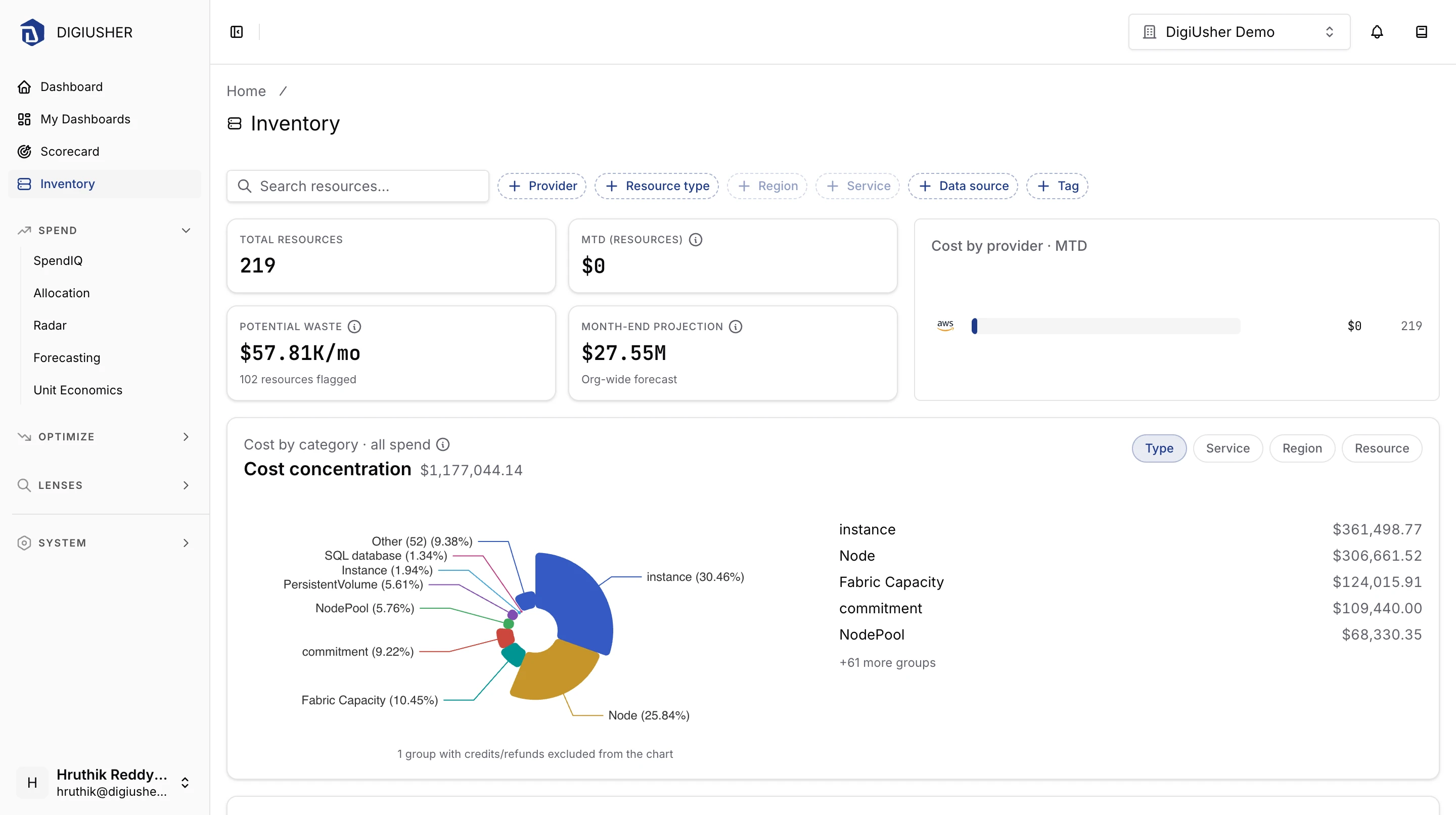
The filter bar is at the top of the page. The URL contains every filter, so you can copy the link to share a filtered view. When you change a filter, the table returns to the first page of the results.
| Control | Behavior |
|---|---|
| Search resources… | Matches the full resource ID or the short resource ID. The match ignores the case. Enter at least two characters. |
| Provider | Multi-select. Lists only the providers that you connect. |
| Resource type | Single-select from the types in your organization. |
| Region | Single-select. Available only after you select a resource type. The options belong to that type. |
| Service | Single-select. Available only after you select a resource type. The options belong to that type. |
| Data source | Multi-select of your connected data sources. |
| Tag | Add one or more key:value pairs. Pairs with the same key match any of their values. Different keys must all match. |
To reset every filter, click Clear all. Some SaaS vendors and AI vendors report no region. A region filter therefore removes all their resources.
Summary
Four KPI cards stand beside a bar chart with the title Cost by provider · MTD:
- Total resources gives the number of resources that match the current filters.
- MTD (resources) gives the net cost of those resources this month, in the currency of your organization. If a provider bills in a currency without an exchange rate, a note under the cards gives the amounts that DigiUsher excludes from this total.
- Potential waste gives the total monthly savings of the open idle recommendations and orphaned recommendations that match the filtered resources. It also gives the number of these resources.
- Month-end projection gives the forecast of the end-of-month spend of the whole organization. This value ignores the active filters, and a label says so.
The provider chart sorts the connected providers by the cost of this month and gives the number of resources of each provider. A warning icon marks a provider with spend that DigiUsher cannot convert to your currency.
Cost concentration
The Cost concentration panel shows where the filtered spend concentrates. Use the control in the panel header to group by Type, Service, Region, or Resource. The donut shows the eight largest groups and puts the other groups in one Other slice. The list beside the donut gives the five largest groups.
This panel uses the expense data, not the resource list. It therefore contains cost without a discrete resource, and its total can differ from MTD (resources). The donut excludes credits and refunds, and a note gives the number of groups that DigiUsher removes. The list still contains them. Tag filters do not apply to this panel.
Resources table
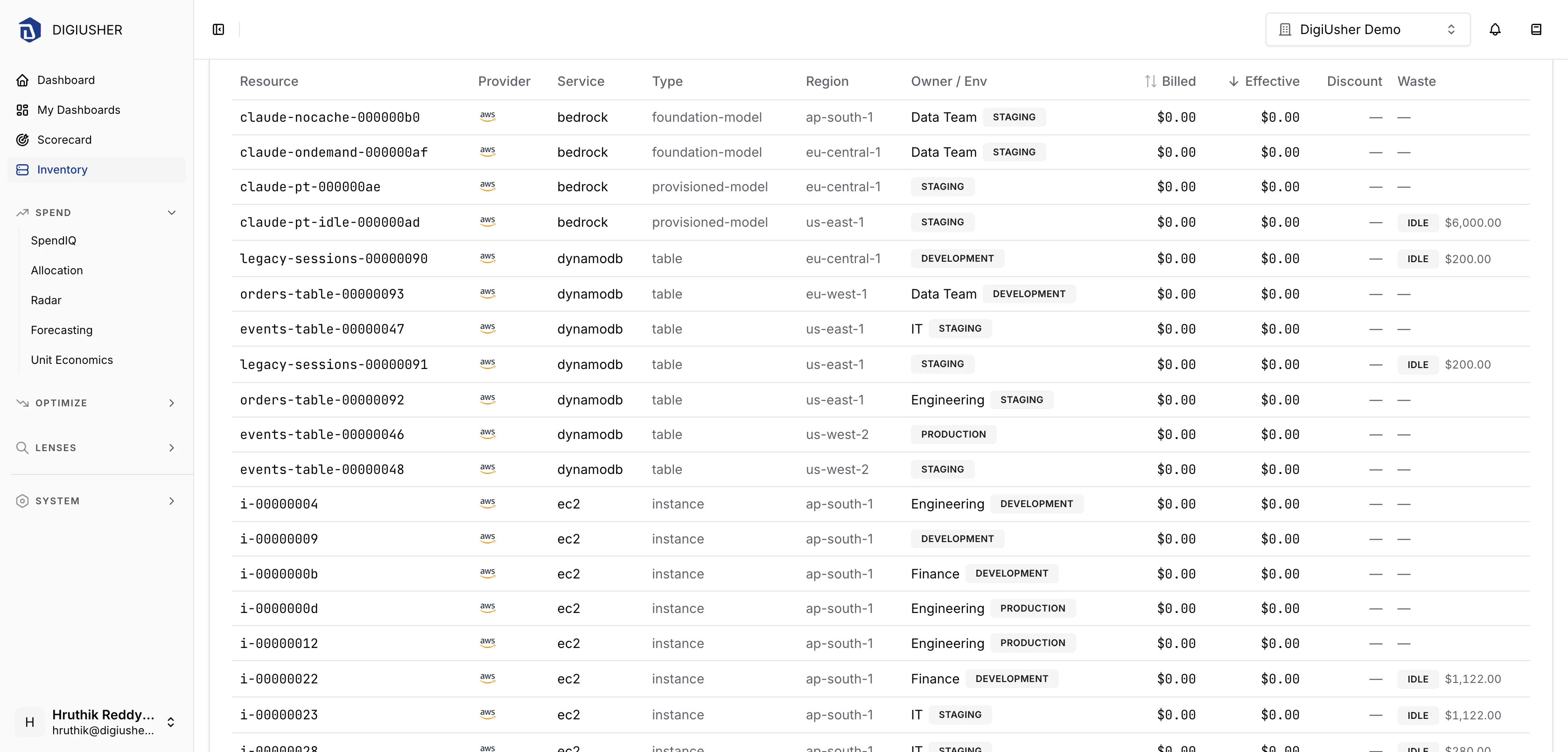
The Resources table gives 25 resources for each page. By default it sorts by the Effective cost, from high to low. Use Previous and Next to go through the pages.
| Column | Description |
|---|---|
| Resource | Short resource ID. Hold the pointer on it to see the full ID |
| Provider | Cloud provider badge |
| Service | Provider service name, such as ec2 or compute |
| Type | Resource type, such as instance or storage_account |
| Region | Provider region. Empty for a global resource or a resource without a region |
| Owner / Env | Owner and environment from the tags |
| Billed | Billed cost of this month. Click the header to sort |
| Effective | Effective cost of this month. Click the header to sort. A negative value gets a Refund badge |
| Discount | −N% vs list when the effective cost differs from the list price. An info icon appears when the billed cost differs from the effective cost, which happens with amortized commitments or blended rates |
| Waste | An Idle or Orphaned badge with the possible monthly savings, when an open recommendation matches the resource |
Owner / Env column
DigiUsher reads the owner from the tags of the resource. The match on the tag key ignores the case:
| Shown as | Tag keys checked, in order |
|---|---|
| Owner | owner, owned-by, owned_by |
| Team (used when no owner tag exists) | team, squad, group |
| Environment chip | environment, env, stage |
A dash means that the resource has none of these tags.
Resource detail
Click a row to open the detail page of the resource. The breadcrumb returns you to Inventory.
- The header gives the short resource ID and the full resource ID, the provider badge, and chips for the service, the type, the region, and, on Azure, the resource group. It also gives the creation date and the date of the last scan that found the resource.
- Billed, Effective, and List give the three cost values of this month, with the discount against the list price when there is one.
- Consumption gives the usage of this month for each unit, with the quantity and the effective cost for one unit.
- Tags gives every tag of the resource, sorted by key.
- Resource Metrics gives the utilization charts, such as CPU Utilization, Memory Utilization, Network In/Out, Disk Read/Write, Database Connections, and the storage metrics. The charts depend on the resource type. These are the same charts as the charts of the recommendations. If DigiUsher has no metrics yet, the panel says so.
- Provider attributes gives the metadata from the discovery, such as the shape or the size of an instance.
The cost, consumption, and tag cards appear when you open a resource from the Inventory table. If you open the URL of a detail page directly, the page gives the utilization metrics only.