 DigiUsher Documentation
Connecting an Azure account
Overview
To connect your Azure environment to DigiUsher, you create an App Registration. It needs read-only access to your cost data, usage data, and resource metadata. This page gives the permissions, the reason for each permission, and the credentials that you enter in DigiUsher.
Supported Agreement Types
| Agreement Type | Terraform Example | Notes |
|---|---|---|
| Enterprise Agreement (EA) | terraform.tfvars.scenario1-ea-billing-account | Billing data of the whole organization. DigiUsher recommends this type for most enterprises. |
| EA — Enrollment Account | terraform.tfvars.scenario2-ea-enrollment-account | One enrollment account of the EA only (billing_scope_level = "enrollment_account"). |
| Microsoft Customer Agreement (MCA) | terraform.tfvars.scenario3-mca | A colon (:) in the billing account ID identifies an MCA. |
| MCA — Invoice Section | terraform.tfvars.scenario3-mca | The same file as MCA. Set billing_scope_level = "invoice_section", and also billing_profile_id and invoice_section_id. |
Summary of Access Required
| Component | Details |
|---|---|
| Identity | Azure App Registration (DigiUsherApp). It is a service principal, without an interactive login |
| Authentication | Client secret. DigiUsher recommends an expiry of 24 months |
| Access level | Read-only. The Reader role at the level of the Management Group |
| Scope | All subscriptions under the root Management Group |
| Billing | FOCUS cost export from your billing scope: EA, MCA, or MPA |
| Data access | Storage Blob Data Reader on the cost export storage account only |
| Capability | What It Provides |
|---|---|
| Billing data | Cost analytics, chargeback and showback, budgeting, forecasting, anomaly detection |
| Resource inventory | Asset discovery, idle resource detection, tag-based cost allocation |
| Optimization recommendations | Reservation and Savings Plan analysis, idle resource cleanup |
| Utilization metrics | Resource usage for rightsizing analysis |
DigiUsher cannot create, change, or delete an Azure resource. The only exception is the optional Terraform flag enable_power_scheduler, which is off by default. This flag creates a custom role that can start and deallocate virtual machines.
Use Terraform for the fastest setup
DigiUsher recommends the Terraform configuration. It does the full setup, and it makes the maintenance simpler.
Terraform Repository: https://github.com/digiusher/digiusher-iac/
If the policies of your organization need a setup by hand, use the manual steps on this page.
Prerequisites
Information to Gather
| Item | How to Find |
|---|---|
| Tenant ID | Azure Portal > Microsoft Entra ID > Overview |
| Billing Account ID | Cost Management + Billing > Billing scopes |
| Subscription ID | A subscription to host the storage account for cost exports |
Roles Required by the Person Performing Setup
| Role | Why |
|---|---|
| Global Administrator or Application Administrator | To create the App Registration and assign IAM roles |
| Enterprise Administrator (EA) or Billing account owner (MCA) | To assign billing roles and create cost exports at billing scope |
| Subscription Owner | To create storage resources for cost exports |
If you do not know whether you have these billing roles, or at which level, read Check Your Permission Level.
Check Your Permission Level
DigiUsher reads the cost data from a FOCUS export at your billing scope. For the data of the whole organization, create the export at the top-level billing scope. This scope is the EA billing account, which Azure calls the enrollment, or the MCA billing account.
Azure also lets you create an export at a lower scope, such as an EA enrollment account, an MCA billing profile, an invoice section, or one subscription. An export at a lower scope contains the spend of that scope only, and Azure gives no warning. Before you start, make sure that you know the level of your billing access.
1. Identify your agreement type
- Go to Cost Management + Billing → Billing scopes.
- Read the column Billing account type:
- Enterprise Agreement: use the EA steps on this page.
- Microsoft Customer Agreement: use the MCA steps on this page.
- Microsoft Online Services Program, which is pay-as-you-go: DigiUsher does not support it. A FOCUS export needs EA or MCA.
You can also use the Azure CLI:
az billing account list --query "[].{Name:displayName, ID:name, Type:agreementType}" -o tableQuick tell
An MCA billing account ID contains a colon (:), for example da605be5-...:a04cc649-..._2019-05-31. An EA enrollment number is a plain number, for example 123456.
2. Check your role and its scope
- Go to Cost Management + Billing → Billing scopes and select your EA billing account.
- Open Access control (IAM) and find your user.
- Top level, which you need: Enterprise Administrator on the billing account, which Azure calls the enrollment. With this role you can give the billing role
Cost Management ContributortoDigiUsherApp, and you can create an export for all subscriptions. - Lower level: Department Administrator or Account Owner. You can create exports and give roles inside that department or enrollment account only. The export therefore contains those subscriptions only.
- No enrollment access: if Billing scopes shows subscriptions only, and no EA billing account, you have no access at the level of the enrollment. Ask your Enterprise Administrator.
What if I only have lower-level access?
You can connect at a lower scope. The types EA — Enrollment Account and MCA — Invoice Section in Supported Agreement Types do this. The cost export then contains the spend of that scope only, and DigiUsher does not see the rest of your organization. For the data of the whole organization, ask your Enterprise Administrator on EA, or your Billing account owner on MCA. That person can do the setup, or give you the top-level access.
Network & Email Access (For Regulated Environments)
If your organization restricts outbound internet access or email domains, make sure that these two items are in place before you start:
- Domain allowlist. Add
*.digiusher.comto the allowlist of your network and your firewall. The users of your organization can then open the DigiUsher platform in their browsers. - Email allowlist. Add
digiusher.comas a permitted sender domain in your email security gateway. DigiUsher sends onboarding confirmations, alerts, and reports from@digiusher.comaddresses.
Option A: Terraform (Recommended)
The DigiUsher Terraform configuration does the full setup.
git clone https://github.com/digiusher/digiusher-iac.git
cd digiusher-iac/azure
Copy the example file of your agreement type. The section Supported Agreement Types gives the file names:
# Pick ONE of the following:
cp terraform.tfvars.scenario1-ea-billing-account terraform.tfvars     # EA — Billing Account
cp terraform.tfvars.scenario2-ea-enrollment-account terraform.tfvars  # EA — Enrollment Account
cp terraform.tfvars.scenario3-mca terraform.tfvars                    # MCA — Billing Account or Invoice Section

# Edit terraform.tfvars with your values.
# For an MCA invoice section, set billing_scope_level = "invoice_section"
# and fill in billing_profile_id and invoice_section_id.
terraform init
terraform plan
terraform apply
Terraform Feature Flags
| Variable | Default | Description |
|---|---|---|
enable_cost_exports | true | Creates the storage account, the container, and the FOCUS cost export |
enable_reservations_access | true | Gives Reservations Reader and Savings Plan Reader at the level of the tenant |
target_subscription_ids | [] (all) | Limits the Reader role to selected subscriptions, in place of the root Management Group |
enable_power_scheduler | false | Creates the custom role DigiUsher Power Scheduler. This role can start and deallocate virtual machines (Microsoft.Compute/virtualMachines/start/action, deallocate/action, and read). It is the only write access of the configuration. Keep it off when you do not use the power scheduling of virtual machines. |
The digiusher-iac README is the full Terraform documentation. It gives all parameters and the troubleshooting steps.
Option B: Manual Setup
Note
The manual steps on this page are the Enterprise Agreement (EA) setup in the Azure Portal. For MCA, for MPA and CSP, and for the other billing types, use the Terraform option.
Use these steps for a setup in the Azure Portal.
Create App Registration
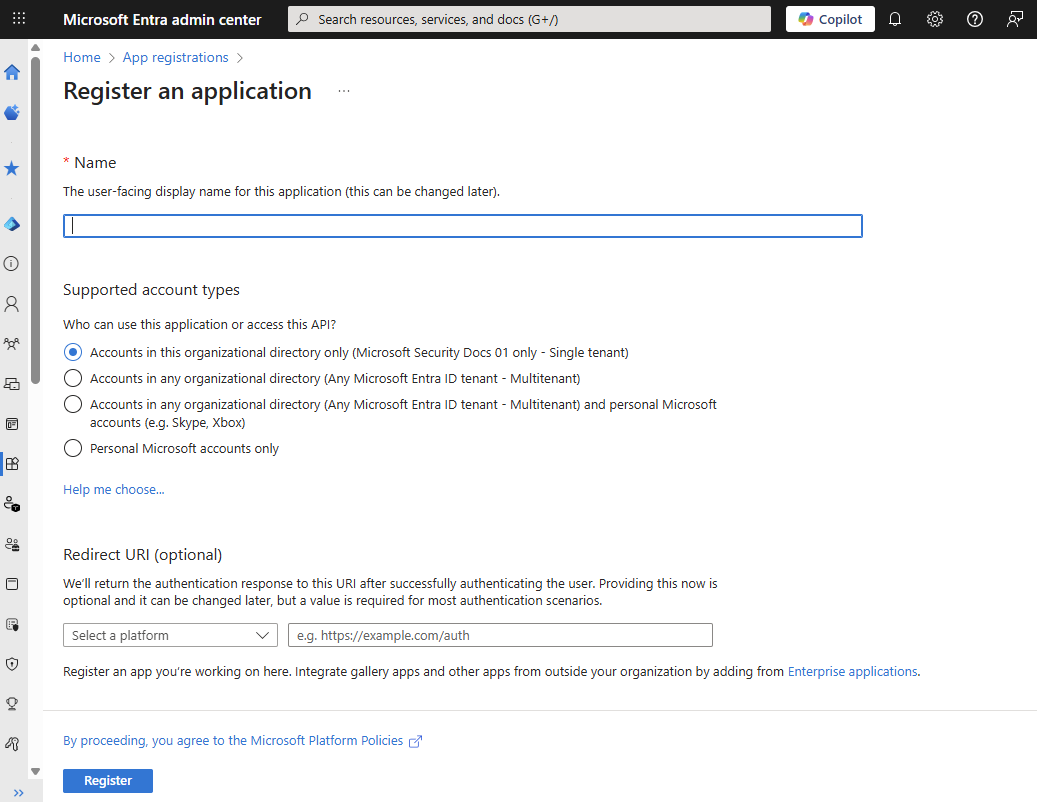
- Go to Azure Portal → Microsoft Entra ID → App registrations
- Click New registration
- Configure:
- Name:
DigiUsherApp - Supported account types: "Accounts in this organizational directory only"
- Name:
- Click Register
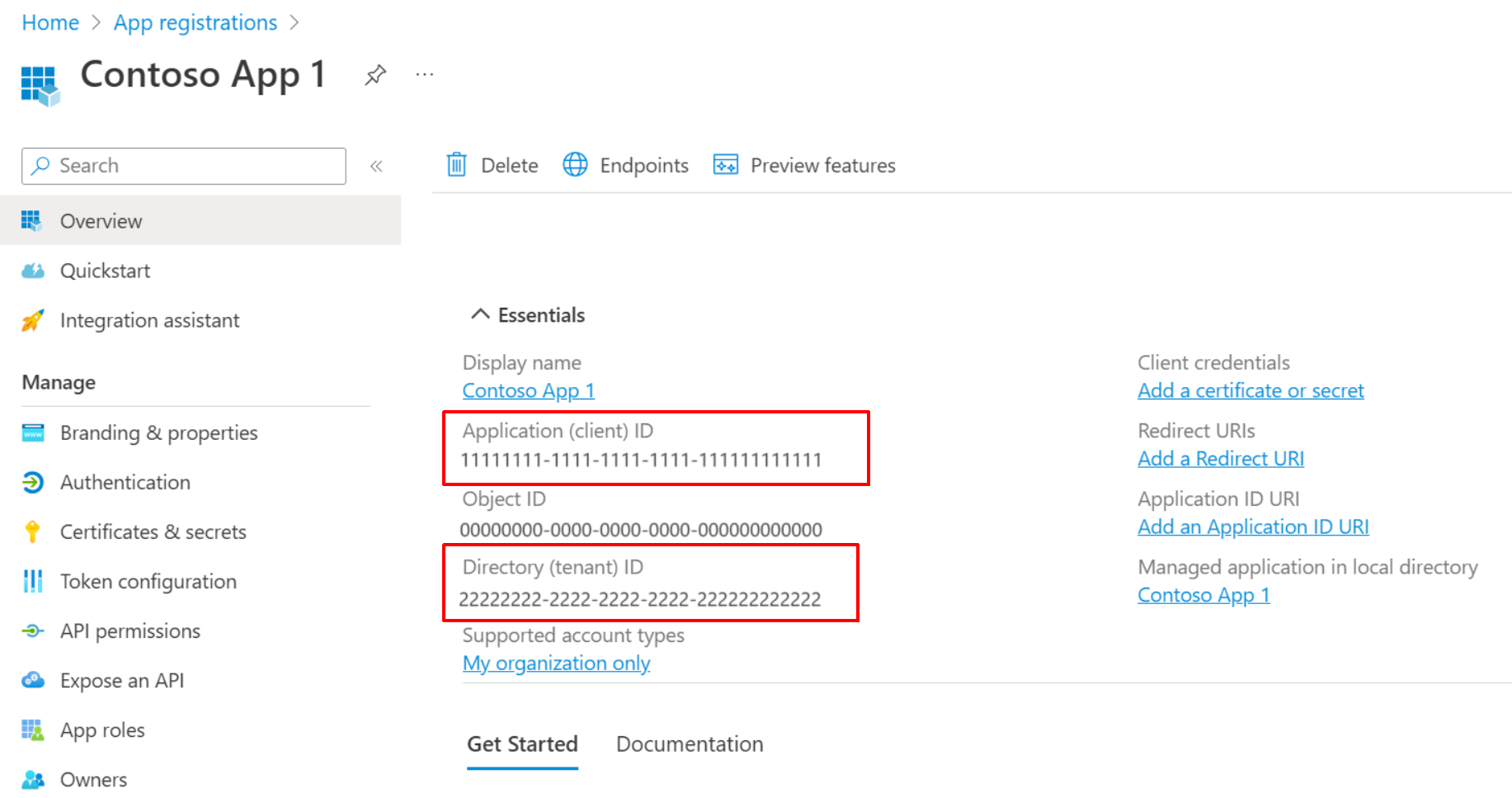
- Note down:
- Application (client) ID
- Directory (tenant) ID
Create Client Secret
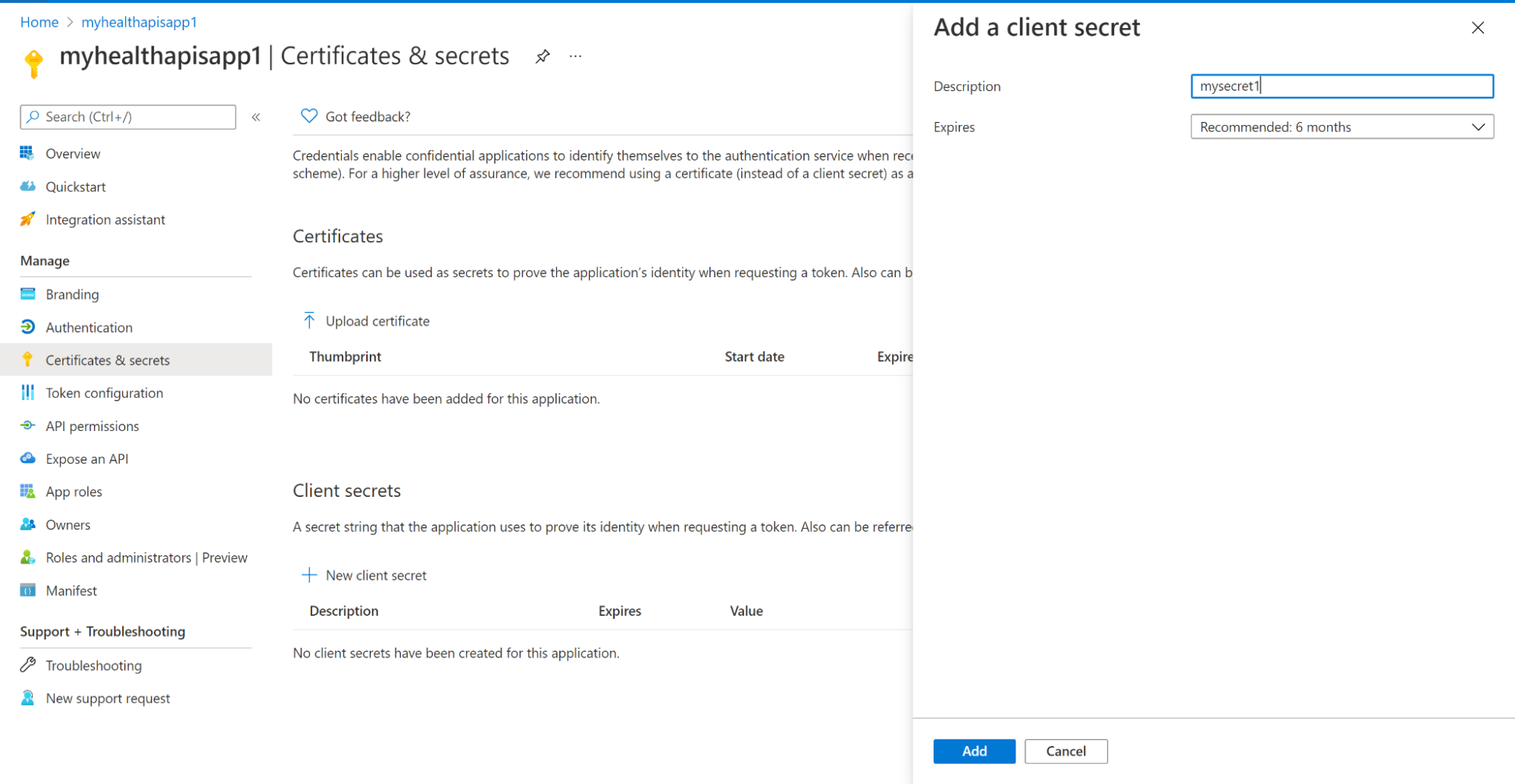
- In your app registration, go to Certificates & secrets
- Click New client secret
- Configure:
- Description:
DigiUsher secret - Expires: 24 months (recommended)
- Description:
- Click Add
- Copy the Value immediately. Azure does not show it again.
Assign Reader Role
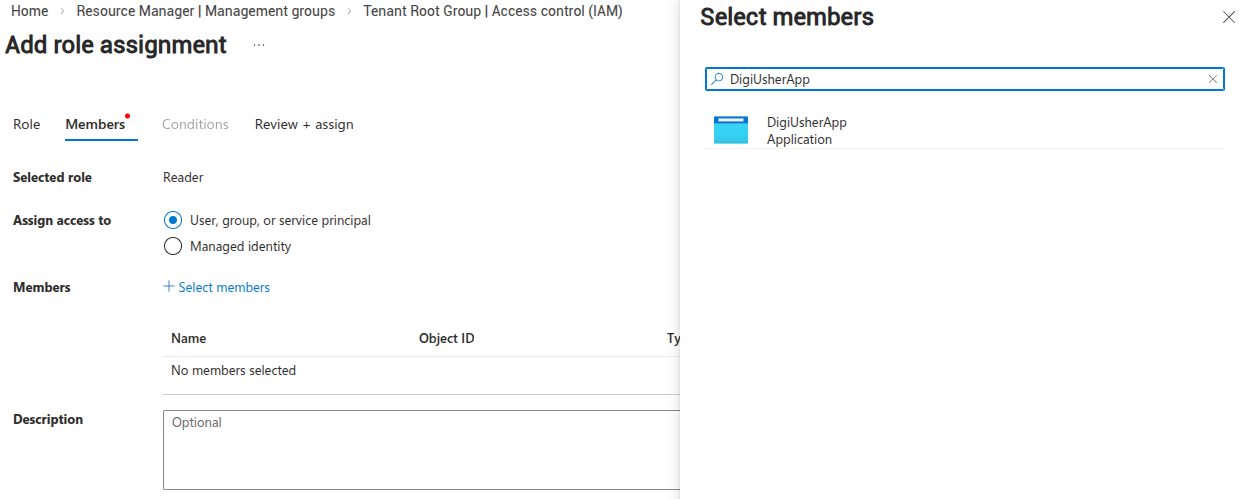
- Go to Management Groups → Select your root management group
- Click Access Control (IAM) → Add → Add role assignment
- Configure:
- Role:
Reader - Members: Search for and select
DigiUsherApp
- Role:
- Click Review + assign
Note
A role at the level of the Management Group covers the subscriptions of today and every new subscription.
Create Storage Account for Exports
4a. Create Resource Group
- Go to Resource Groups → Create
- Configure:
- Name:
digiusher-billing-exports - Region: East US, or another region
- Name:
- Click Review + create → Create
4b. Create Storage Account
- Go to Storage accounts → Create
- On the Basics tab:
- Resource group:
digiusher-billing-exports - Storage account name: a unique name with lowercase letters and digits only, for example
digiusherexports<yourcompany> - Region: Same as resource group
- Performance: Standard
- Redundancy: LRS (Locally-redundant storage)
- Resource group:
- On the Networking tab:
- Public network access: Enable
- Public network access scope: Enable from all networks
- Click Review + create → Create
4c. Create Container
- Open your new storage account
- Go to Containers → + Container
- Configure:
- Name:
digiusher-focus-exports - Anonymous access level: Private (no anonymous access)
- Name:
- Click Create
4d. Grant Storage Access
- On the storage account, go to Access Control (IAM) → Add → Add role assignment
- Configure:
- Role:
Storage Blob Data Reader - Members: Search for and select
DigiUsherApp
- Role:
- Click Review + assign
Create FOCUS Cost Export
- Go to Cost Management + Billing → Exports
- Make sure that you are at the Billing Account scope, and not at a subscription scope
- Click Add
- Select FOCUS cost and usage (preview)
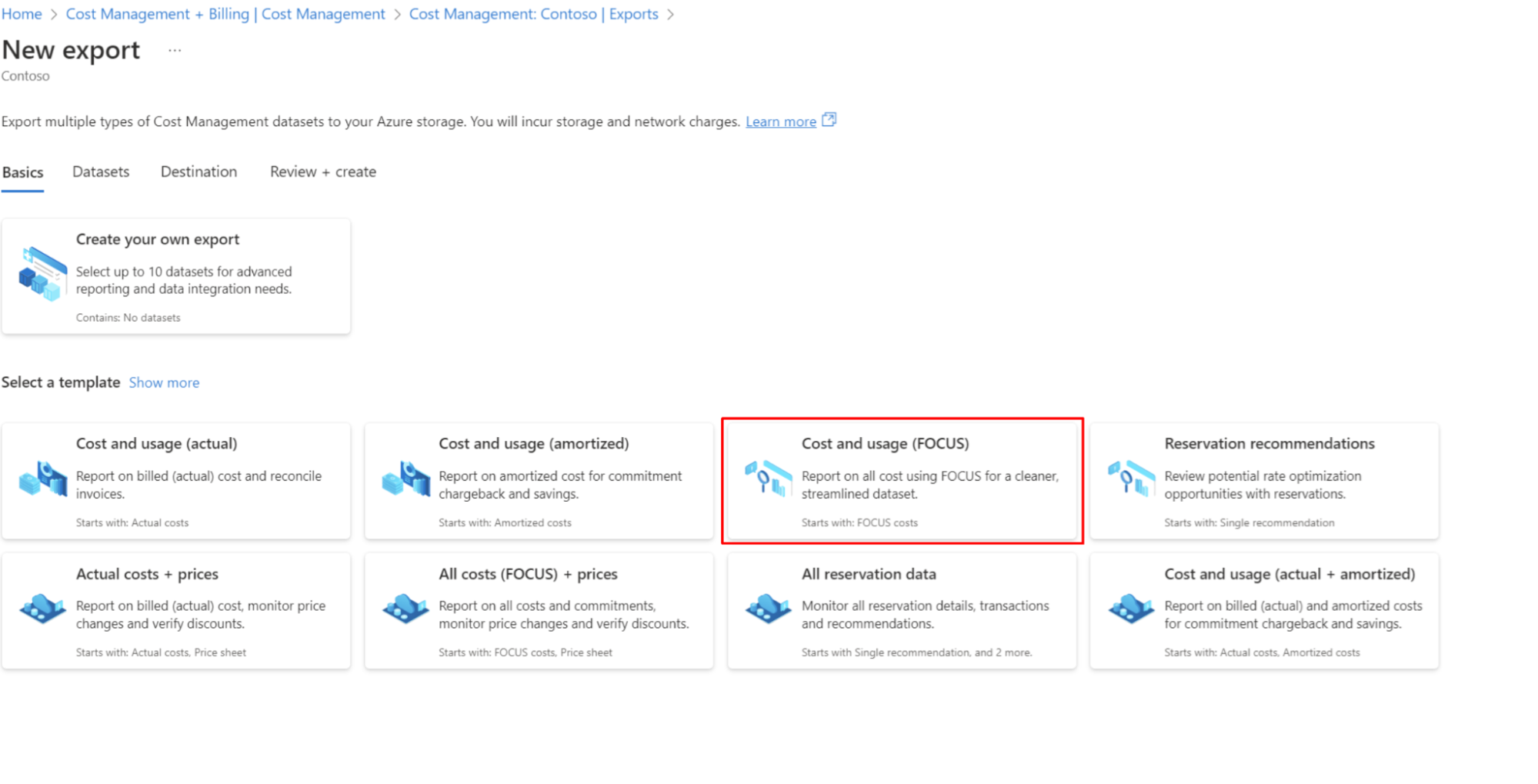
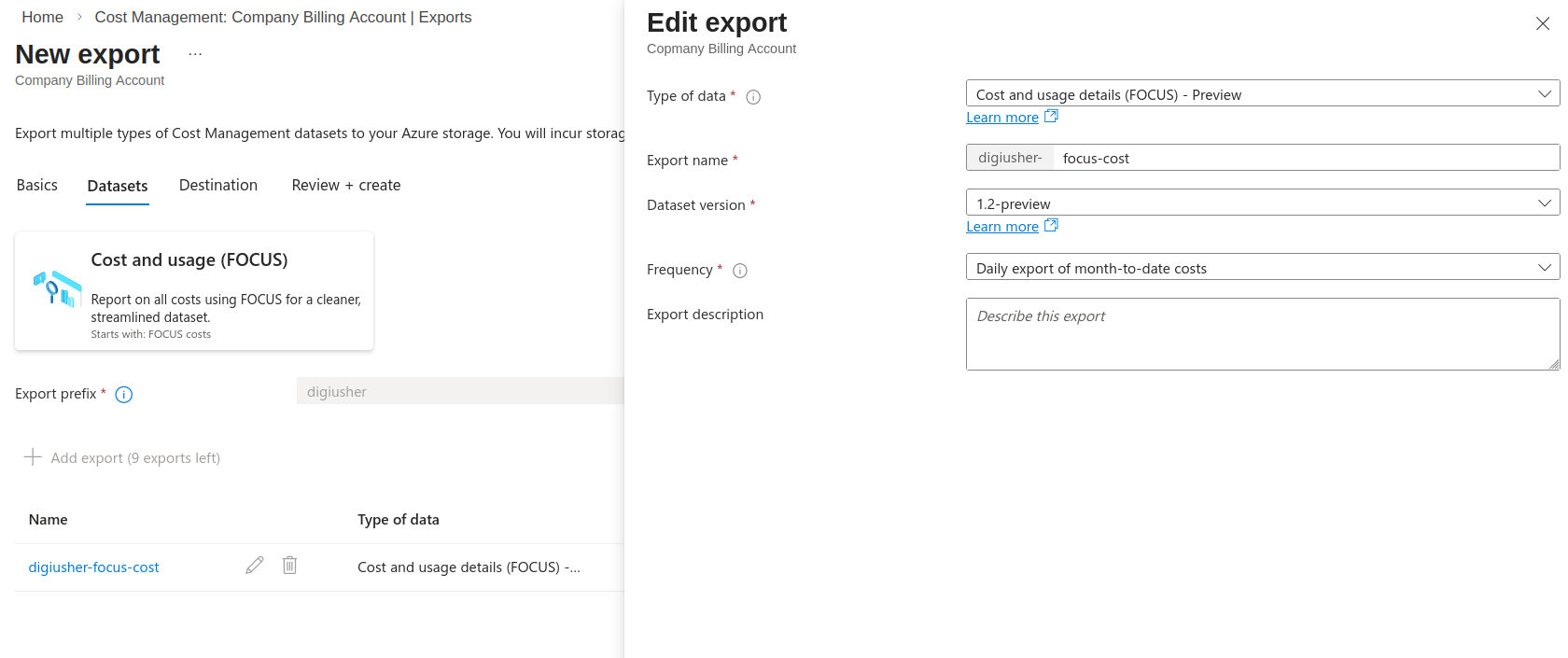
- Configure:
- Export name:
digiusher-focus-export - Frequency: Daily export of month-to-date costs
- Dataset version: 1.2-preview
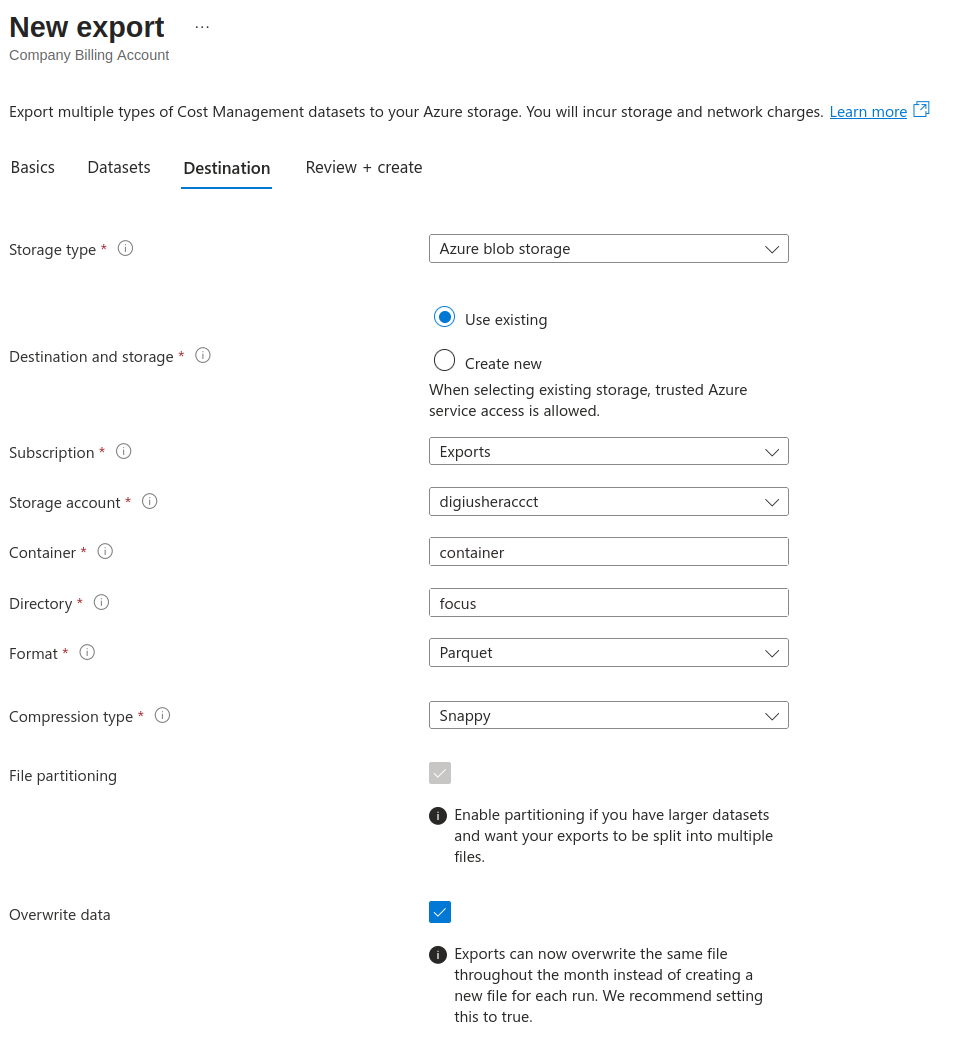
- File format: Parquet
- Compression: Snappy
- Export directory/path: focus
- Storage account: Select the account created in Step 4
- Container:
digiusher-focus-exports
- Export name:
- Click Create
Note
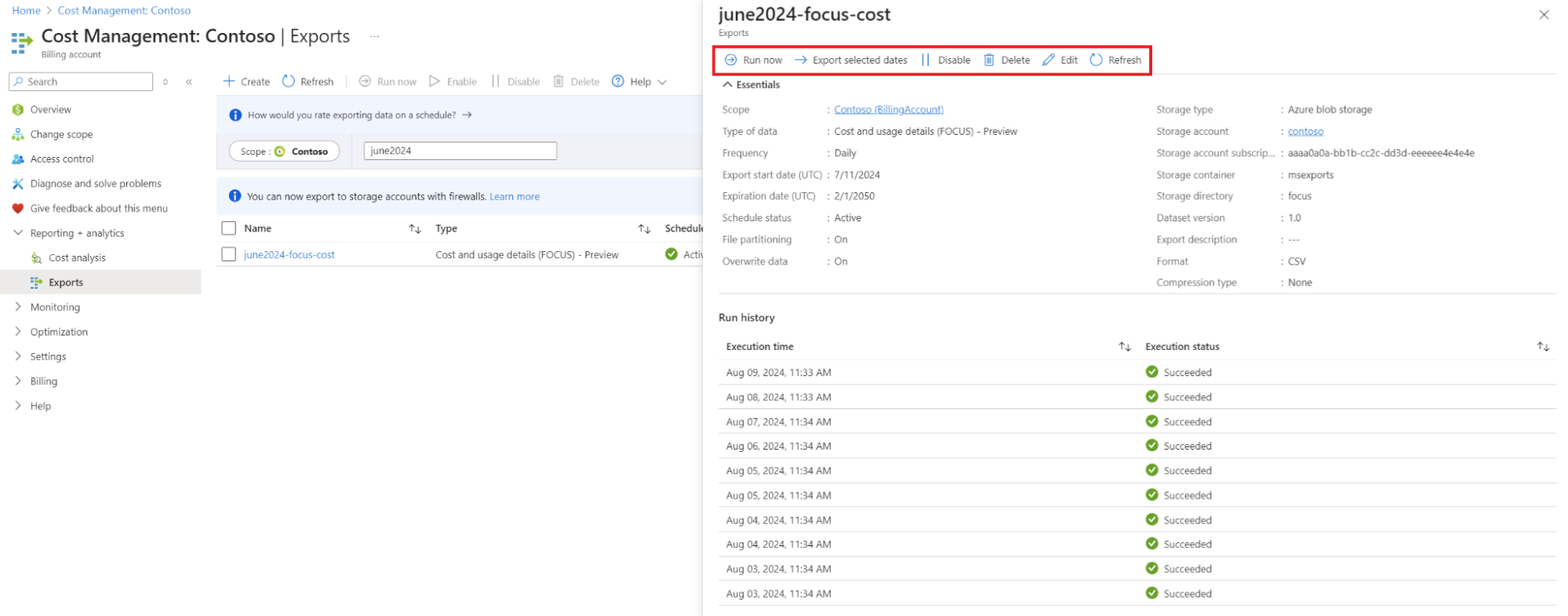
The first export runs in the next 24 hours. To start it immediately, click "Run now".
Backfill historical data
- Go to Cost Management → Exports → select your export
- Click Export selected dates
- Run the export for each of the last 3 months, one month at a time.
- For a large account, wait until one export finishes before you start the next month.
(Optional) Reservations & Savings Plans Access
For the roles at the level of the tenant, you need elevated access for a short time.
6a. Enable Elevated Access
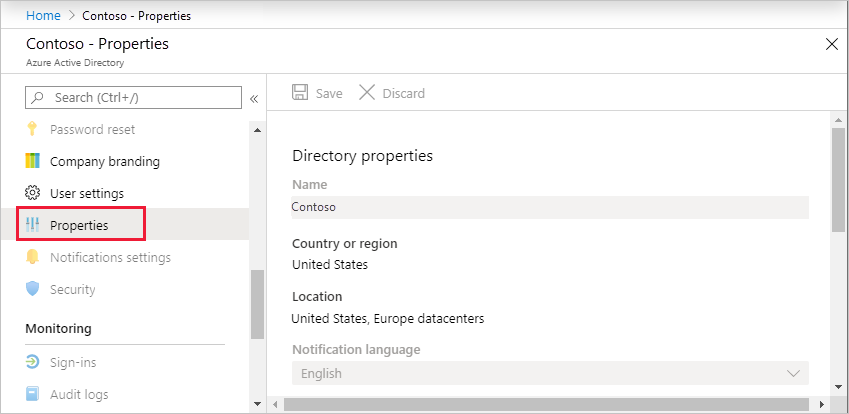
- Go to Azure Portal → Microsoft Entra ID → Properties
- Scroll to Access management for Azure resources
- Toggle to Yes
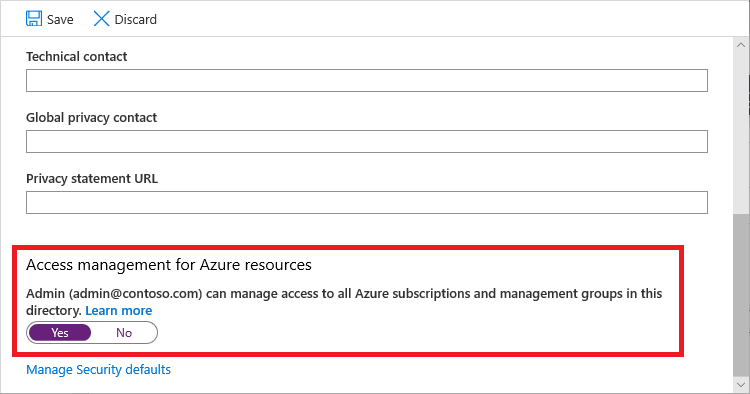
- Click Save
6b. Assign Reservations Reader
- Go to Reservations → Access Control (IAM) → Add role assignment
- Configure:
- Role:
Reservations Reader - Members:
DigiUsherApp
- Role:
- Click Review + assign
6c. Assign Savings Plan Reader
- Do the same steps again with the role
Savings Plan Reader.
6d. Disable Elevated Access
- Go back to Microsoft Entra ID → Properties
- Toggle Access management for Azure resources to No
- Click Save
Important
CAUTION: Disable the elevated access after you give these roles. Elevated access gives you rights on every resource of the tenant.
Connect in DigiUsher
After you complete the Terraform setup or the manual setup, go to Connectors > Add Source and select Microsoft Azure. On the Configure step, enter the values in the table, then click Review. On the Connect step, click Connect source.
If you use Terraform, one output gives all values:
terraform output -json digiusher_onboarding| Field | Where to Find |
|---|---|
| Display Name | Any label you prefer (for example Azure Production) |
| Tenant ID | Azure Portal > Microsoft Entra ID > Overview, or tenant_id in the Terraform output |
| Application (Client) ID | App Registration > Overview, or application_id in the Terraform output |
| Client Secret | The secret from the App Registration setup, or client_secret in the Terraform output |
| Storage Account Name | The storage account of the exports, or storage_account_name in the Terraform output |
| Container Name | The container in the storage account (for example digiusher-focus-exports), or storage_container_name in the Terraform output |
| Export Root Path | The path of the FOCUS export (for example focus), or export_root_path in the Terraform output |
| SAS Token (optional) | A SAS token of the storage account. With this token, DigiUsher reads the blob storage with the token in place of the App Registration credentials. |
Setup Checklist
- Top-level billing access confirmed (EA: Enterprise Administrator, MCA: Billing account owner), or you accept the data of a lower scope
- App registration created, with a client secret
- Reader role given at the level of the Management Group or the Subscription
- Storage account and container created
- Storage Blob Data Reader role given on the storage account
- FOCUS export created and scheduled
- Reservations Reader and Savings Plan Reader given (optional)
- Elevated access disabled again (if you used it)
-
*.digiusher.comin the allowlist of the network and the firewall (if your organization restricts this) -
digiusher.comin the allowlist for incoming email (if your organization restricts this)
Security
What DigiUsher CAN Access (Read-Only)
- The cost data and the usage data in the FOCUS exports in Azure Storage
- The resource metadata, such as names, types, regions, and tags, through the Reader role
- The information about the Reservations and the Savings Plans, when you give that optional access
- The hierarchy of the Management Groups, the subscriptions, and the resource groups
What DigiUsher CANNOT Do
- Create, change, or delete an Azure resource
- Read application data, databases, or the content of your storage. It reads the cost exports only
- Change an IAM policy or a role assignment
- Read secrets, credentials, or encryption keys
- Read network traffic or the content of your logs
- Buy a product or change the billing configuration
Monitoring
To monitor the activity of the App Registration, open Microsoft Entra ID > Enterprise applications > DigiUsherApp > Sign-in logs and Audit logs.
Credential Rotation
- With Terraform, run
terraform apply -replace="azuread_application_password.app_password". Then read the new secret withterraform output -json digiusher_onboarding, and enter it in the DigiUsher platform. - By hand, open the App Registration and click Certificates & secrets > New client secret to create a new secret. Then delete the old secret, and enter the new secret in the DigiUsher platform.
Revocation
- With Terraform, run
terraform destroy. It removes the App Registration and all role assignments, and it invalidates the client secret. - By hand, delete the App Registration
DigiUsherAppin Microsoft Entra ID > App registrations. Azure then immediately invalidates the client secret and all its role assignments.
Troubleshooting
Export not appearing
- Make sure that the resource provider
Microsoft.CostManagementExportsis registered. - Go to Subscription → Resource providers, search for CostManagementExports, and click Register.
Permission denied on billing scope
- On EA, make sure that you have Enterprise Administrator access at the level of the billing account, which Azure calls the enrollment. Read Check Your Permission Level. In some EA accounts, the enrollment admin must give this access in the EA Portal first.
- On MCA, make sure that you have Billing account owner access on the billing account itself, and not on a billing profile or an invoice section. Read Check Your Permission Level. MCA uses its own billing RBAC system, and a standard ARM role such as Cost Management Contributor does not work there. The Terraform configuration does this correctly.
Cannot see Management Groups
- Go to Management Groups → Start using management groups.
- To see the root group of the tenant, you can need the elevated access from Step 6a.
Need Help?
If this page does not answer your question, write to DigiUsher support at support@digiusher.com. The team will help you.