 DigiUsher Documentation
Connecting a Databricks account
Overview
To connect your Databricks environment to DigiUsher, create a service principal. Then give it the permissions on this page, and connect it to one of your SQL warehouses. This page gives the permissions, the reason for each permission, and the credentials that you enter in DigiUsher.
Summary of Access Required
| Component | Details |
|---|---|
| Identity | Service principal, for programmatic access |
| Authentication | The client ID of the service principal, which is a UUID, and its client secret |
| Data | Billing data through a SQL warehouse |
| Capability | What It Provides |
|---|---|
| Billing data | Cost analytics, chargeback and showback, budgeting, forecasting, anomaly detection |
DigiUsher cannot create, change, or delete a Databricks resource.
Use Terraform for the fastest setup
DigiUsher recommends the Terraform configuration. One terraform apply creates the service principal, creates its secret, gives the access to the warehouse, and applies most of the Unity Catalog grants. The configuration does not contain a few grants, and you run those by hand after the apply. Read Complete the Remaining Grants.
Terraform Repository: https://github.com/digiusher/digiusher-iac/
If the policies of your organization need a setup by hand, use the manual setup steps.
Prerequisites
Information to Gather
| Item | How to Find | DigiUsher Field |
|---|---|---|
| Client ID | Account console > Service Principals > your service principal > Secrets tab. The Client ID is an Application ID UUID | client_id |
| Client Secret | The console shows it one time only, when you create the OAuth secret. Save it in a safe place | client_secret |
| Workspace hostname | The hostname of the Databricks workspace, without https:// at the start, for example dbc-12345678-abcd.cloud.databricks.com | server_hostname |
| HTTP Path | The HTTP Path field in the SQL warehouse connection details | http_path |
Roles Required by the Person Performing Setup
| Role / Permission | Why |
|---|---|
| Account Admin on the Databricks account | To open the account console, to create the service principal, to create its OAuth secret, and to add it to the workspace. |
| Metastore Admin on the Unity Catalog metastore | To run the GRANT statements. These statements give the service principal read access to the system catalog and to its billing, compute, access, and lakeflow schemas. Without this role the grants fail, also for an Account Admin. |
| Workspace Admin on the target workspace | To add the service principal to the workspace and grant it Can use permission on the SQL warehouse used for queries. |
Network & Email Access (For Regulated Environments)
If your organization restricts outbound internet access or email domains, make sure that these two items are in place before you start:
- Domain allowlist. Add
*.digiusher.comto the allowlist of your network and your firewall. The users of your organization can then open the DigiUsher platform in their browsers. - Email allowlist. Add
digiusher.comas a permitted sender domain in your email security gateway. DigiUsher sends onboarding confirmations, alerts, and reports from@digiusher.comaddresses.
Option A: Terraform (Recommended)
The DigiUsher Terraform configuration does most of the setup. It creates the service principal, it creates an OAuth secret, and it gives the permission Can use on the SQL warehouse. It also applies the Unity Catalog grants for the tables that the cost query of DigiUsher reads, in system.billing, system.access, system.compute, and system.lakeflow. You run the other grants yourself after the apply.
Prerequisites
- Terraform, version 1.3 or higher.
- Python 3 with
databricks-sql-connector,databricks-sdk,pandas, andpyarrow. You need Python only for the verification script. - A Databricks personal access token with the scope All APIs. The setup uses it one time, and it does not store the token after
terraform applycompletes. - The rights of an Account Admin and of a Workspace Admin.
Create a Personal Access Token
- Go to your workspace → top-right user icon → Settings → Developer → Access tokens.
- Click Generate new token.
- Enter a name, for example
terraform-setup-digiusher, and a lifetime. - Under Scope, select All APIs.
- Copy the token immediately. Databricks does not show it again.
Find Your Configuration Values
You need three values before you run Terraform:
| Variable | Where to find it |
|---|---|
workspace_host | The URL of your workspace, for example abc-123.cloud.databricks.com, without https:// |
databricks_account_id | accounts.cloud.databricks.com, in the top right corner |
warehouse_id | SQL warehouse → Connection details. It is the last segment of the HTTP path: in /sql/1.0/warehouses/abc123def456 it is abc123def456 |
Deployment
git clone https://github.com/digiusher/digiusher-iac.git
cd digiusher-iac/databricks
Create the file terraform.tfvars with your own values:
databricks_account_id = "xxxxxxxx-xxxx-xxxx-xxxx-xxxxxxxxxxxx"
workspace_host        = "your-workspace.cloud.databricks.com"
warehouse_id          = "abc123def456"
Export your personal access token. Then run the apply:
export TF_VAR_databricks_token="XXXXXXXXXXXXXXXXXXXX"

terraform init
terraform plan
terraform apply
Complete the Remaining Grants
Terraform does not apply every grant DigiUsher checks
The Terraform configuration grants USE CATALOG on system, USE SCHEMA on system.billing, system.access, system.compute, and system.lakeflow, and SELECT on system.billing.usage, system.billing.list_prices, system.access.workspaces_latest, system.compute.clusters, system.compute.warehouses, and system.lakeflow.pipelines.
The connection check of DigiUsher also reads system.lakeflow.jobs, system.compute.instance_pools, and system.serving.served_entities. The check therefore fails until you run these grants by hand, as an Account Admin and a Metastore Admin:
GRANT SELECT ON TABLE system.lakeflow.jobs TO `<client-id>`;
GRANT SELECT ON TABLE system.compute.instance_pools TO `<client-id>`;

GRANT USE SCHEMA ON SCHEMA system.serving TO `<client-id>`;
GRANT SELECT ON TABLE system.serving.served_entities TO `<client-id>`;
The metrics collection reads four more tables. It gives the Databricks rightsizing recommendations and the idle recommendations. Add these grants too, unless you do not want those recommendations:
GRANT SELECT ON TABLE system.compute.node_timeline TO `<client-id>`;
GRANT SELECT ON TABLE system.compute.warehouse_events TO `<client-id>`;

GRANT USE SCHEMA ON SCHEMA system.query TO `<client-id>`;
GRANT SELECT ON TABLE system.query.history TO `<client-id>`;

GRANT SELECT ON TABLE system.serving.endpoint_usage TO `<client-id>`;
Replace <client-id> with the output of terraform output -raw client_id.
You can also grant SELECT ON TABLE system.billing.account_prices. This grant is optional. When the table exists, DigiUsher reads your contracted rates from it. When the table does not exist, DigiUsher reads system.billing.list_prices. An absent grant is therefore not an error.
Retrieve the Credentials
After the apply completes, four outputs give the values that DigiUsher needs:
echo "DATABRICKS_HOST=$(terraform output -raw workspace_hostname)"
echo "DATABRICKS_HTTP_PATH=$(terraform output -raw http_path)"
echo "DATABRICKS_CLIENT_ID=$(terraform output -raw client_id)"
echo "DATABRICKS_CLIENT_SECRET=$(terraform output -raw client_secret)"
These four values go into the fields Server Hostname, HTTP Path, Client ID, and Client Secret in DigiUsher. The section Connect in DigiUsher gives the fields.
Make Sure the Setup Works (Optional)
The repository has a script that makes sure that the authentication works, that the system catalog is readable, and that the billing data exists:
export DATABRICKS_HOST="$(terraform output -raw workspace_hostname)"
export DATABRICKS_HTTP_PATH="$(terraform output -raw http_path)"
export DATABRICKS_CLIENT_ID="$(terraform output -raw client_id)"
export DATABRICKS_CLIENT_SECRET="$(terraform output -raw client_secret)"

python3 verify_exports.py
The digiusher-iac README is the full Terraform documentation. It also gives the troubleshooting steps.
Option B: Manual Setup
Note
The Terraform option is the fastest setup. Use the steps that follow when your organization needs a setup by hand, in the Databricks console.
Create the Service Principal
Create a separate service principal. DigiUsher uses it for programmatic read-only access to your billing data.
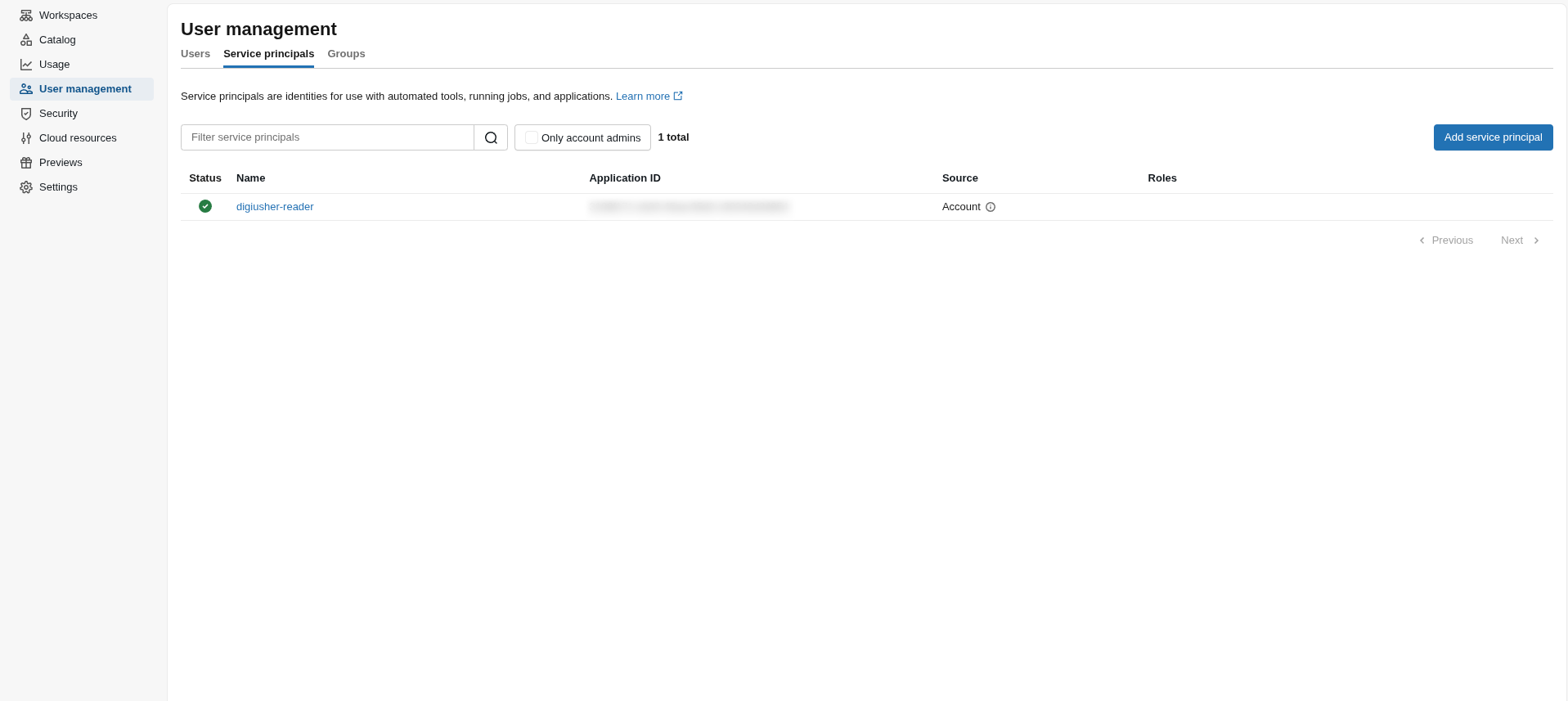
- Sign in to the Databricks account console as an Account Admin.
- Go to User Management > Service Principals, then click Add service principal.
- Give it a name that you know again, for example
digiusher-reader, and click Add.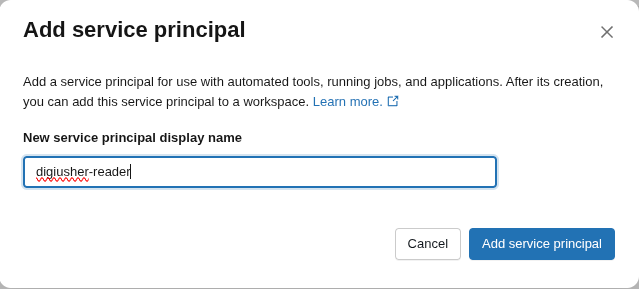
Generate an OAuth Secret
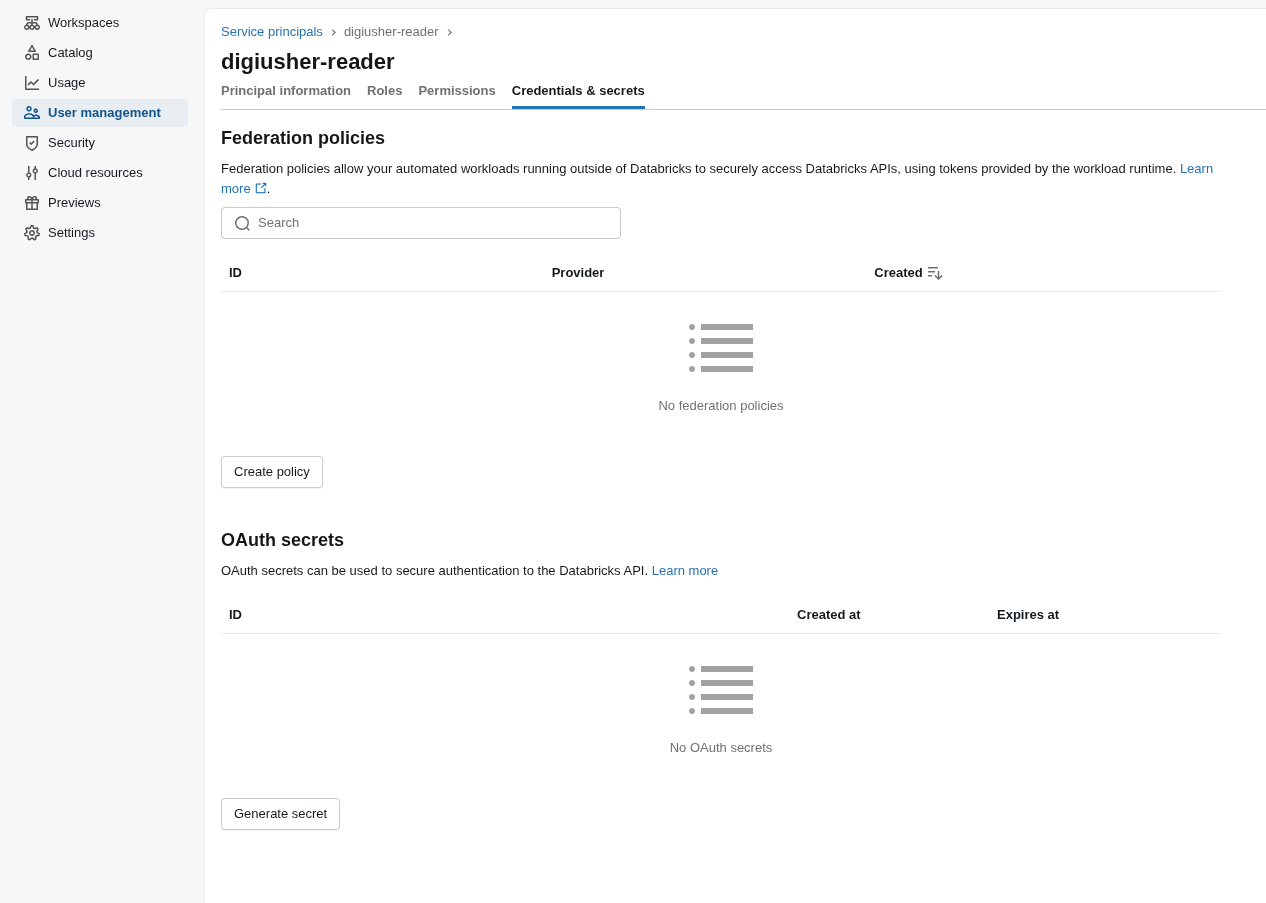
- Select the new service principal. Open the Credential and Secrets tab, and click Generate secret under OAuth secrets.
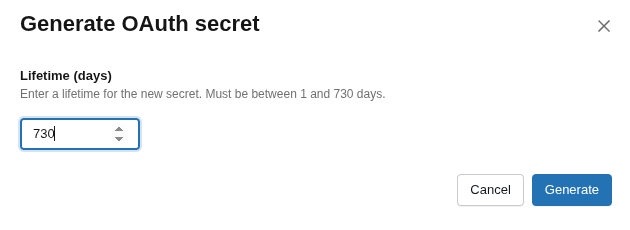
- In the dialog, select the lifetime of the secret. The maximum is 730 days.
- Copy the Client ID and the Secret immediately, and save them in a safe place. Databricks shows the secret one time only, and you cannot read it again.
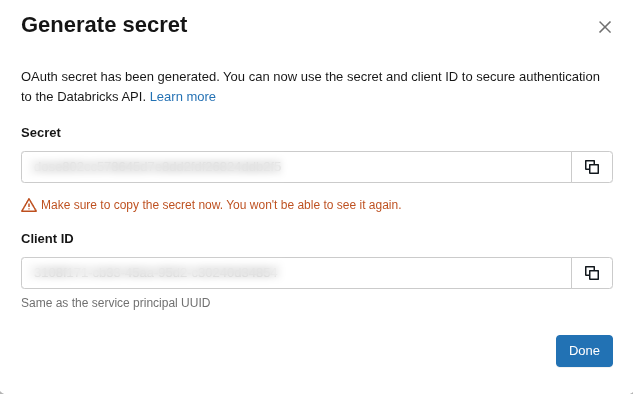
Save your credentials
CAUTION: Save the Client ID and the Client Secret now. You enter them in DigiUsher in the last step. If you lose the secret, create a new secret and do the steps again.
Assign the Service Principal to the Workspace
The service principal must be a member of the workspace with the SQL warehouse that runs the queries.
- Open the Workspace and go to Settings > Identity and access.
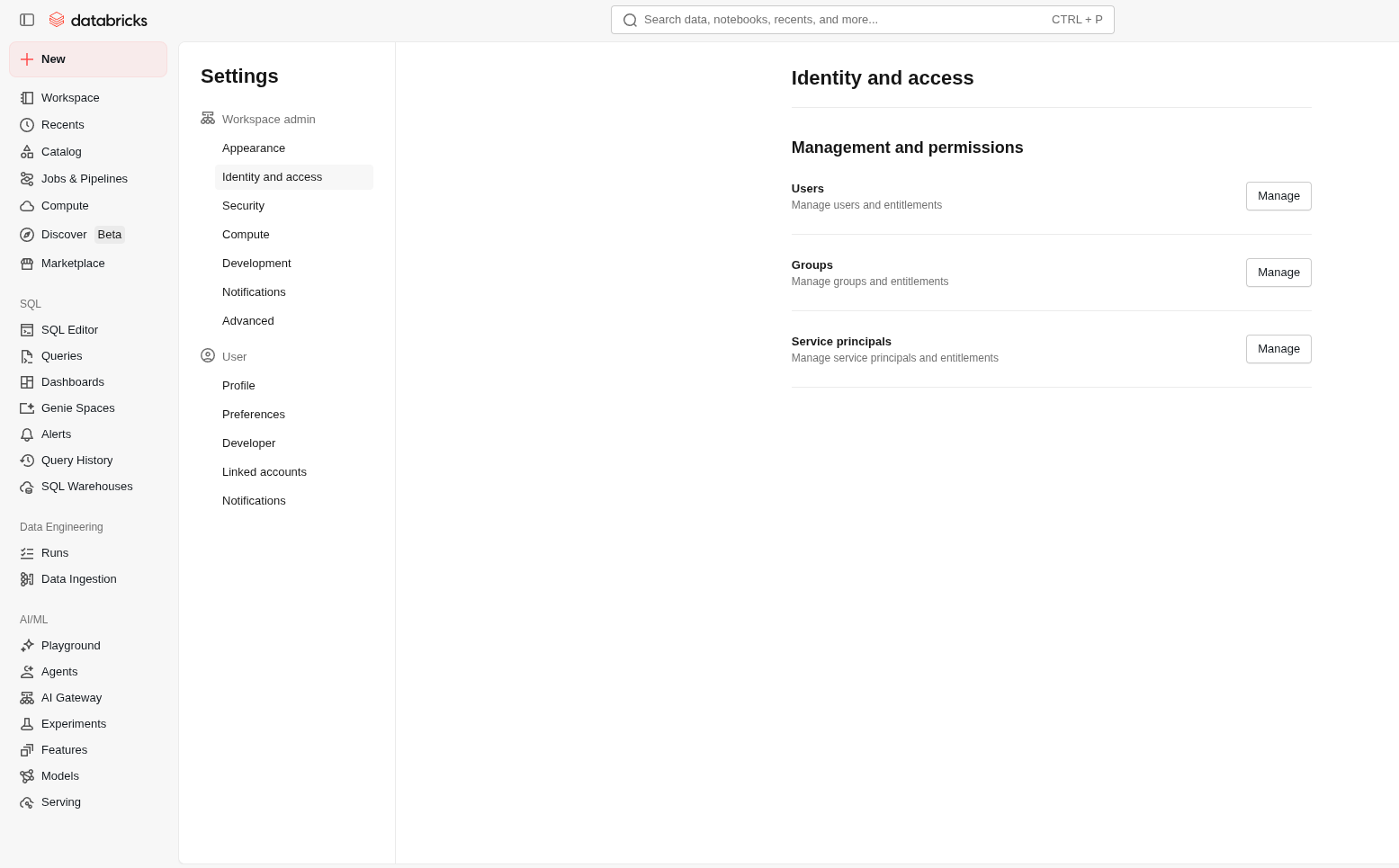
- Beside Service principals, click Manage > Add service principal. Select your service principal, and click Add.
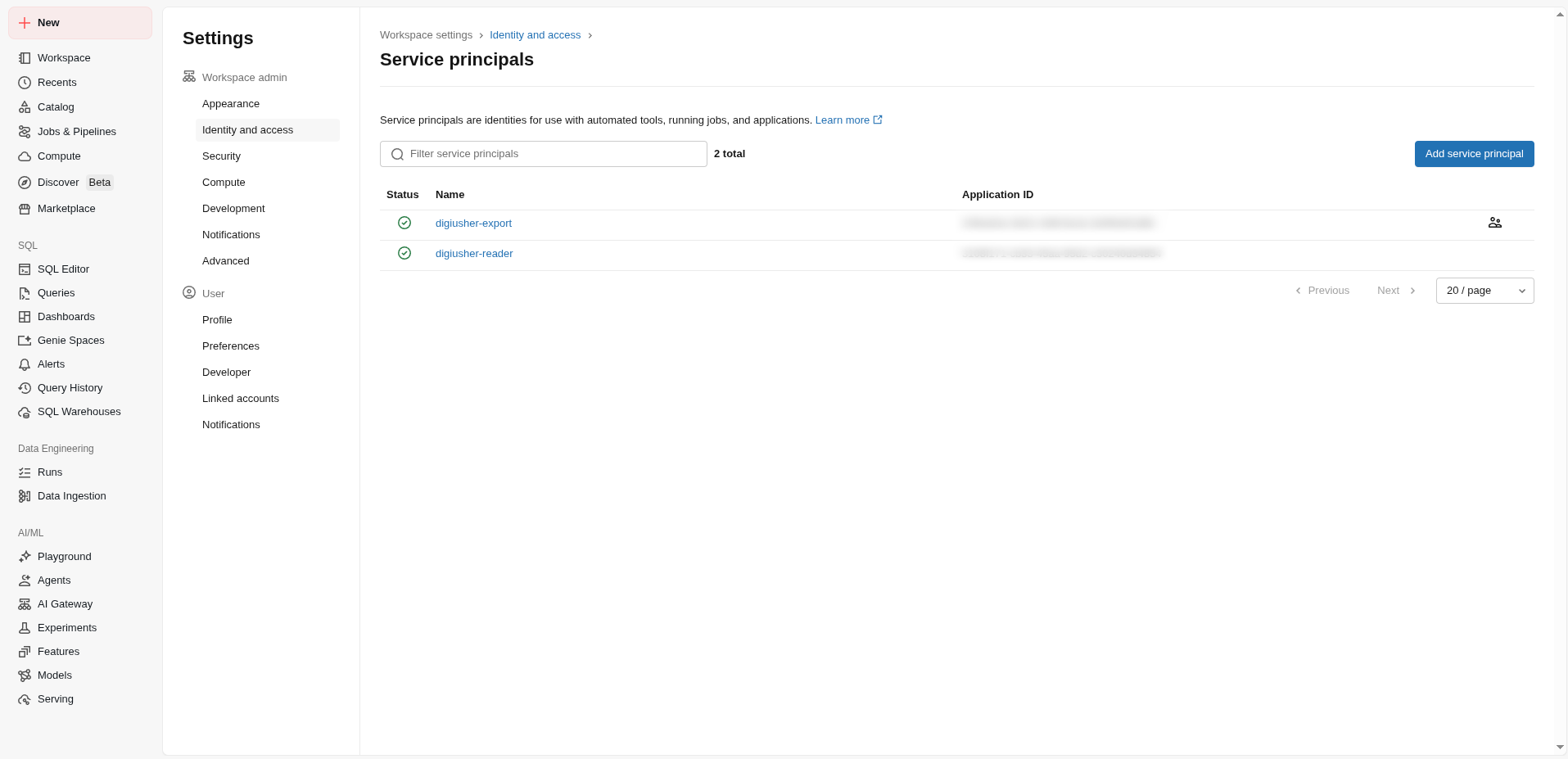
- Make sure that the service principal is now in the list of service principals of the workspace.
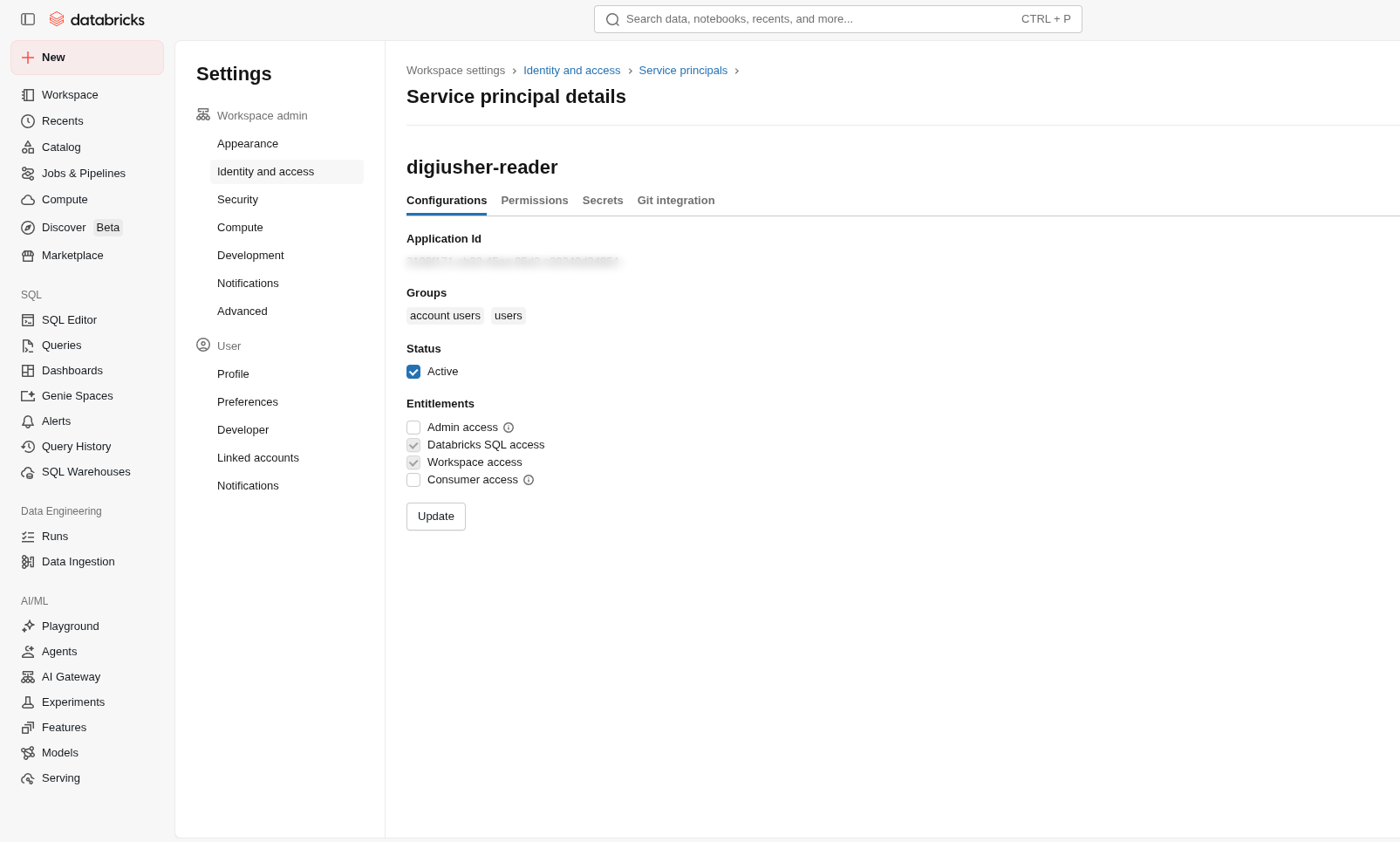
Already exists
If you get the message "already exists", the service principal is already a member of the workspace. Go to the next step.
Grant the Service Principal Access to the SQL Warehouse
DigiUsher runs its queries through a SQL warehouse of the workspace. Give the service principal the permission Can use on that warehouse, and note the connection details.
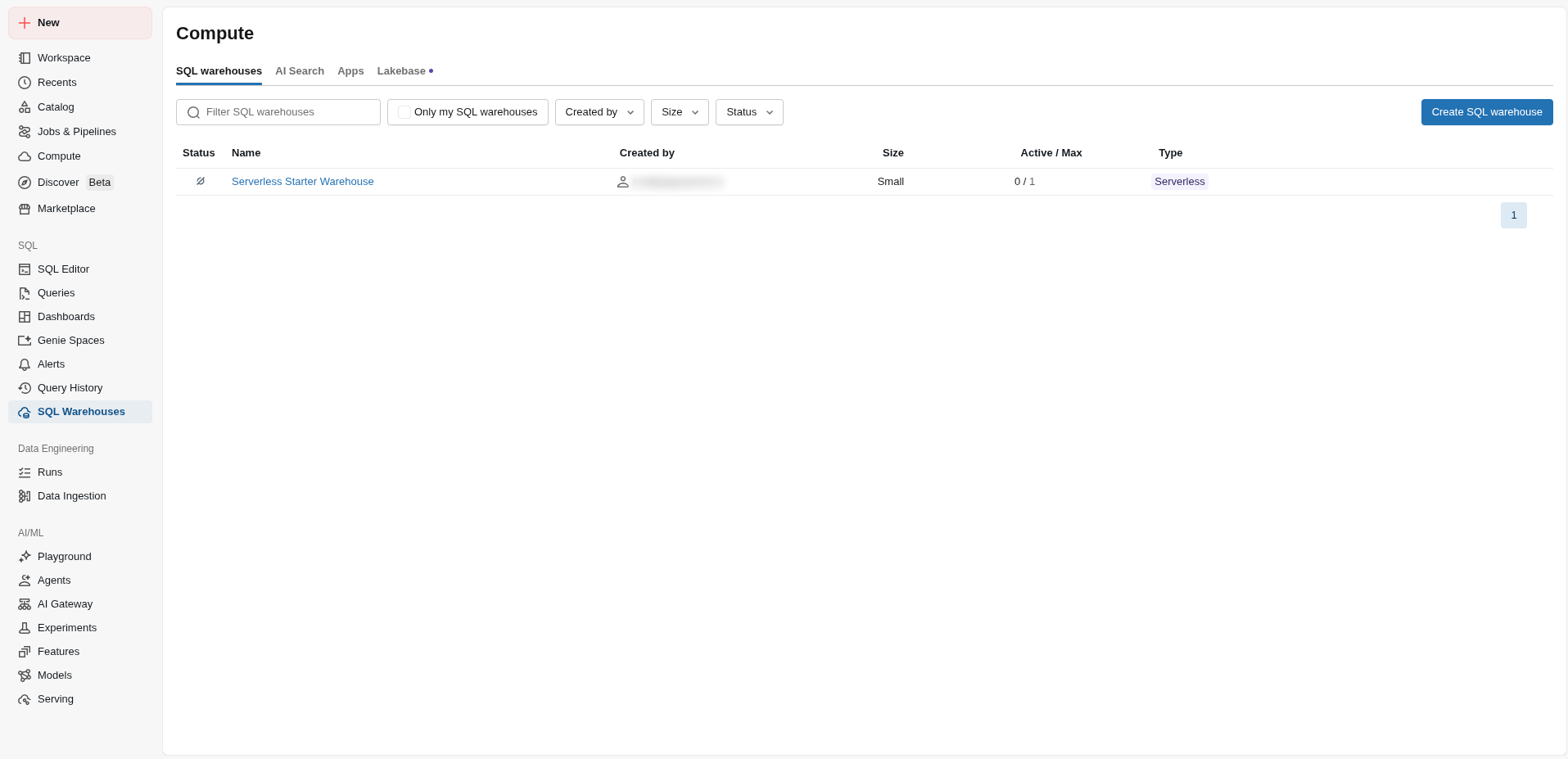
- In the workspace, go to SQL Warehouses > Compute and open the warehouse for DigiUsher.
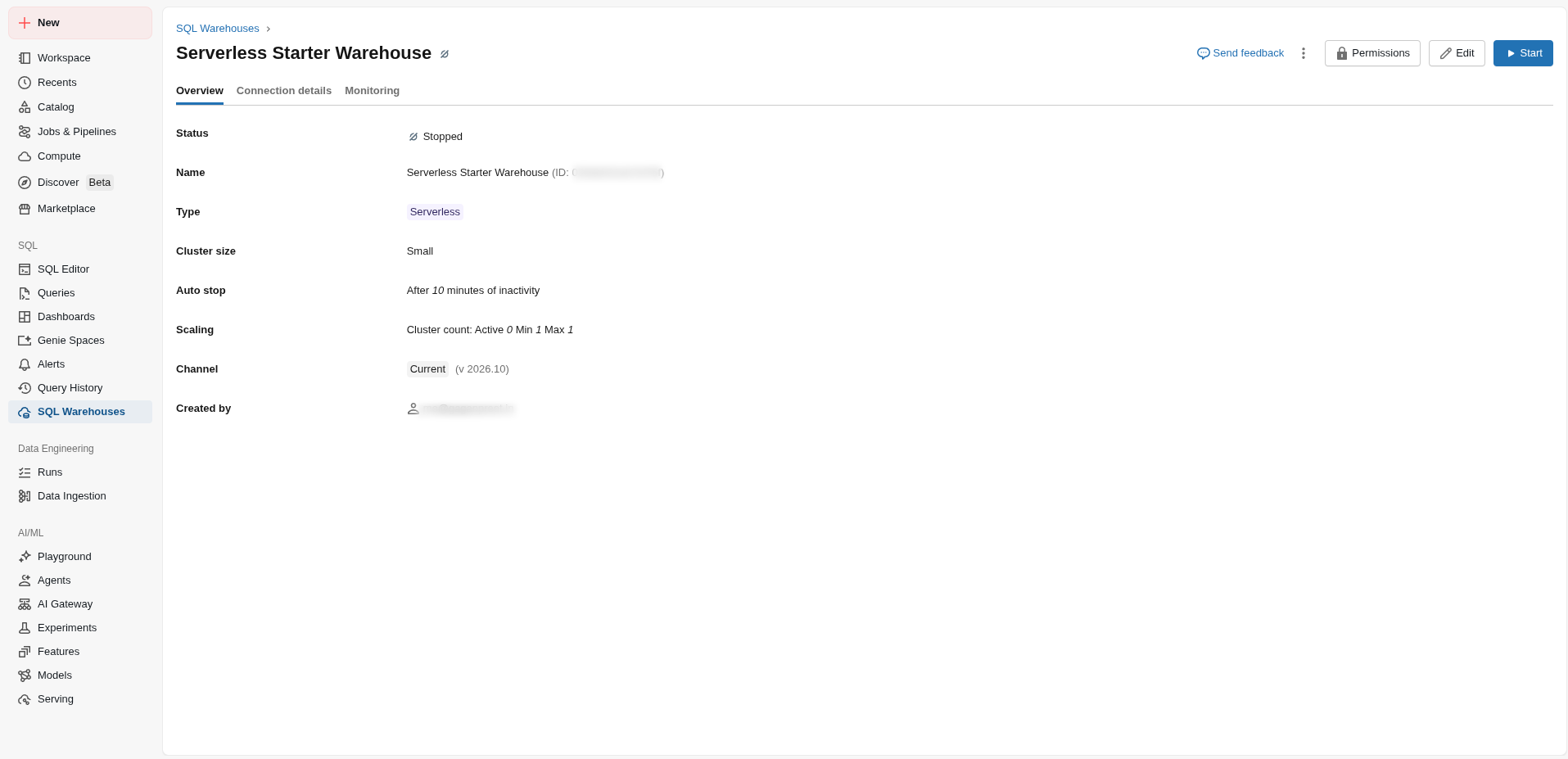
- On the overview of the warehouse, make sure that the warehouse runs, or that it starts automatically.
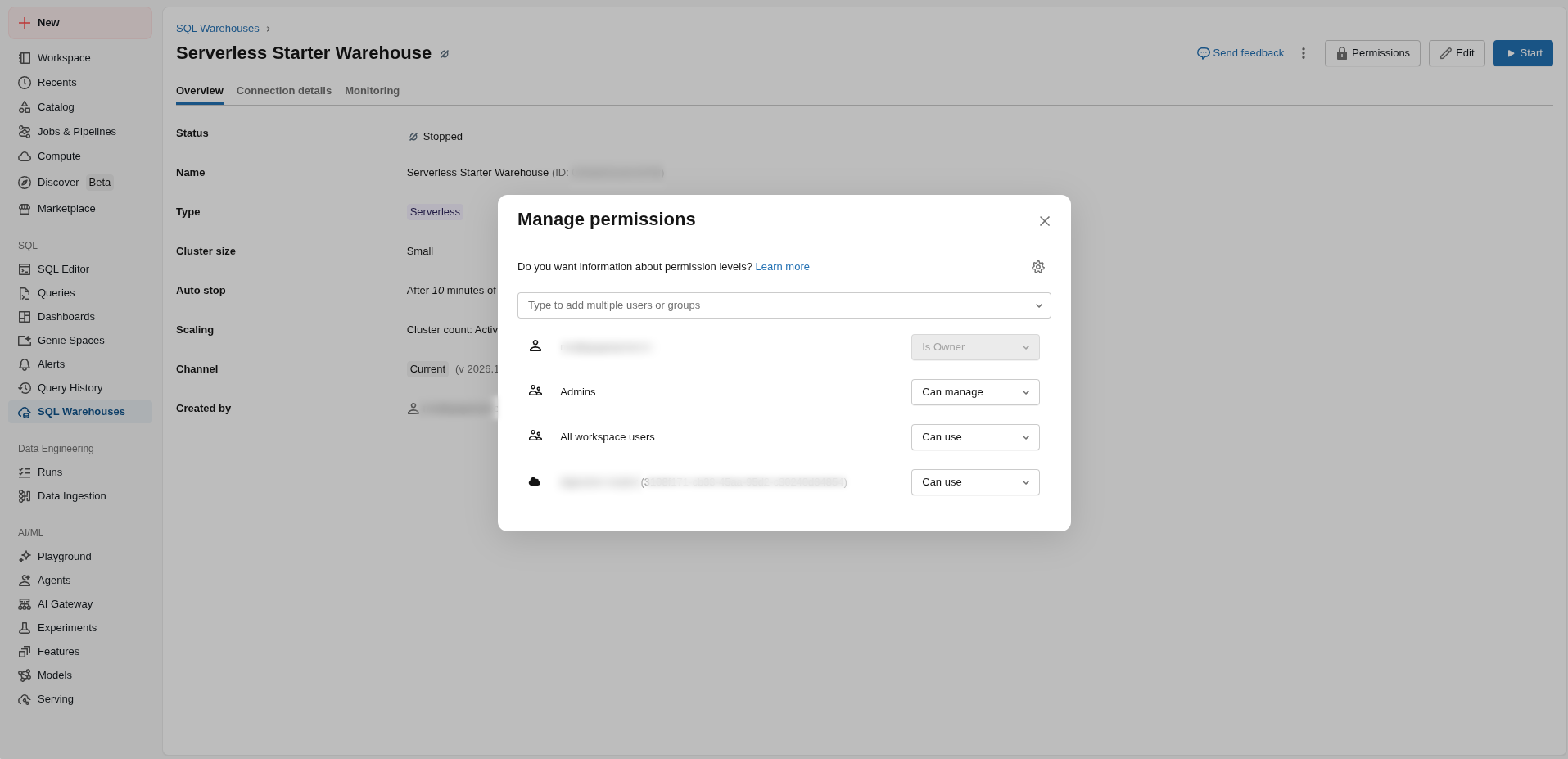
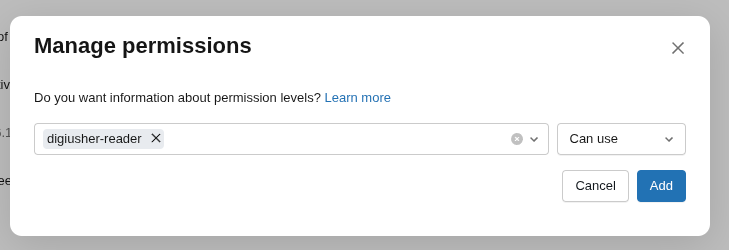
- Open the Permissions tab and click Add permission.
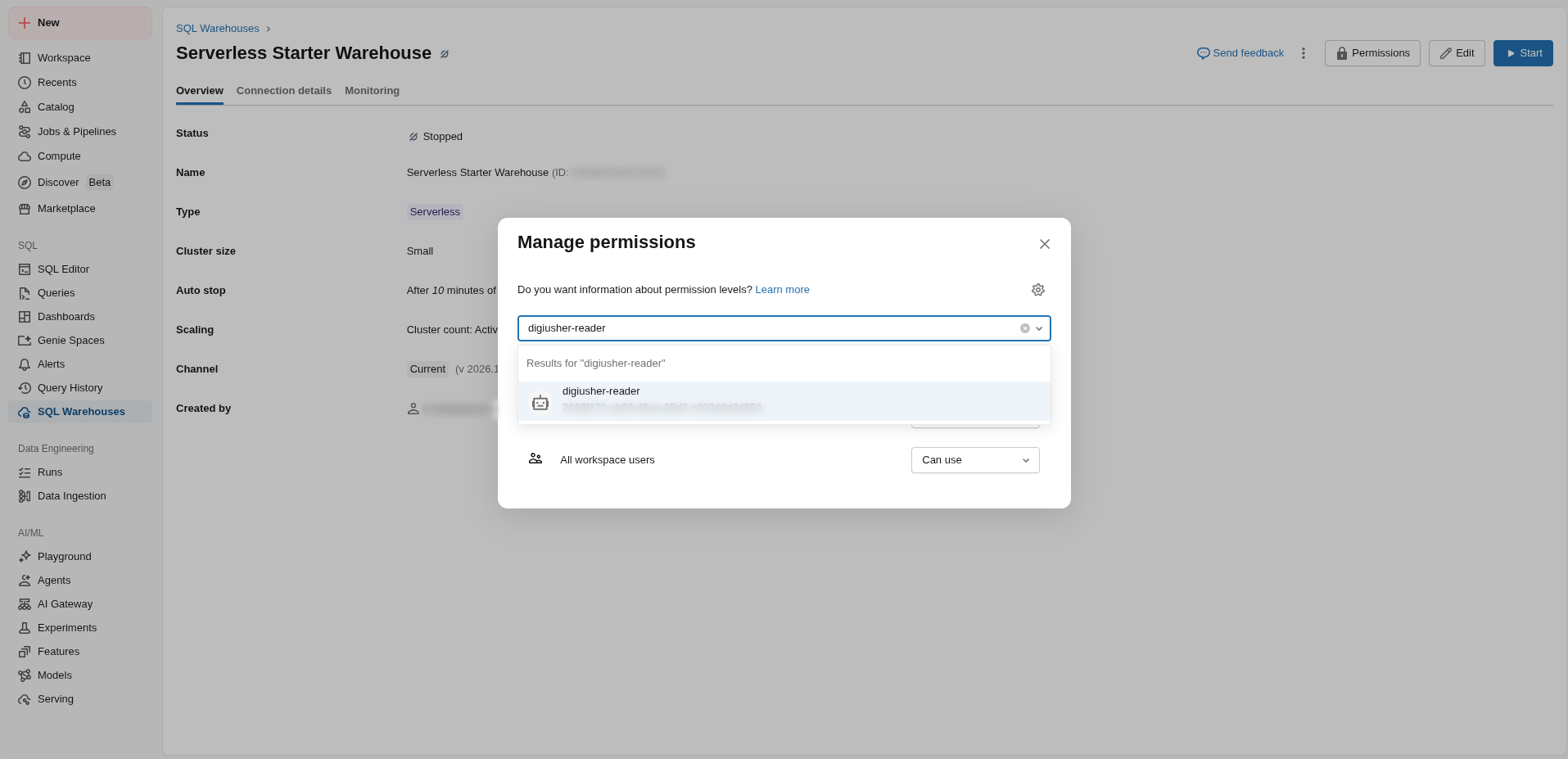
- Search for the service principal by name and click Add. Make sure that the permission is Can use.
Copy the Connection Details
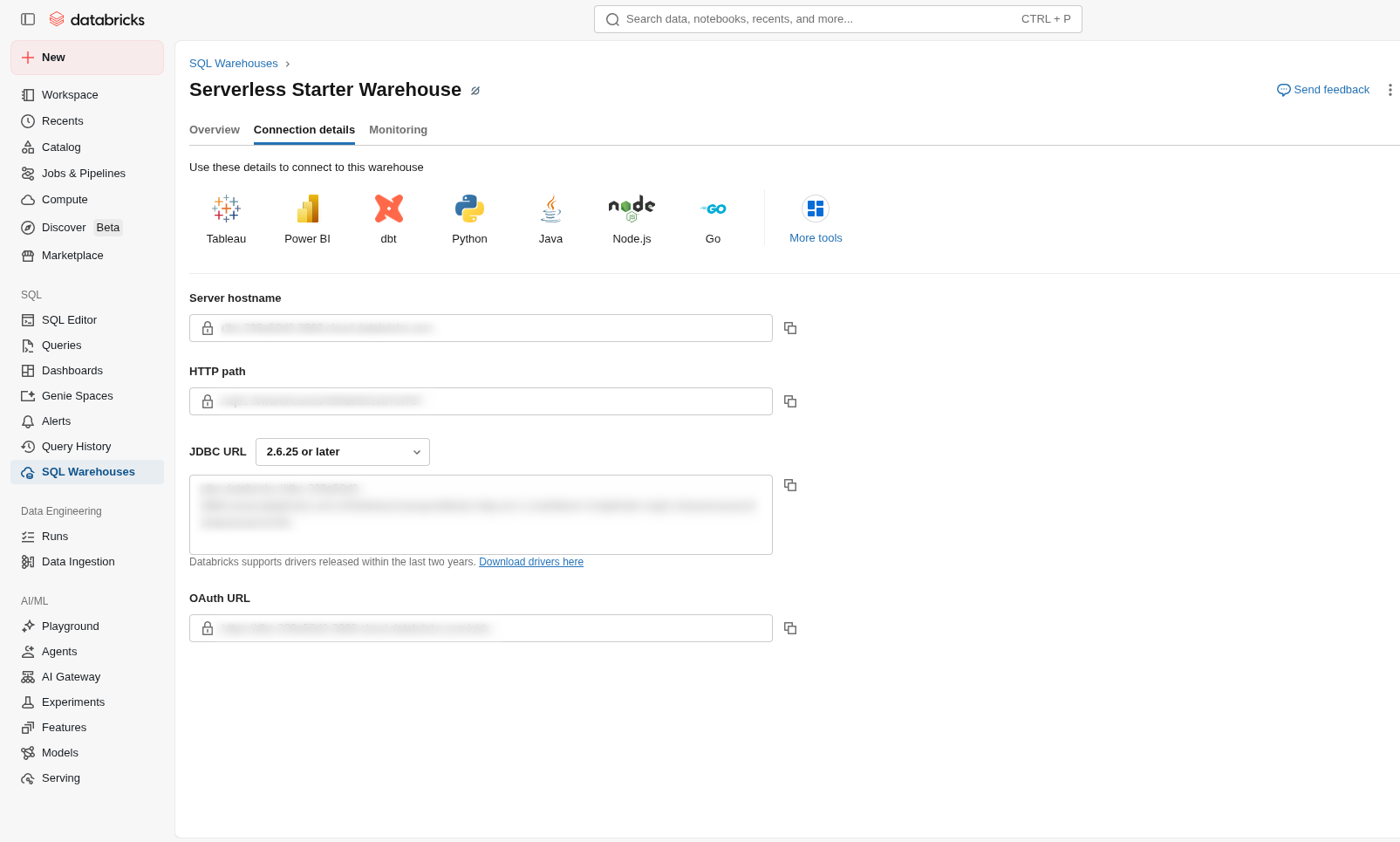
Open the Connection details tab of the warehouse and copy these two values:
- Server hostname, which is the value
server_hostname. Do not includehttps://. - HTTP path, which is the value
http_path.
Grant Read Access to the System Tables
Run these grants in the SQL Editor, on your warehouse. They give the service principal read-only access to the billing tables and the metadata tables that DigiUsher needs.
- In the workspace, open the SQL Editor and select your warehouse.
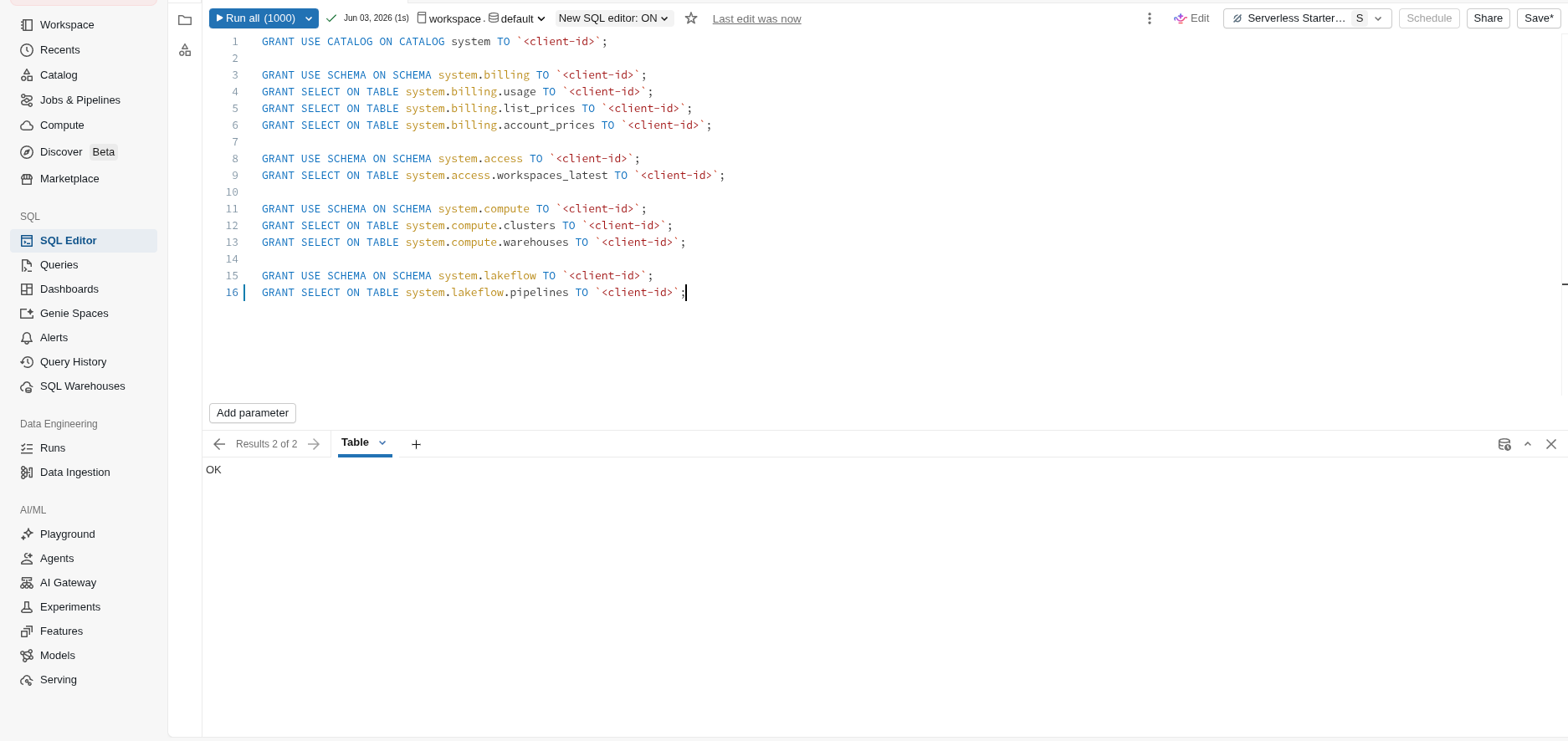
- Paste the block that follows. Replace
<client-id>with the Client ID of the service principal, which is the Application ID UUID from Step 1. Then run the block.
GRANT USE CATALOG ON CATALOG system TO `<client-id>`;

GRANT USE SCHEMA ON SCHEMA system.billing TO `<client-id>`;
GRANT SELECT ON TABLE system.billing.usage TO `<client-id>`;
GRANT SELECT ON TABLE system.billing.list_prices TO `<client-id>`;
GRANT SELECT ON TABLE system.billing.account_prices TO `<client-id>`;

GRANT USE SCHEMA ON SCHEMA system.access TO `<client-id>`;
GRANT SELECT ON TABLE system.access.workspaces_latest TO `<client-id>`;

GRANT USE SCHEMA ON SCHEMA system.compute TO `<client-id>`;
GRANT SELECT ON TABLE system.compute.clusters TO `<client-id>`;
GRANT SELECT ON TABLE system.compute.warehouses TO `<client-id>`;

GRANT USE SCHEMA ON SCHEMA system.lakeflow TO `<client-id>`;
GRANT SELECT ON TABLE system.lakeflow.pipelines TO `<client-id>`;
GRANT SELECT ON TABLE system.lakeflow.jobs TO `<client-id>`;

GRANT USE SCHEMA ON SCHEMA system.query TO `<client-id>`;
GRANT SELECT ON TABLE system.query.history TO `<client-id>`;

GRANT SELECT ON TABLE system.compute.node_timeline TO `<client-id>`;
GRANT SELECT ON TABLE system.compute.instance_pools TO `<client-id>`;
GRANT SELECT ON TABLE system.compute.warehouse_events TO `<client-id>`;

GRANT USE SCHEMA ON SCHEMA system.serving TO `<client-id>`;
GRANT SELECT ON TABLE system.serving.served_entities TO `<client-id>`;
GRANT SELECT ON TABLE system.serving.endpoint_usage TO `<client-id>`;
Run as a Metastore Admin
A user with the role Account Admin and the role Metastore Admin must run these grants. For an admin of the workspace only, the grants fail or have no effect.
The account_prices grant may error
The table system.billing.account_prices exists only when your account has the Account Prices Preview, on AWS and GCP. If the table does not exist, its GRANT line gives an error. Ignore that one error. Every other statement must work.
Connect in DigiUsher
After you complete the Terraform setup or the manual setup, go to Connectors > Add Source in DigiUsher and select Databricks. On the Configure step, enter the values in the table. Then go to Connect and click Connect source:
| Field | Where to Find |
|---|---|
| Display Name | Any label you prefer (for example Databricks Production) |
| Server Hostname | The Server hostname from the Connection details of the warehouse, without https://. Terraform gives it with terraform output -raw workspace_hostname. The field name is server_hostname |
| HTTP Path | The HTTP path from the Connection details of the warehouse. Terraform gives it with terraform output -raw http_path. The field name is http_path |
| Client ID | The Client ID of the service principal, which is the Application ID UUID. Terraform gives it with terraform output -raw client_id. The field name is client_id |
| Client Secret | The OAuth secret from the setup. Terraform gives it with terraform output -raw client_secret. The field name is client_secret |
At the connection, DigiUsher makes sure that the service principal can read every necessary system table. Then it starts to read the data. The first sync reads 12 calendar months, which is the retention window of system.billing.usage. Every sync after the first one reads the current month and the month before it again. The values of those two months therefore change when Databricks finalizes them.
Setup Checklist
- Service principal created in the Databricks account console
- OAuth client secret created, and the Client ID and the Secret saved in a safe place
- Service principal added to the workspace
- Service principal has the permission Can use on the SQL warehouse
- All
GRANTstatements ran without an error in the SQL Editor, forsystem.billing,system.access,system.compute,system.lakeflow,system.query, andsystem.serving - Workspace hostname, HTTP path, Client ID, and Client Secret entered in DigiUsher
- DigiUsher reads
system.billing.usage,system.billing.list_prices,system.access.workspaces_latest,system.lakeflow.pipelines,system.lakeflow.jobs,system.compute.clusters,system.compute.warehouses,system.compute.instance_pools, andsystem.serving.served_entities, and it returns anaccount_id -
*.digiusher.comin the allowlist of your network and firewall (if your organization restricts this) -
digiusher.comin the allowlist of permitted sender domains in your email security gateway (if your organization restricts this)
Security
What DigiUsher CAN Access (Read-Only)
system.billing.usage, which holds the DBU records and the credit consumption of all workspaces of the accountsystem.billing.list_prices, which holds the public list prices of Databricks for the cost of each SKUsystem.billing.account_prices, which holds your contracted rates. This table exists only with the Account Prices Preview, on AWS and GCPsystem.access.workspaces_latest, which holds the workspace names for the billing recordssystem.compute.clustersandsystem.compute.warehouses, which hold the resource names for the billing recordssystem.lakeflow.pipelines, which holds the pipeline names for the billing recordssystem.lakeflow.jobs, which holds the job definitions for the billing recordssystem.compute.instance_poolsandsystem.serving.served_entities, which hold the resource inventorysystem.compute.node_timeline,system.compute.warehouse_events,system.query.history, andsystem.serving.endpoint_usage, which hold the utilization metrics for the rightsizing recommendations and the idle recommendations
What DigiUsher CANNOT Do
- Read a table outside the schemas of the grants on this page
- Read notebooks, job definitions, query results, or your business data
- Read the data of a workspace catalog, such as
hive_metastoreor a catalog of your users - Create, change, or delete an object in Databricks
- Read or change the billing configuration or the account configuration
- Buy a product or change your account
- Read the cloud infrastructure under Databricks, such as S3, ADLS, or GCS
Monitoring
To monitor the activity of the service principal, open the Databricks workspace under Settings → Identity and access → Service Principals → your service principal. For the full audit trail, query system.access.audit when your workspace has that schema. Filter on user_identity.email = '<client-id>' to see every action of the DigiUsher service principal.
Credential Rotation
With Terraform, run terraform apply -replace="databricks_service_principal_secret.digiusher_focus_reader" to create a new secret. Then read the new secret with terraform output -raw client_secret, and enter it in the field Client Secret in DigiUsher.
By hand, do these four steps:
- In the account console, go to Service Principals, select the DigiUsher service principal, and open the Secrets tab.
- Click Generate secret to create a new client secret.
- Enter the new secret in the field Client Secret in DigiUsher immediately.
- Delete the old secret on the Secrets tab.
Avoid ingestion gaps
Create the new secret before you delete the old secret. The old secret works until you delete it, so the data collection does not stop when you enter the new secret in DigiUsher first.
Revocation
With Terraform, run terraform destroy. It removes the service principal, its secret, the permission on the warehouse, and all Unity Catalog grants. The access ends immediately.
By hand, delete the service principal in the account console under Service Principals. Databricks then immediately invalidates the OAuth secret and removes all permissions of the principal from the workspace. To stop the access for a short time, delete only the secret on the Secrets tab of the service principal. Use this method when you want to connect again later.
Troubleshooting
Permission denied on system.billing.usage or other system tables
- Make sure that all
GRANTstatements ran without an error in the SQL Editor. Run the full block again. The grants are idempotent, so you can repeat them. - Make sure that the user of the grants had the role Account Admin and the role Metastore Admin at that time. For an admin of the workspace only, the grants fail or have no effect.
- Make sure that the grantee is the Client ID of the service principal, which is the Application ID UUID, and not its display name.
"User is not an account admin" during setup
- Go to
accounts.cloud.databricks.com→ User Management → Users. Click the email address of the setup user, and turn Account admin on. - This role is not the membership of the workspace admin group. The group
adminsof the workspace is not sufficient.
Verification probe passes but BilledCost is zero
- DigiUsher computes
BilledCostasusage_quantity × account_unit_price. Iflist_priceshas no row for the region and the SKUs of your account, the join of the price returnsNULL, and the cost becomes0. - Make sure that
system.billing.list_priceshas rows. RunSELECT COUNT(*) FROM system.billing.list_pricesin the SQL Editor. A new trial account can have an empty or small price table until Databricks fills it for your region. This takes 24 to 48 hours.
No data in system.billing.usage
- The table contains records from the creation date of the account only. A new account has one or two rows at most, for the storage of the warehouse start. This is correct, and it is not an error. The data grows with the use of the account.
- Read the date range with
SELECT MIN(usage_date), MAX(usage_date) FROM system.billing.usage.
Connection hangs with no output
- Make sure that the state of the SQL warehouse is Running, or Idle with an automatic start. A warehouse in the state Deleted or Stopped (manually) does not start at a connection.
Warehouse access denied
- Make sure that the service principal has the permission Can use on the warehouse. Open the workspace → SQL Warehouses → your warehouse → Permissions.
- If somebody created the warehouse again after the setup, give the permission again. The permission does not move with the service principal.
OAuth authentication failure
- Make sure that the Client Secret in DigiUsher is the secret of this service principal. A personal access token does not work, and the secret of another service principal does not work.
- An OAuth secret does not expire by default. But if somebody deleted the secret and created a new one in the Databricks console, the old value is invalid forever. Create a new secret and enter it in DigiUsher.
Need Help?
If this page does not answer your question, write to DigiUsher support at support@digiusher.com. The team will help you.