 DigiUsher Documentation
Connecting a GitHub organization
Install the DigiUsher GitHub App on your organization to track seat usage, Actions consumption, code scanning, and other GitHub spending across your org.
Overview
DigiUsher connects to GitHub with the DigiUsher GitHub App. You install this app on your GitHub organization. There is no API key to create and no API key to rotate. The installation gives DigiUsher the access that it needs, and you can remove that access in GitHub at any time.
Organization Owner required
Only an Owner of a GitHub organization can install a GitHub App on that organization. An Owner must do the steps on this page.
Summary of Access Required
| Component | Details |
|---|---|
| Access method | GitHub App installation |
| Permission requested | Organization Administration: Read (required for the billing usage endpoint), plus the Metadata: Read permission GitHub adds to every App |
| Data | Seat usage, GitHub Actions minutes, code scanning, Packages, and other billable product consumption |
| Scope | A single GitHub organization |
All permissions are read-only. DigiUsher can never change your organization, your repositories, or their contents.
Prerequisites
Who Must Perform This Setup
| Role | Why |
|---|---|
| GitHub Organization Owner | GitHub requires an Owner to authorize and install Apps on an organization. No other role is sufficient. |
What to Have Ready
- The name that you want to give to this data source in DigiUsher. This name is necessary.
- The contracted price for one seat for one month, in USD, and the date when that price starts. You need these two values only when your organization has a GitHub Enterprise contract with a negotiated seat price.
Enter your seat price if you are on GitHub Enterprise
The GitHub API gives no cost for one seat. If you enter no rate, DigiUsher uses the published list price of GitHub for each occupied seat: $0 on Free, $4 on Team, and $21 on Enterprise.
GitHub negotiates the Enterprise seat price in each contract, and the price starts at $21. The list price is therefore too low for most Enterprise organizations. Enter your contracted rate to get the correct seat cost. On the Free plan and the Team plan the list price is fixed, and DigiUsher ignores a rate that you enter. Leave the pricing fields empty on those plans.
Setup
Open the GitHub connector in DigiUsher
Go to Connectors > Add Source > GitHub. The Connect GitHub page opens with a wizard of two steps: Configure and Connect.
Enter a name and (optionally) your contracted seat price
In the Configure step:
-
Enter a Display Name for this data source. This is the only necessary field. Use any label that identifies the organization.
-
If your organization has a negotiated Enterprise seat rate, enter it under Seat Pricing. Enter your contracted rate in USD in Price / Seat / Month. Enter the start date of the price in Valid From. DigiUsher then uses this rate for every period on that date and after it.
You can enter more than one price for different periods. To use the standard list prices of GitHub, leave the pricing fields empty.
-
Click Review →.
Review and proceed to GitHub
The Connect step gives a summary of the actions of DigiUsher. Make sure that the seat pricing line is correct. It gives your rate, or it reads Using GitHub list prices when you leave the fields empty.
Click Connect source. DigiUsher then sends you to GitHub.
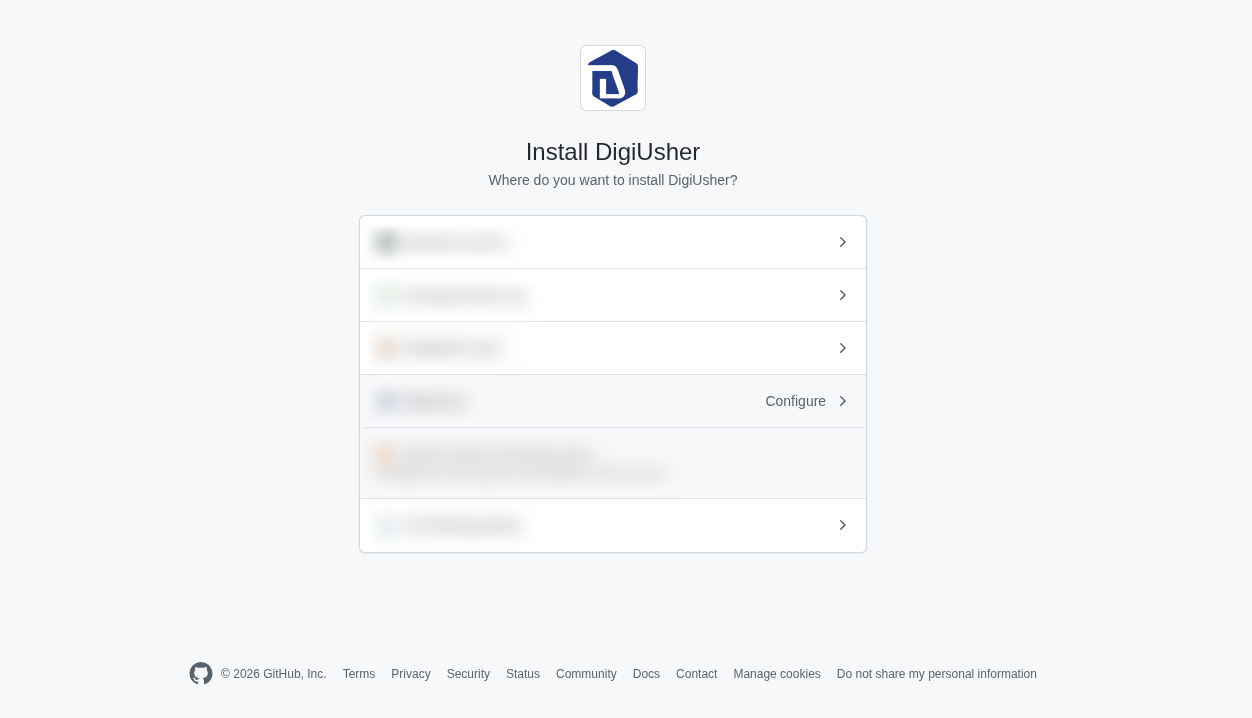
Select the organization to install the App on
GitHub shows the organizations of your account. Select the organization that you want to connect to DigiUsher.
Authorize and install the App
Leave All repositories selected. This is the default. Then click Install & Authorize.
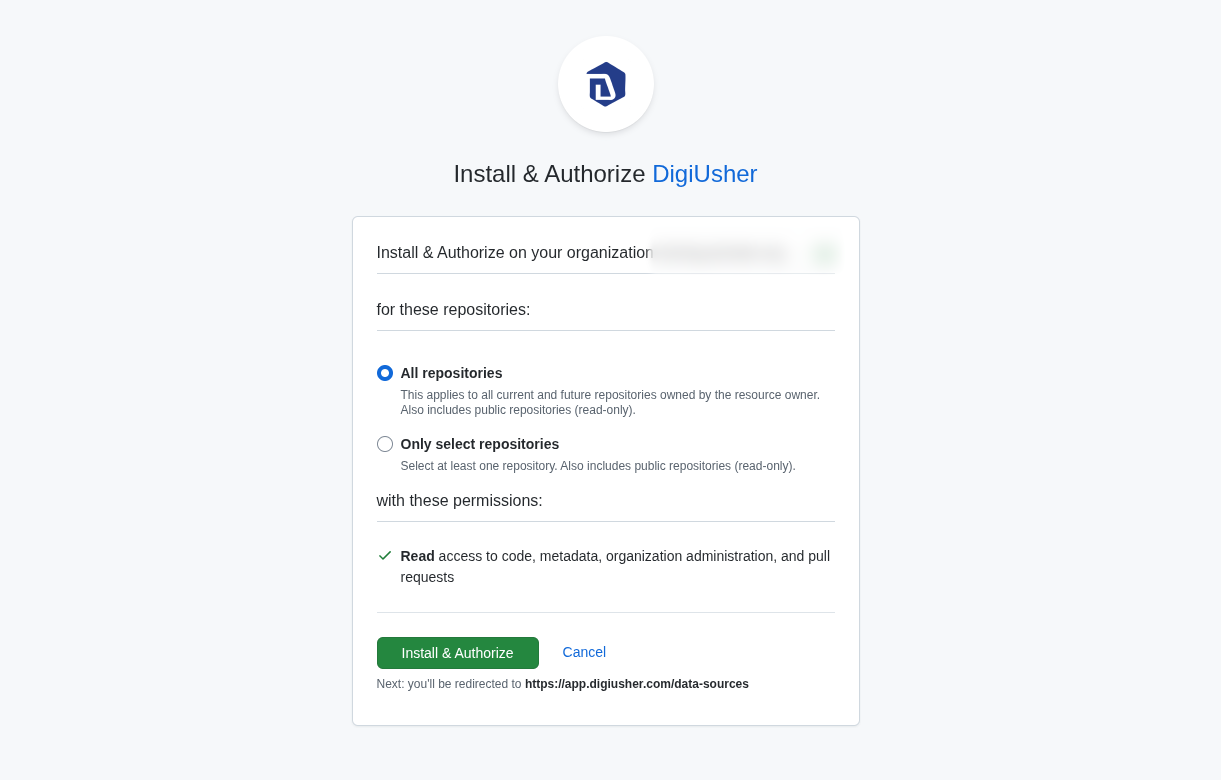
GitHub then sends you back to DigiUsher. After a few seconds, DigiUsher reports whether the installation worked.
What DigiUsher Ingests
After the connection, DigiUsher collects the spend of seats, Actions, Copilot, and Packages of your GitHub organization.
DigiUsher creates two kinds of rows:
- Plan seats. DigiUsher creates one row for each month. It calculates the row from the plan of your organization (Free, Team, or Enterprise) and from the number of filled seats. It uses your configured rate, or the list price.
- Usage charges. DigiUsher creates one row for each day, product, SKU, and repository. The data comes from the billing usage report of your GitHub organization. The line items therefore depend on the content of that report. A charge at the level of the organization has no repository.
Security
What DigiUsher Reads (Read-Only)
- Billing data and usage data at the level of the organization
- Seat counts and product consumption metrics
What DigiUsher CANNOT Do
- Change organization settings, members, repositories, or permissions
- Write to a repository, push to a repository, or change its contents
- Buy a product or change your GitHub plan
All permissions are read-only.
Revoking Access
To disconnect DigiUsher, open the settings of your GitHub organization. Go to Settings → GitHub Apps or Installed GitHub Apps, and uninstall the DigiUsher app. GitHub removes all access immediately. You can also remove the connection in DigiUsher.
Troubleshooting
Installation blocked or returning an error on GitHub
Make sure that the GitHub account that installs the app is an Owner of the organization. A member account cannot install an App, also with admin access to the repositories.
"Couldn't connect GitHub" after returning from GitHub
If DigiUsher gives this message after you return from GitHub, do these two checks:
- Make sure that you selected the correct organization on the GitHub installation page.
- Make sure that your account is still an Owner of that organization.
Wrong organization connected
Open the settings of the wrong organization and remove the app installation under Settings → Installed GitHub Apps. Then delete the data source in DigiUsher and do the setup again.
Reconnecting after an accidental disconnect
If the organization loses the connection to GitHub, do the setup again. The setup connects the same connector.
Need Help?
If this page does not answer your question, write to DigiUsher support at support@digiusher.com.