 DigiUsher Documentation
Connecting a Snowflake account
Overview
To connect your Snowflake environment to DigiUsher, create a read-only role and a service user for DigiUsher. Then give the necessary privileges to the role, and set up the key-pair authentication. This page gives the permissions, the reason for each permission, and the credentials that you enter in DigiUsher.
Summary of Access Required
| Component | Details |
|---|---|
| Identity | Dedicated service user — digiusher_reader |
| Authentication | Key-pair (ECDSA P-384 public/private key) |
| Data | Organization-level usage and billing views in the SNOWFLAKE shared database |
| Capability | What It Provides |
|---|---|
| Billing data | Cost analytics, chargeback and showback, budgeting, forecasting, anomaly detection |
DigiUsher cannot create, change, or delete a Snowflake resource.
Prerequisites
Information to Gather
| Item | How to Find | DigiUsher Field |
|---|---|---|
| Organization name | Run SELECT CURRENT_ORGANIZATION_NAME() in a worksheet. Step 2 gives the query | org_name |
| Account name | Run SELECT CURRENT_ACCOUNT_NAME() in a worksheet. Step 2 gives the query | account_name |
| Username | The service user from Step 3 (digiusher_reader) | username |
| Role | The read-only role from Step 3 (digiusher_reader_role) | role |
| Warehouse | The warehouse that the role can use, from Step 4, for example COMPUTE_WH | warehouse |
| Private key | Created on your computer in Step 6. Use the full PEM text, with the -----BEGIN PRIVATE KEY----- line and the -----END PRIVATE KEY----- line | private_key |
Roles Required by the Person Performing Setup
| Role | Why |
|---|---|
| ACCOUNTADMIN | To create the role, user, and apply all account-level grants |
| ORGADMIN | To grant the ORGANIZATION_USAGE_VIEWER, ORGANIZATION_BILLING_VIEWER, and related database/application roles that expose cross-account billing data |
ORGADMIN is separate from ACCOUNTADMIN
ACCOUNTADMIN does not contain ORGADMIN. If your setup user does not have the ORGADMIN role, a user with ORGADMIN must give it to your user first. Step 1 gives the statement.
Network & Email Access (For Regulated Environments)
If your organization restricts outbound internet access or email domains, make sure that these two items are in place before you start:
- Domain allowlist. Add
*.digiusher.comto the allowlist of your network and your firewall. The users of your organization can then open the DigiUsher platform in their browsers. - Email allowlist. Add
digiusher.comas a permitted sender domain in your email security gateway. DigiUsher sends onboarding confirmations, alerts, and reports from@digiusher.comaddresses.
Manual Setup
Grant ORGADMIN to Your Setup User (if needed)
If your user already has the ORGADMIN role, go to the next step.
Sign in as a user with ORGADMIN and run this statement. Replace <your_username> with the Snowflake username of the person that does the setup:
USE ROLE ACCOUNTADMIN;
GRANT ROLE ORGADMIN TO USER <your_username>;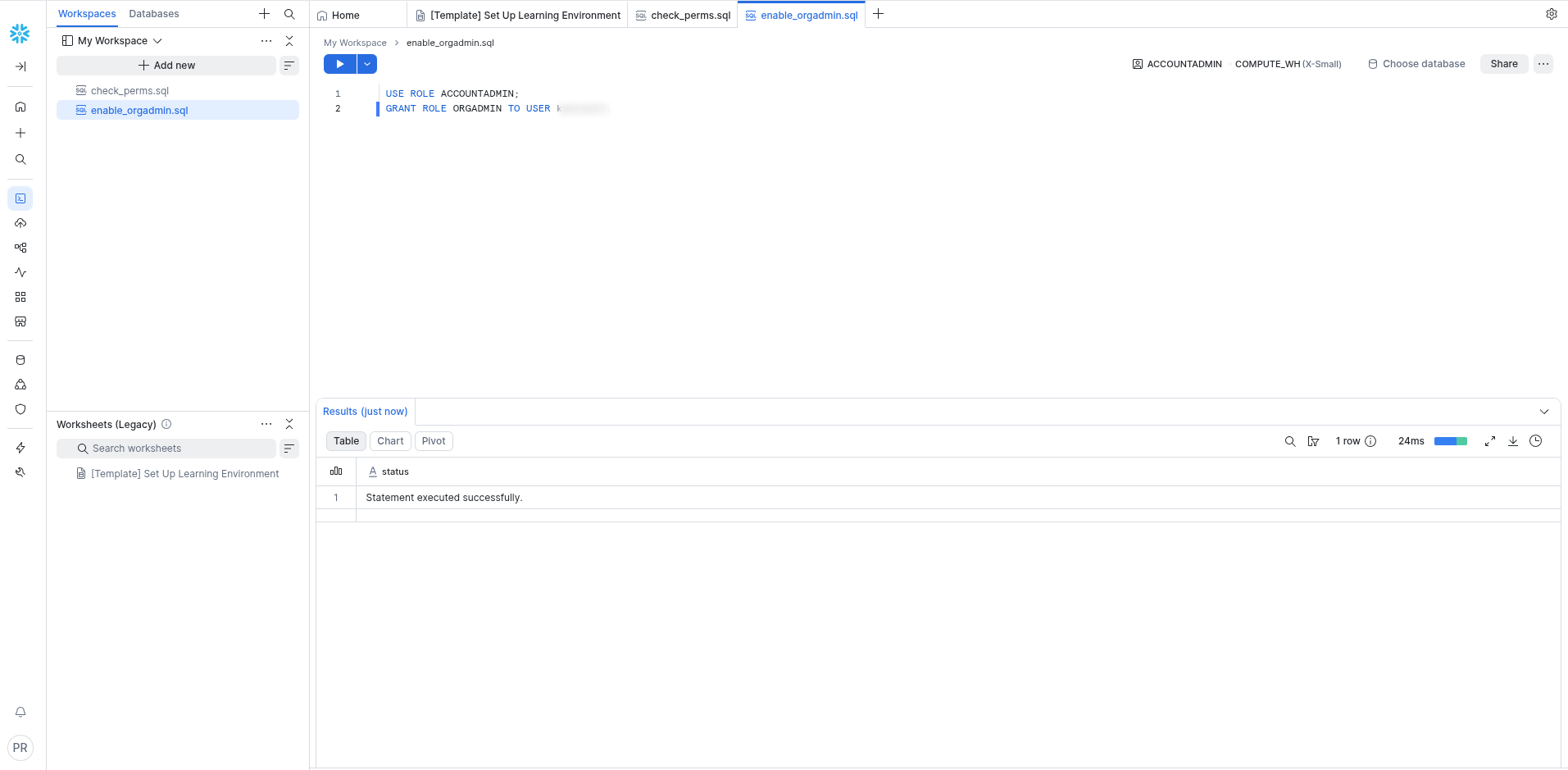
Find Your Organization and Account Names
Run this query in a Snowflake worksheet. It gives the two identifiers that DigiUsher needs:
SELECT
    CURRENT_ORGANIZATION_NAME() AS org,
    CURRENT_ACCOUNT_NAME()      AS account;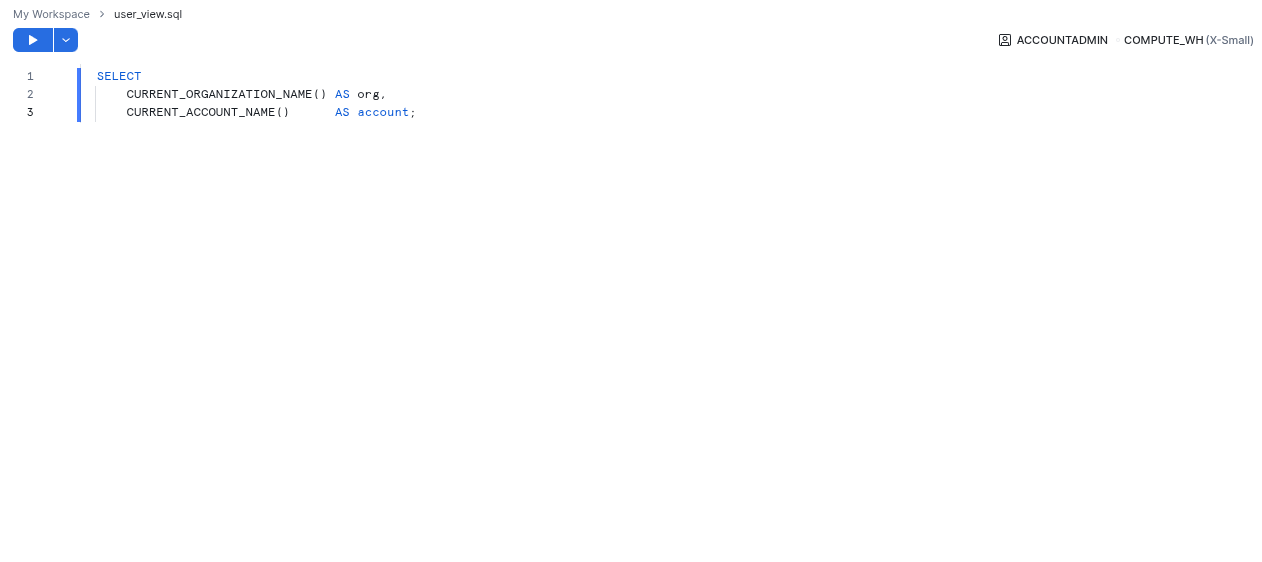
Note both values. You enter them in DigiUsher in the last step.
Create the Role and Service User
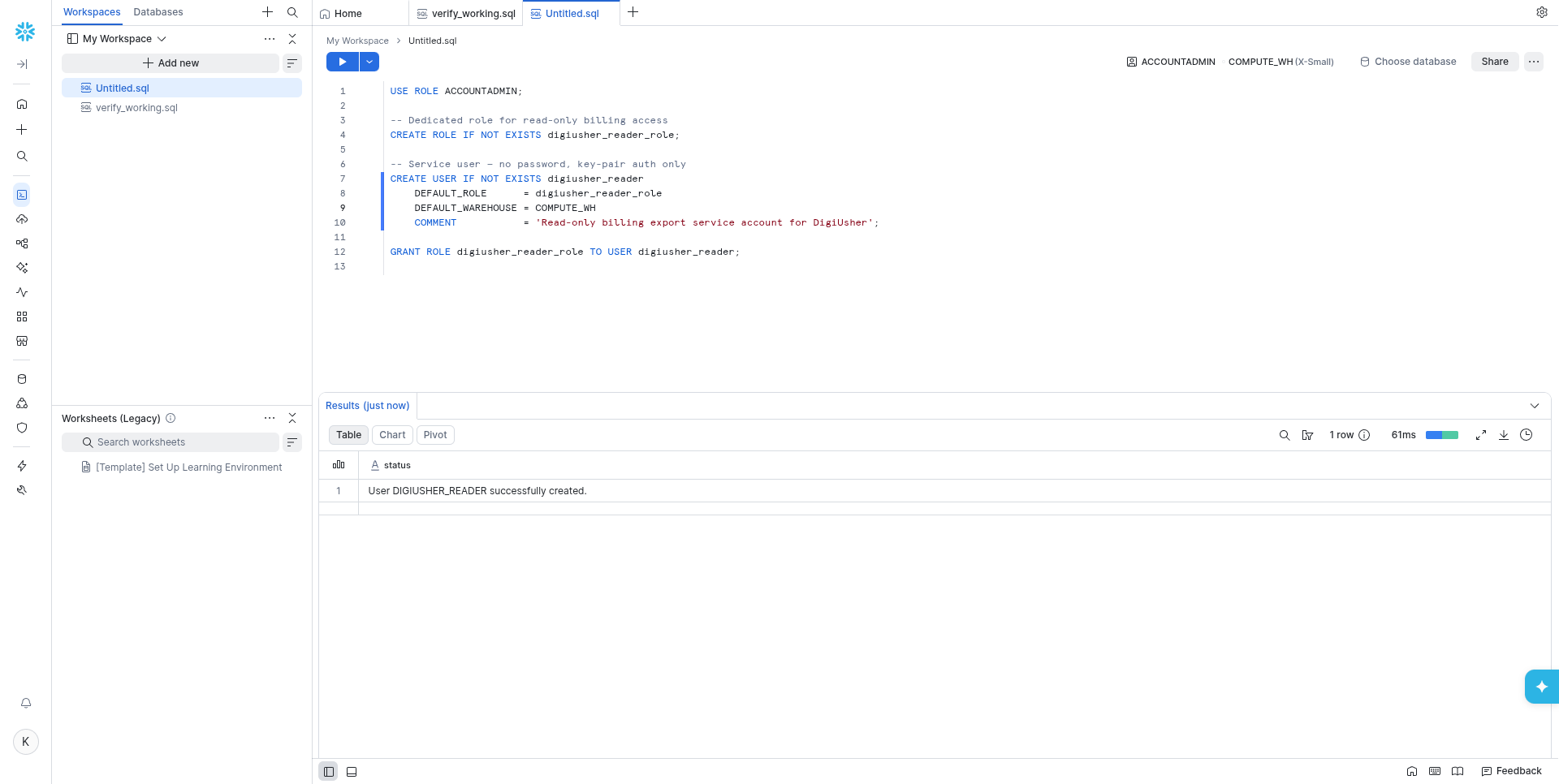
Run this block in a worksheet as ACCOUNTADMIN. It creates a read-only role and a service user for DigiUsher:
USE ROLE ACCOUNTADMIN;

CREATE ROLE IF NOT EXISTS digiusher_reader_role;

CREATE USER IF NOT EXISTS digiusher_reader
    DEFAULT_ROLE      = digiusher_reader_role
    DEFAULT_WAREHOUSE = COMPUTE_WH
    COMMENT           = 'Read-only DigiUsher service account';

GRANT ROLE digiusher_reader_role TO USER digiusher_reader;
If DigiUsher must use another warehouse, replace COMPUTE_WH with the name of that warehouse.
Grant Warehouse Usage
Give the role the permission to use the warehouse. DigiUsher can then run its queries:
-- Replace COMPUTE_WH with the warehouse you want DigiUsher to use.
-- Run SHOW WAREHOUSES; to see what's available.
GRANT USAGE ON WAREHOUSE COMPUTE_WH TO ROLE digiusher_reader_role;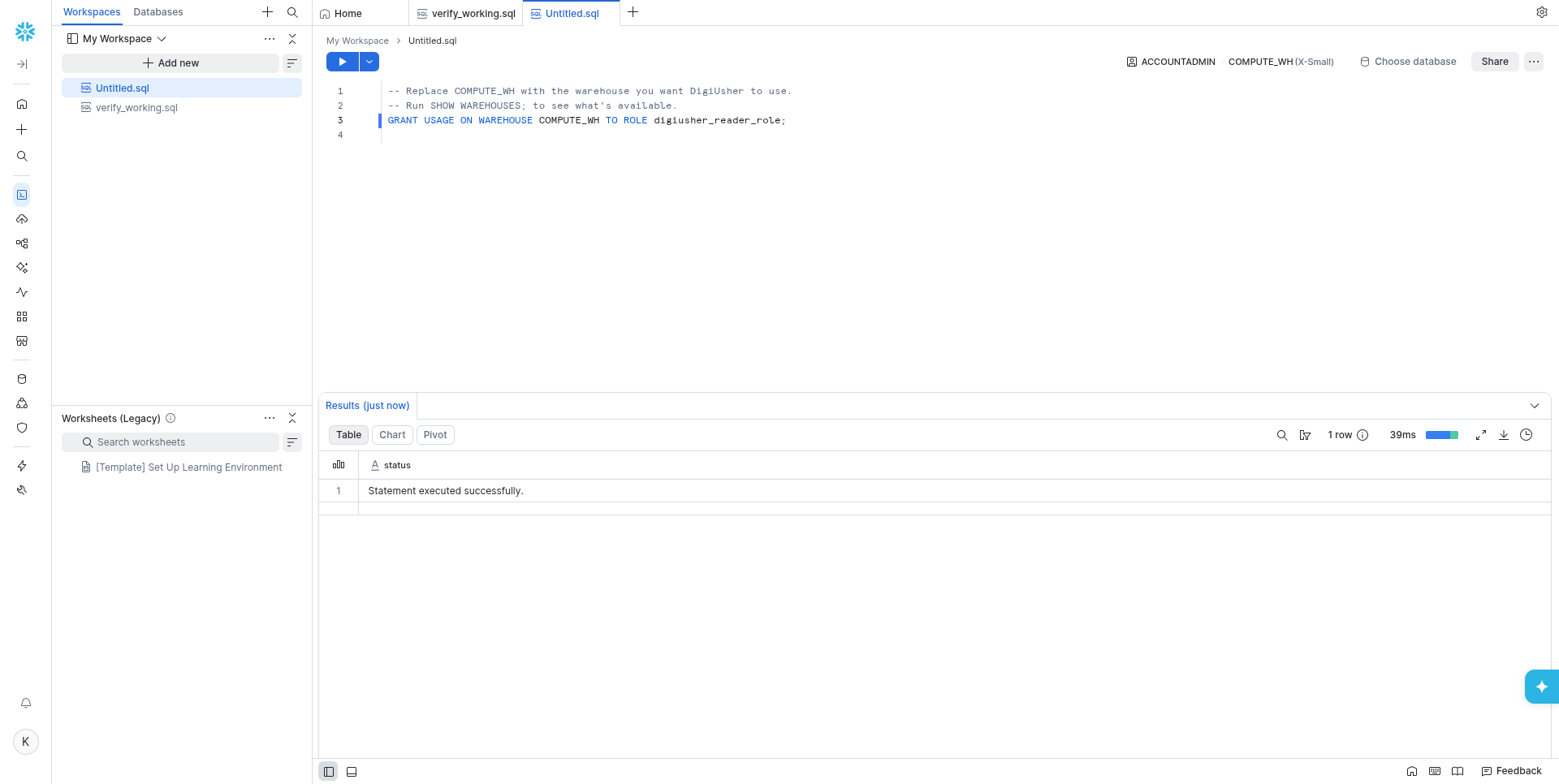
Grant Access to Billing and Usage Data
These grants give the role read-only access to the shared SNOWFLAKE database. They also give access to the organization views that DigiUsher queries for the cost data and the usage data.
Run the grants at the level of the account first, as ACCOUNTADMIN. Then change to ORGADMIN for the grants at the level of the organization. Snowflake permits one active role at a time. The grants at the level of the organization therefore need ORGADMIN as the active role. If your user does not have that role, read Step 1.
-- ── Account-level grants (run as ACCOUNTADMIN) ─────────────────────────────
USE ROLE ACCOUNTADMIN;

-- Access to the SNOWFLAKE shared database (unlocks the ACCOUNT_USAGE views)
GRANT IMPORTED PRIVILEGES ON DATABASE SNOWFLAKE TO ROLE digiusher_reader_role;

-- Lets the reader use the Snowsight cost UI and usage table functions
GRANT MONITOR USAGE ON ACCOUNT TO ROLE digiusher_reader_role;

-- Read-only account-level usage (application + database role)
GRANT APPLICATION ROLE SNOWFLAKE.APP_USAGE_VIEWER
    TO ROLE digiusher_reader_role;
GRANT DATABASE ROLE SNOWFLAKE.USAGE_VIEWER
    TO ROLE digiusher_reader_role;
-- ── Organization-level grants (run as ORGADMIN) ────────────────────────────
USE ROLE ORGADMIN;
-- Read-only organization billing (application role)
GRANT APPLICATION ROLE SNOWFLAKE.APP_ORGANIZATION_BILLING_VIEWER
TO ROLE digiusher_reader_role;
-- Organization-level database roles (cross-account billing views)
GRANT DATABASE ROLE SNOWFLAKE.ORGANIZATION_USAGE_VIEWER
TO ROLE digiusher_reader_role;
GRANT DATABASE ROLE SNOWFLAKE.ORGANIZATION_ACCOUNTS_VIEWER
TO ROLE digiusher_reader_role;
GRANT DATABASE ROLE SNOWFLAKE.ORGANIZATION_BILLING_VIEWER
TO ROLE digiusher_reader_role;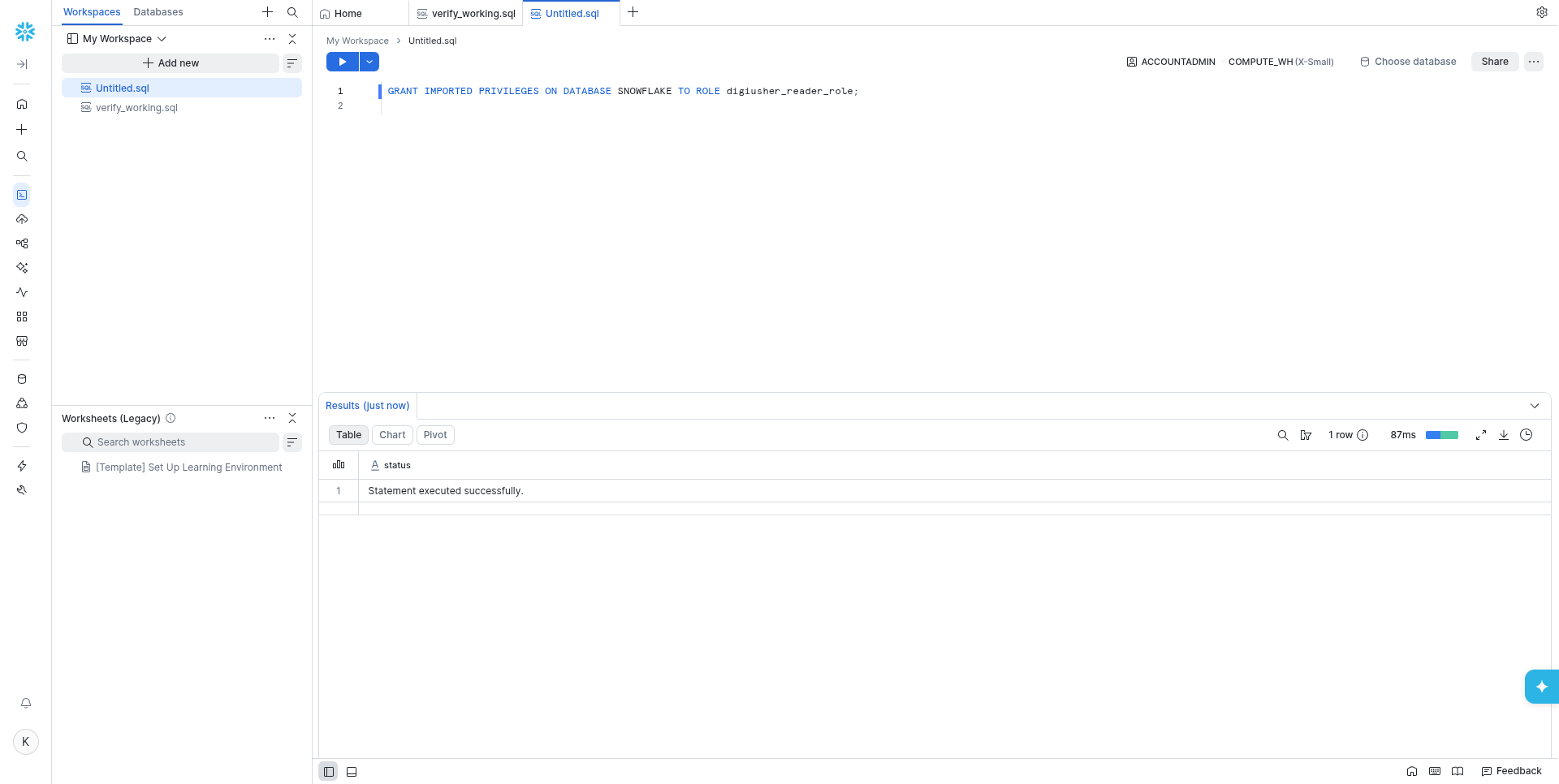
Organization grants require ORGADMIN as the active role
The statements GRANT APPLICATION ROLE SNOWFLAKE.APP_ORGANIZATION_BILLING_VIEWER and GRANT DATABASE ROLE SNOWFLAKE.ORGANIZATION_* need ORGADMIN as the active role. As ACCOUNTADMIN they fail. Run USE ROLE ORGADMIN; first, as in the block. To give ORGADMIN to your user, read Step 1.
Set Up Key-Pair Authentication
Snowflake supports key-pair authentication for a service account. DigiUsher uses ECDSA P-384 keys.
Generate the Key Pair
Run these commands on your computer:
# Generate an ECDSA P-384 private key (unencrypted, PKCS#8)
openssl genpkey -algorithm EC -pkeyopt ec_paramgen_curve:P-384 -out digiusher_ec_key.p8

# Derive the public key
openssl pkey -in digiusher_ec_key.p8 -pubout -out digiusher_ec_key.pub
Register the Public Key
Copy the content of digiusher_ec_key.pub. Remove the header -----BEGIN PUBLIC KEY-----, the footer -----END PUBLIC KEY-----, and every line break. The result is one base64 string. Then register the key on the user in a Snowflake worksheet:
ALTER USER digiusher_reader
    ADD KEY PAIR digiusher_reader_p384
    PUBLIC_KEY = '<paste-public-key-contents-here>';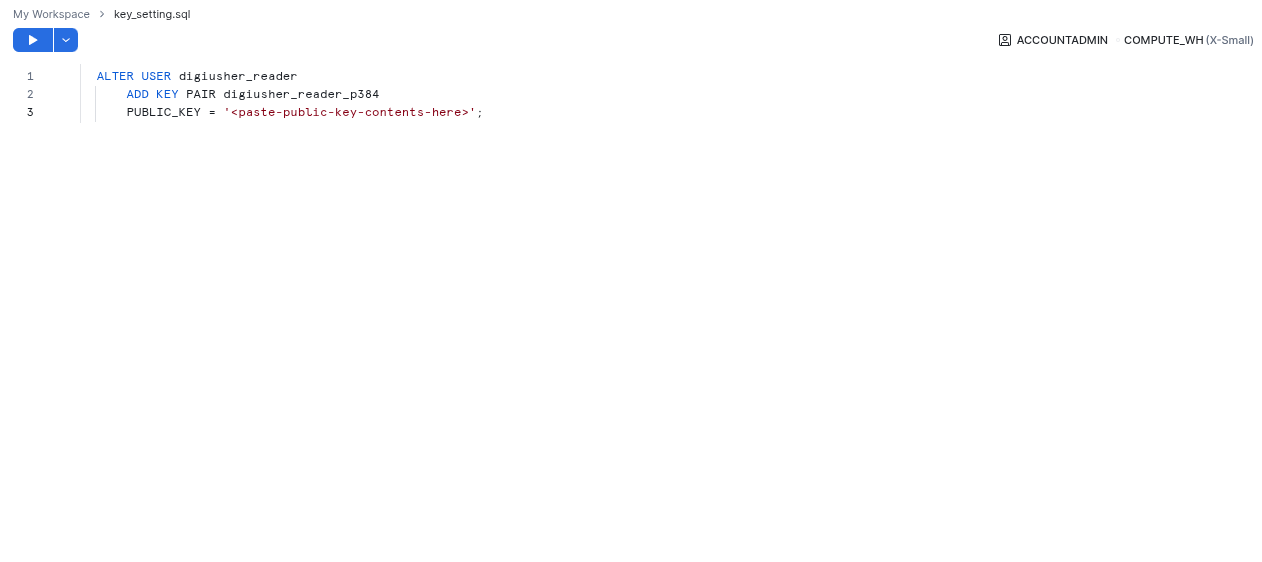
Save your private key
CAUTION: Save the file digiusher_ec_key.p8 in a safe place. You paste its content into DigiUsher in the next step. After the registration, you cannot read the private key from Snowflake.
Connect in DigiUsher
After you complete the setup steps, go to Connectors > Add Source in DigiUsher and select Snowflake. On the Configure step, enter the values in the table. Then go to Connect and click Connect source:
| Field | Where to Find |
|---|---|
| Display Name | Any label you prefer (for example Snowflake Production) |
| Organization Name | The org value from Step 2 |
| Account Name | The account value from Step 2 |
| Username | digiusher_reader, from Step 3 |
| Role | digiusher_reader_role, from Step 3 |
| Warehouse | The warehouse from Step 4, for example COMPUTE_WH |
| Private Key | The content of digiusher_ec_key.p8. Use the full PEM text, with the -----BEGIN PRIVATE KEY----- line and the -----END PRIVATE KEY----- line |
The first sync reads 12 calendar months: the current month and the eleven months before it. Every sync after the first one reads the current month and the month before it again, because Snowflake corrects the recent months for late usage and for rebates.
Setup Checklist
- ORGADMIN role given to the setup user, or the user already has it
- Organization name and account name noted from Step 2
-
digiusher_reader_roleanddigiusher_readercreated - Warehouse
USAGEgrant applied todigiusher_reader_role - Account-level grants (
IMPORTED PRIVILEGES,MONITOR USAGE,APP_USAGE_VIEWER,USAGE_VIEWER) executed asACCOUNTADMIN - Organization-level grants (
APP_ORGANIZATION_BILLING_VIEWER,ORGANIZATION_*database roles) executed asORGADMIN - ECDSA P-384 key pair generated and public key registered via
ALTER USER ... ADD KEY PAIR - Organization name, account name, username, role, warehouse, and private key entered in DigiUsher
- DigiUsher reads
SNOWFLAKE.ORGANIZATION_USAGE.USAGE_IN_CURRENCY_DAILYand returns cost records -
*.digiusher.comin the allowlist of your network and firewall (if your organization restricts this) -
digiusher.comin the allowlist of permitted sender domains in your email security gateway (if your organization restricts this)
Security
What DigiUsher CAN Access (Read-Only)
SNOWFLAKE.ORGANIZATION_USAGE.USAGE_IN_CURRENCY_DAILY, which gives the daily credit consumption and the cost of each account in the organizationSNOWFLAKE.ORGANIZATION_USAGE.*, which are the usage views of the organization for compute, storage, and data transferSNOWFLAKE.ACCOUNT_USAGE.*, which is the resource usage metadata of the account- The views of
SNOWFLAKE.USAGE_VIEWER,ORGANIZATION_BILLING_VIEWER, and the related database roles
What DigiUsher CANNOT Do
- Read a user table, a database, or a schema outside the shared
SNOWFLAKEdatabase - Read query results, the content of a stage, or your business data
- Create, change, or delete an object in Snowflake
- Read or change the billing configuration, the warehouse configuration, or the account parameters
- Buy a product or change your Snowflake contract
Monitoring
To monitor the activity of digiusher_reader, query SNOWFLAKE.ACCOUNT_USAGE.QUERY_HISTORY with the filter USER_NAME = 'DIGIUSHER_READER'. This view is the full audit trail of every query of the service account.
Credential Rotation
- Generate a new ECDSA P-384 key pair (repeat Step 6).
- Register the new public key as a second named key pair. Both keys are then active during the change, and the data collection does not stop:
ALTER USER digiusher_reader ADD KEY PAIR digiusher_reader_p384_new PUBLIC_KEY = '<new-public-key>'; - Enter the new private key in the Private Key field in DigiUsher.
- After DigiUsher connects again, remove the old key pair:
ALTER USER digiusher_reader DROP KEY PAIR digiusher_reader_p384;
Revocation
To stop the access of DigiUsher immediately, drop the user:
USE ROLE ACCOUNTADMIN;
DROP USER digiusher_reader;
DROP ROLE digiusher_reader_role;
To stop the access for a short time, and to keep the user, run this statement:
ALTER USER digiusher_reader SET DISABLED = TRUE;Troubleshooting
GRANT DATABASE ROLE fails with "Insufficient privileges"
- The
ORGANIZATION_*database roles need a user with theORGADMINrole and theACCOUNTADMINrole. RunUSE ROLE ORGADMIN;before the statements that fail. You can also giveORGADMINto your user, as in Step 1, and then try again.
Authentication failure (key-pair)
- Make sure that the private key in DigiUsher comes from the ECDSA P-384 key pair of the public key that you registered with
ALTER USER ... ADD KEY PAIR. The two keys must be a pair. - If you created a new key pair, register the new public key and enter the new private key in DigiUsher. If you change only one of the two, the authentication fails.
SNOWFLAKE.ORGANIZATION_USAGE views return no rows
- The organization views have data only for an account with the organization features of Snowflake. Make sure that your account is part of an organization.
SELECT CURRENT_ORGANIZATION_NAME();must return a value that is not null. - Some views have a delay of 24 hours. For a new account, wait one day and try again.
GRANT IMPORTED PRIVILEGES fails
- This grant needs the role
ACCOUNTADMIN. RunSELECT CURRENT_ROLE();before the grant to see the role of your session.
Warehouse access denied
- Make sure that you ran
GRANT USAGE ON WAREHOUSE <warehouse> TO ROLE digiusher_reader_rolewith the correct warehouse name. The name ignores the case, but it must be the same name. - Run
SHOW GRANTS TO ROLE digiusher_reader_role;to see all grants of the role.
No cost data visible after connection
- Run this query to make sure that the service account can read the data:
SELECT * FROM SNOWFLAKE.ORGANIZATION_USAGE.USAGE_IN_CURRENCY_DAILY
ORDER BY USAGE_DATE DESC LIMIT 5;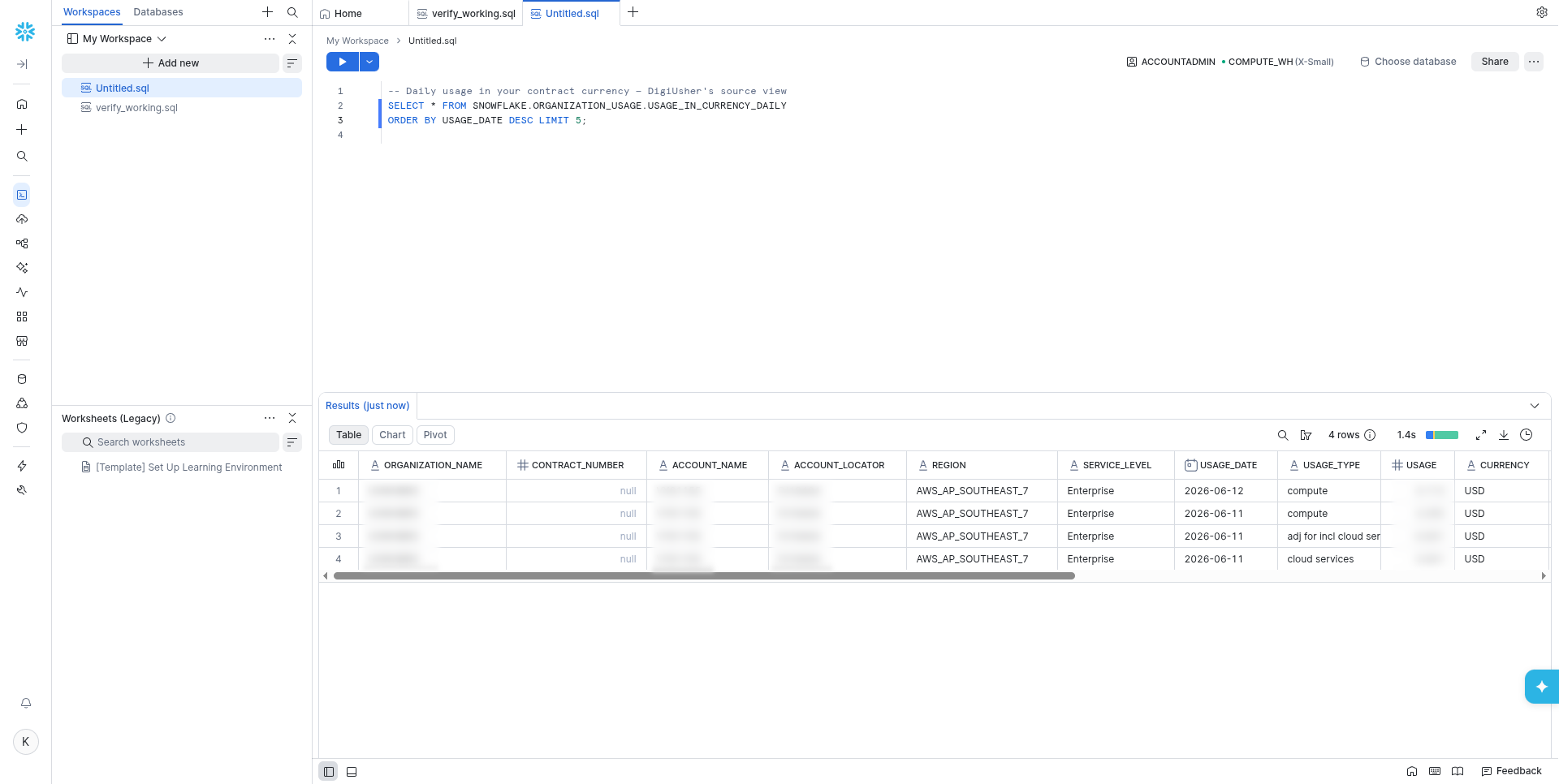
- If the query returns rows as
digiusher_reader, but DigiUsher shows no data, write to support. Give the name of the connection and the output ofSHOW GRANTS TO ROLE digiusher_reader_role;.
Need Help?
If this page does not answer your question, write to DigiUsher support at support@digiusher.com. The team will help you.