 DigiUsher Documentation
Connecting a Redis Cloud account
Connect your Redis Cloud account to DigiUsher with an API account key and an API user key to track usage-based spend across your Redis Cloud subscriptions and databases.
Overview
To connect your Redis Cloud account to DigiUsher, first enable the programmatic access in the Redis Cloud console. Then give two credentials to DigiUsher: the API Account key and an API user key. Together they give read access to the Redis Cloud REST API, and DigiUsher uses that API to import the billing and usage data. This page gives the access that DigiUsher asks for, the reason for that access, and the credentials that you enter.
Redis Cloud accounts only
This integration works with Redis Cloud, the managed cloud service. Redis that you manage yourself, such as Redis Open Source or Redis Software on your own infrastructure, creates no Redis Cloud billing data. This connector therefore does not support it.
Summary of Access Required
| Component | Details |
|---|---|
| Identity | Redis Cloud API keys: an account key and a user key, for programmatic access only |
| Access level | Read. Billing and usage data at the level of the account |
| Data | Usage-based spend per subscription, database, and billing period |
| Scope | A single Redis Cloud account |
| Capability | What It Provides |
|---|---|
| Spend by subscription | Cost per Redis Cloud subscription |
| Spend by database | Cost per database within each subscription |
| Usage quantities | Provisioned capacity, throughput, and storage (product-dependent) |
DigiUsher cannot connect to your databases, cannot read cached data, cannot change a subscription, and cannot change any part of your Redis Cloud configuration.
Prerequisites
Information to Gather
| Item | How to Find | DigiUsher Field |
|---|---|---|
| API account key | Redis Cloud console > Account Settings > API Keys. The key is under API account key. Click the eye icon to show it, then click Copy. | Account API Key |
| API user key | Created under API user keys on the same page. The page shows it one time only. The Setup section gives the steps. | Secret API Key |
Roles Required by the Person Performing Setup
| Role / Permission | Why |
|---|---|
| Owner, Viewer, or Billing admin on the Redis Cloud account | The user of the API user key must have one of these roles. If not, Redis Cloud rejects the billing requests of DigiUsher. To enable the REST API and to create API user keys, you also need access at the level of the account. |
Network & Email Access (For Regulated Environments)
If your organization restricts outbound internet access or email domains, make sure that these two items are in place before you start:
- Domain allowlist. Add
*.digiusher.comto the allowlist of your network and your firewall. The users of your organization can then open the DigiUsher platform in their browsers. - Email allowlist. Add
digiusher.comas a permitted sender domain in your email security gateway. DigiUsher sends onboarding confirmations, alerts, and reports from@digiusher.comaddresses.
Setup
Enable the REST API
The Redis Cloud REST API is off until you turn it on. Until then, DigiUsher cannot read the billing data.
In the Redis Cloud console, open Account Settings > API Keys and enable the programmatic access. In some versions of the console, this section has the name Access Management > API Keys, and the control has the name Enable API.
Copy the API Account Key
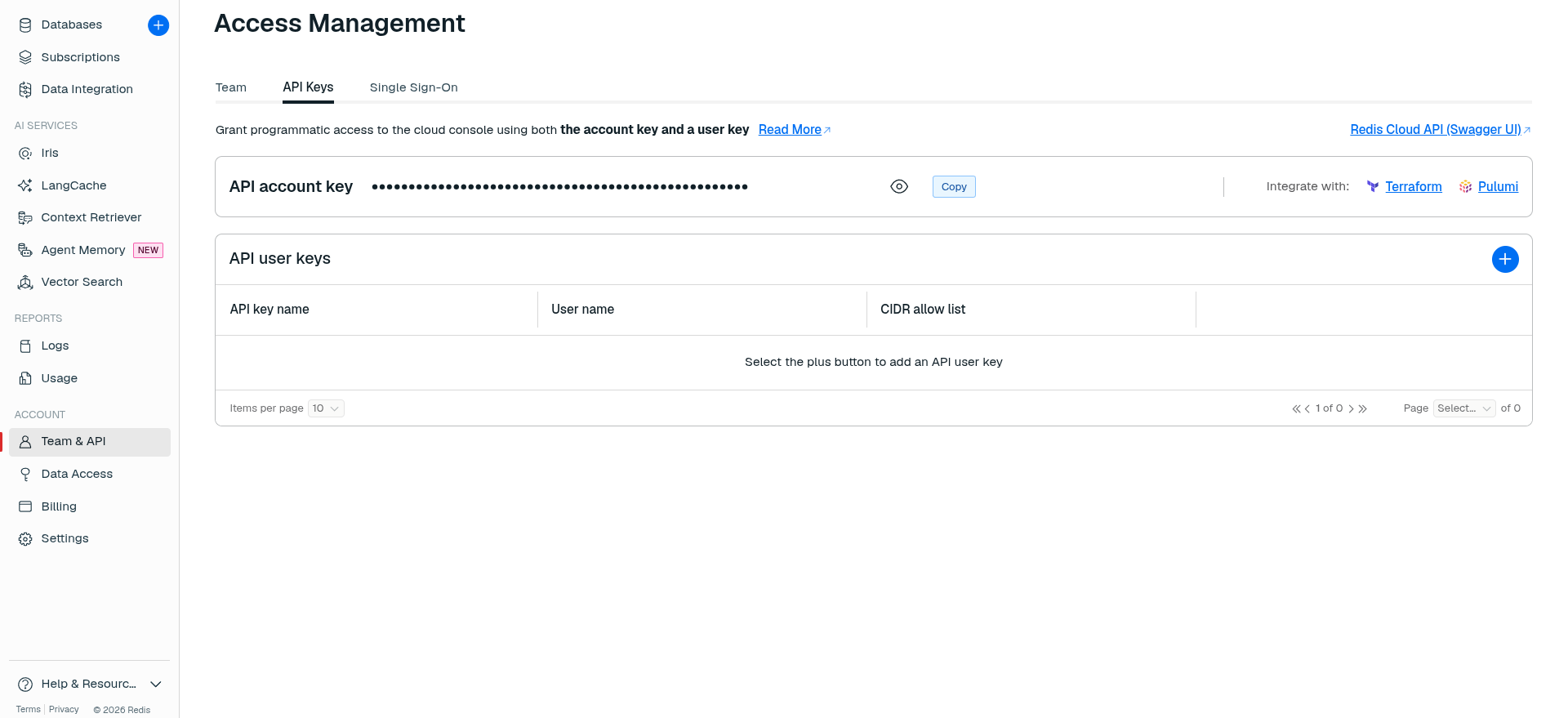
In the Redis Cloud console, open Account Settings > API Keys. It is under the Account section of the left navigation.
The API account key is at the top of the page. Click the eye icon to show it. Then click Copy and save the key in a safe place. This key is one of the two credentials that you enter in DigiUsher.
Create an API User Key
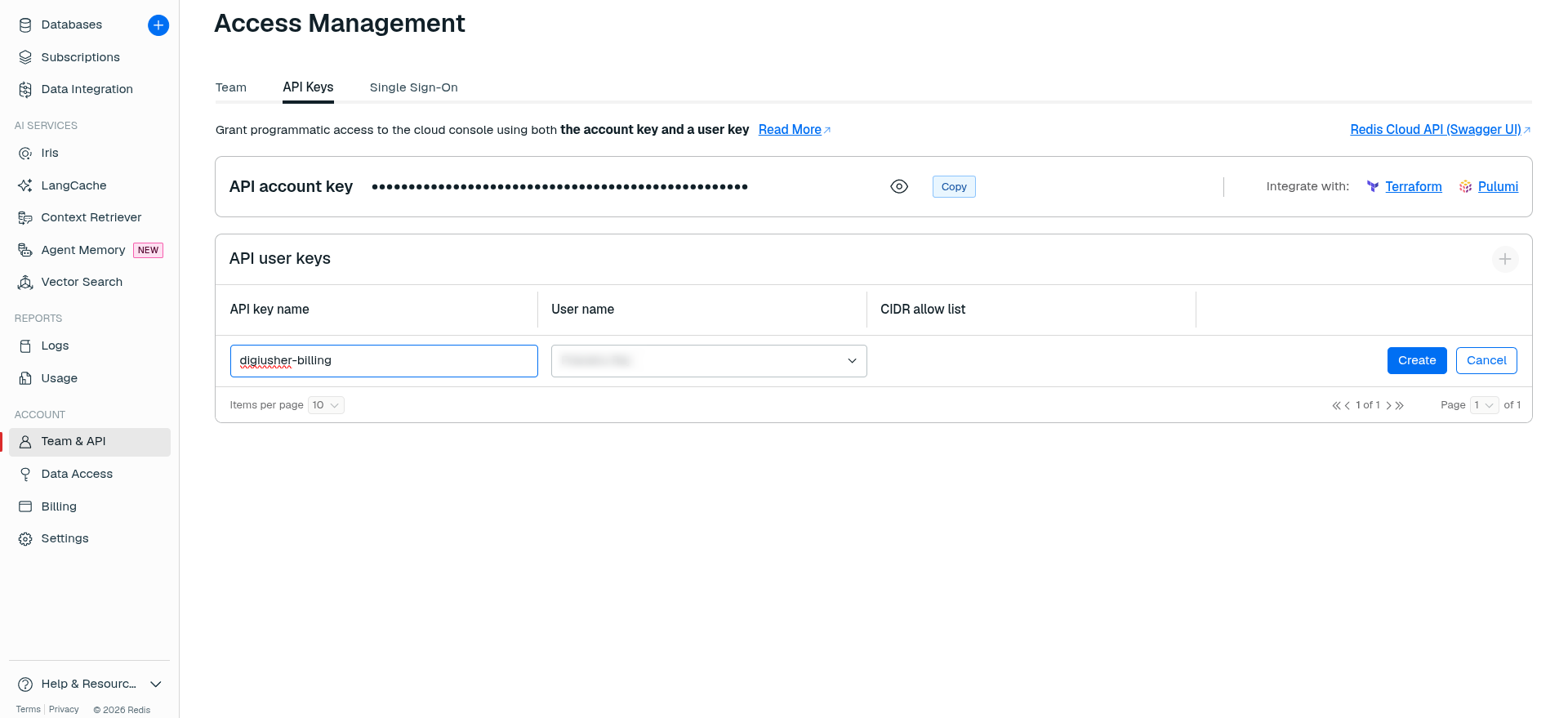
Under API user keys, click the + button to add a new key.
- Enter an API key name that you know again, for example
digiusher-billing. - Select the User name of the key. That user must have the Owner, Viewer, or Billing admin role.
- To limit the IP addresses that can use the key, add a CIDR allow list. This step is optional.
- Click Create.
Copy the API User Key
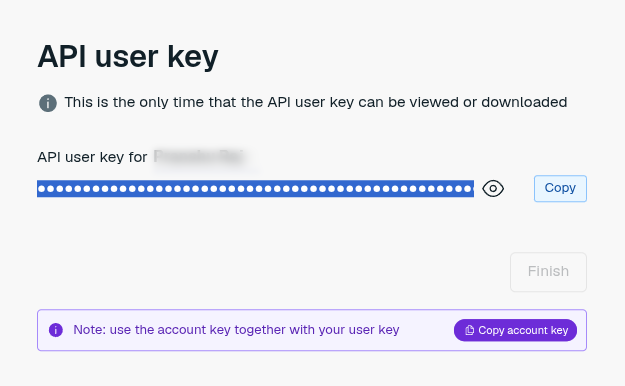
After the creation, the page shows the API user key. Click the eye icon to show it, then click Copy.
Save your credential
CAUTION: Copy the API user key now and save it in a safe place. The page shows the key one time only, and you cannot read it again. You enter this key in DigiUsher in the next section. If you lose the key, delete it and create a new one.
Make Sure You Have the Credentials
Before you continue, make sure that:
- The REST API is enabled for the account, from Step 1.
- You have the API account key from Step 2.
- You have the API user key from Step 4. Its user must have the Owner, Viewer, or Billing admin role.
Connect in DigiUsher
In DigiUsher, go to Connectors > Add Source and select Redis Cloud. On the Configure step, enter the values in the table. Then go to Connect and click Connect source:
| Field | Where to Find |
|---|---|
| Display Name | Any label you prefer, for example Redis Cloud Production |
| Account API Key | The API account key from Step 2 |
| Secret API Key | The API user key from Step 4 |
At the connection, DigiUsher makes sure that the keys work with your account, finds your Redis Cloud account ID, and starts to import the billing data. The first sync covers 6 calendar months: the current month and the five months before it. Every sync after the first one reads the current month and the month before it again. The values of those two months therefore change when Redis Cloud finalizes them.
Setup Checklist
- Redis Cloud account. Redis that you manage yourself does not work
- REST API enabled for the account
- The user of the API user key has the Owner, Viewer, or Billing admin role
- API account key found and copied
- API user key created and saved in a safe place
- API account key and API user key entered in DigiUsher
-
*.digiusher.comin the allowlist of your network and firewall (if your organization restricts this) -
digiusher.comin the allowlist of permitted sender domains in your email security gateway (if your organization restricts this)
Security
What DigiUsher CAN Access (Read-Only)
- Billing data and usage-based spend for each subscription, database, and billing period
- Usage quantities: provisioned capacity, throughput, and storage
What DigiUsher CANNOT Do
- Connect to your Redis databases or read cached data
- Create, change, or delete a subscription or a database
- Create, rotate, or delete an API key
- Read or change the payment methods, the plan configuration, or the billing contacts
- Buy a product or change your account
Monitoring
Open Account Settings > API Keys to see the API user keys that exist. Delete every key that you do not know.
Credential Rotation
- In the Redis Cloud console, create a new API user key.
- Enter the new key in DigiUsher immediately.
- Delete the old API user key in the Redis Cloud console.
Avoid ingestion gaps
Create the new key and enter it in DigiUsher before you delete the old key. This prevents an interruption of the data collection.
Revocation
Delete the API user key at Account Settings > API Keys. Redis Cloud then immediately invalidates the key and stops all access. DigiUsher cannot read billing data again until you give it a new key.
Troubleshooting
401 / 403 / invalid key
Redis Cloud needs the account key and a user key on every request. Make sure that you copied both keys correctly, and that the user key still exists. Also make sure that the REST API is enabled for the account, and that the user of the key has the Owner, Viewer, or Billing admin role. DigiUsher gives both of these as the cause when the connection fails. Create the API user key again in the Redis Cloud console and enter both credentials again in DigiUsher.
Key restricted by CIDR allow list
If you set a CIDR allow list on the API user key, make sure that the list contains the egress IP addresses of DigiUsher. Write to DigiUsher support for the current list of egress IP addresses.
No billing data or incomplete data
Redis Cloud finalizes the billing data for each billing period. The usage in the middle of a period can therefore be absent. Every sync reads the current month and the month before it again, so the values of those months change when Redis Cloud finalizes them.
Need Help?
If this page does not answer your question, write to DigiUsher support at support@digiusher.com. The team will help you.
Connecting a Cloudflare account
Connect your Cloudflare account to DigiUsher with an Account ID and a read-only Billing API token to track usage-based spend across Cloudflare products.
Connecting a Grafana Cloud account
Connect your Grafana Cloud organization to DigiUsher with an organization slug and a Cloud Access Policy token scoped to org billing (read) to track usage-based spend across your Grafana Cloud stacks.