 DigiUsher Documentation
Connecting a GCP account
Overview
To connect your GCP environment to DigiUsher, you create a service account. This account needs read-only access to your billing, resource, and metrics data. This page gives the permissions, the reason for each permission, and the credentials that you enter in DigiUsher.
Summary of Access Required
| Component | Details |
|---|---|
| Identity | GCP service account (digiusher-finops). It uses the API only, and it has no Console login |
| Authentication | JSON key. By default it does not expire |
| Access level | Read-only. Every role is a viewer role or a reader role |
| Scope | The whole organization, which DigiUsher recommends, or selected projects |
| Billing | Billing Viewer on a single billing account |
| Data access | The BigQuery billing export dataset only. DigiUsher cannot read another dataset |
| Capability | What It Provides |
|---|---|
| Billing data | Cost analytics, chargeback and showback, budgeting, forecasting, anomaly detection |
| Resource inventory | Asset discovery, idle resource detection, tag-based cost allocation |
| Optimization recommendations | VM rightsizing, CUD/reservation analysis, idle resource cleanup |
| Utilization metrics | CPU, memory, network, disk usage for rightsizing analysis |
DigiUsher cannot create, change, or delete a GCP resource.
Use Terraform for the fastest setup
DigiUsher recommends the Terraform configuration. It does the full setup in approximately 5 minutes, and it supports three scenarios: a full organization, a limited setup for a proof of concept, and an existing billing export.
Terraform Repository: https://github.com/digiusher/digiusher-iac/
If the policies of your organization need a setup by hand, use the manual steps on this page.
Prerequisites
Information to Gather
| Item | How to Find |
|---|---|
| Organization ID | gcloud organizations list or Console: IAM & Admin > Settings |
| Billing Account ID | gcloud billing accounts list or Console: Billing > Overview |
| Project ID | A project to host the service account and BigQuery dataset. Can be an existing project or a new one. |
Roles Required by the Person Performing Setup
| Role | Why |
|---|---|
| Organization Administrator | To grant org-level IAM roles (or Project Owner for limited/POC setup) |
| Billing Account Administrator | To grant billing viewer role and enable billing export |
Network & Email Access (For Regulated Environments)
If your organization restricts outbound internet access or email domains, make sure that these two items are in place before you start:
- Domain allowlist. Add
*.digiusher.comto the allowlist of your network and your firewall. The users of your organization can then open the DigiUsher platform in their browsers. - Email allowlist. Add
digiusher.comas a permitted sender domain in your email security gateway. DigiUsher sends onboarding confirmations, alerts, and reports from@digiusher.comaddresses.
Option A: Terraform (Recommended)
The DigiUsher Terraform configuration does the full setup in approximately 5 minutes.
git clone https://github.com/digiusher/digiusher-iac.git
cd digiusher-iac/gcpUse this scenario for a production environment. It gives read-only access to the whole organization.
cp terraform.tfvars.org-level.example terraform.tfvars
# Edit terraform.tfvars with your Organization ID, Billing Account ID, and Project ID

terraform init
terraform plan
terraform apply
Terraform Feature Flags
Every flag is true by default. To remove one kind of access, set its flag to false in terraform.tfvars.
| Variable | Default | Description |
|---|---|---|
create_bigquery_dataset | true | Create a new BigQuery dataset for the billing export. Set to false if you already have one. |
enable_resource_inventory | true | Grant Cloud Asset API access for resource inventory across the organization. |
enable_recommendations | true | Grant Recommender API access for cost optimization recommendations (rightsizing, idle resources, CUDs). |
enable_monitoring | true | Grant Cloud Monitoring access for utilization metrics (CPU, memory, network, disk). |
After Terraform Apply
Enable Billing Export
You must do this step by hand. There is no API and no Terraform resource for the configuration of the billing export. Read Enable Billing Export to BigQuery in the manual setup.
Extract the Service Account Key
terraform output -raw service_account_key | base64 -d > digiusher-key.jsonConnect in DigiUsher
Enter the credentials in the DigiUsher platform. The section Connect in DigiUsher gives the fields.
The digiusher-iac README is the full Terraform documentation. It gives the parameters, the feature flags, and the troubleshooting steps.
Option B: Manual Setup
Use these steps for a setup with the GCP Console or the gcloud CLI.
Enable APIs
Go to APIs & Services > Library in the GCP Console and enable each API. You can also run this command:
gcloud services enable \
  bigquery.googleapis.com \
  cloudbilling.googleapis.com \
  cloudresourcemanager.googleapis.com \
  iam.googleapis.com \
  cloudasset.googleapis.com \
  recommender.googleapis.com \
  compute.googleapis.com \
  sqladmin.googleapis.com \
  monitoring.googleapis.com \
  --project=<PROJECT_ID>
Create Service Account and Key
2a. Create the Service Account
- Go to IAM & Admin > Service Accounts > Create Service Account
- Service account ID:
digiusher-finops - Display name:
DigiUsher FinOps Platform - Description:
Read-only service account for DigiUsher cloud cost management - Click Create and Continue, then Done. Do not add roles here. Step 4 adds them.
2b. Create and Download JSON Key
- Click the service account, then Keys > Add Key > Create new key > JSON > Create.
- The browser downloads the key as a
.jsonfile.
Important
CAUTION: Save this key file in a safe place. You enter it in the DigiUsher platform in the last step.
Create BigQuery Dataset
If you already have a billing export dataset, go to the next step.
- Go to BigQuery > Create Dataset
- Dataset ID:
digiusher_billing_export - Data location: US or EU. The location must be a multi-region location for the backfill of the billing data.
Important
CAUTION: Select the location with care. You cannot change the location of a dataset later. Use the multi-region location US or EU. GCP then backfills the data of the month before automatically.
Grant IAM Roles
Give these roles to the service account digiusher-finops@<PROJECT_ID>.iam.gserviceaccount.com.
4a. Billing Account Level
- Go to Billing > Account Management > IAM
- Click Grant Access
- Principal:
digiusher-finops@<PROJECT_ID>.iam.gserviceaccount.com - Role:
Billing Account Viewer - Click Save
4b. Organization Level
- Go to IAM & Admin > IAM, select your Organization from the project picker at the top
- Click Grant Access
- Principal:
digiusher-finops@<PROJECT_ID>.iam.gserviceaccount.com - Add each of these roles. To add more than one role, click Add Another Role.
| Role | Purpose |
|---|---|
Browser | Browse org/folder/project hierarchy |
Tag Viewer | Read tags for chargeback/showback |
Cloud Asset Viewer | Resource inventory across projects |
Recommender Viewer | Cost optimization recommendations |
Compute Viewer | View CUDs, reservations, and Compute resources |
Cloud SQL Viewer | View Cloud SQL details and commitments |
BigQuery Resource Viewer | View BigQuery resource metadata for recommendations |
Monitoring Viewer | Read utilization metrics |
- Click Save
Scoped alternative
To limit the access to selected projects, and not to the whole organization, add these roles on each project separately. Do not add them at the level of the organization.
4c. Project Level (billing export project)
- Go to IAM & Admin > IAM on the project that holds the BigQuery dataset.
- Click Grant Access and add these roles:
| Role | Purpose |
|---|---|
BigQuery Job User | Execute billing queries |
BigQuery Read Session User | Efficient parallel data reads via Storage Read API |
Service Usage Consumer | Required for Cloud Asset API calls |
4d. BigQuery Dataset Level
- Go to BigQuery, click the dataset
digiusher_billing_export, then Sharing > Permissions > Add Principal - Principal:
digiusher-finops@<PROJECT_ID>.iam.gserviceaccount.com - Role:
BigQuery Data Viewer - Click Save
Enable Billing Export to BigQuery
This step cannot be automated
There is no API and no Terraform resource for the configuration of the billing export. You must do this step in the GCP Console.
- Go to GCP Console > Billing > Billing export.
- If you have more than one billing account, select the correct account.
- Under Detailed usage cost, click Edit settings. Select the project and the dataset (
digiusher_billing_export), then click Save. - Under Pricing, click Edit settings. Select the same project and dataset, then click Save.
After you enable the export, a new table appears in your BigQuery dataset:
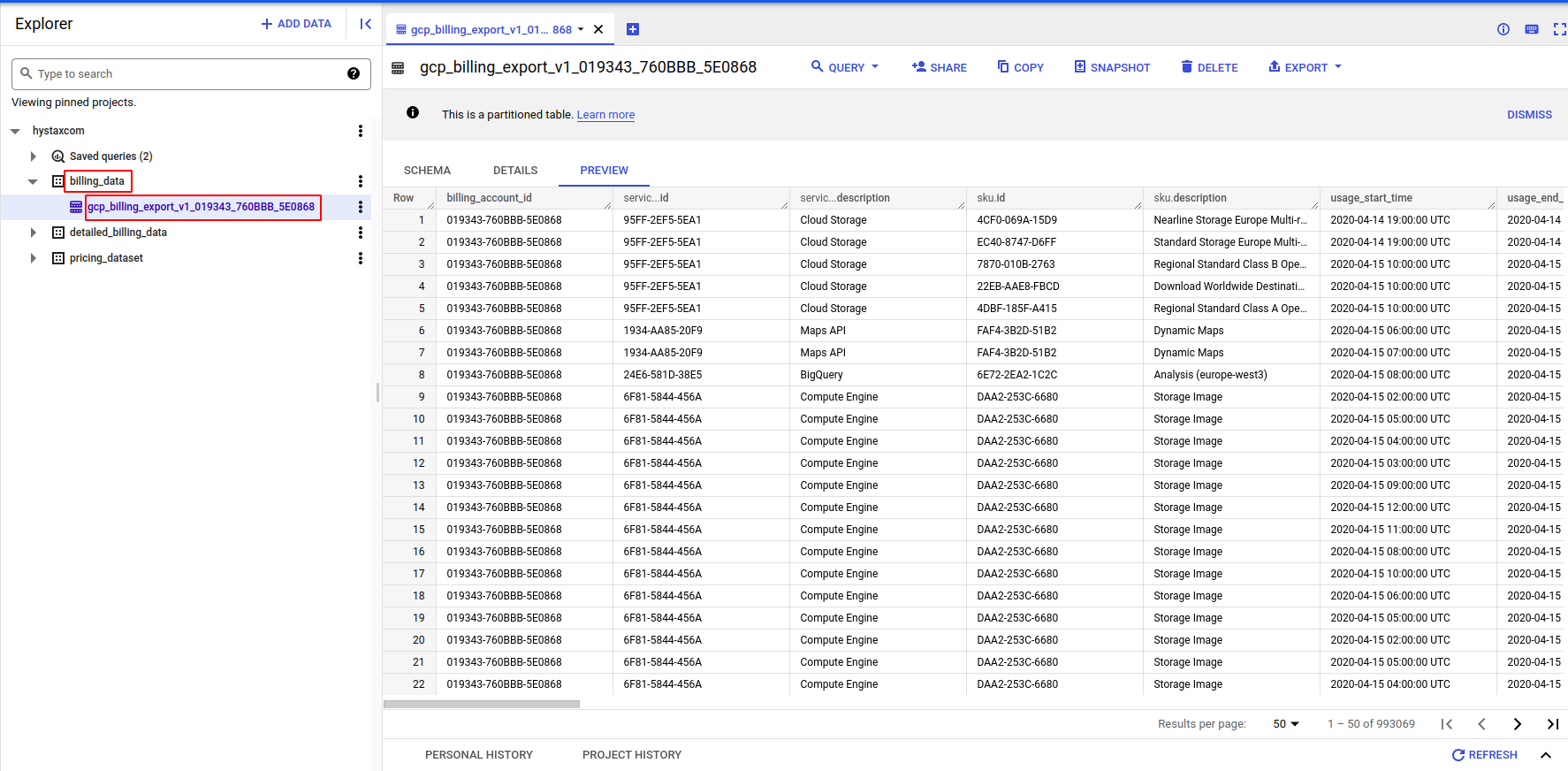
The data starts to arrive in 24 to 48 hours. A multi-region dataset in US or EU also backfills the month before.
Connect in DigiUsher
After you complete Option A or Option B, go to Connectors > Add Source and select Google Cloud Platform. On the Configure step, enter the values in the table, then click Review. On the Connect step, click Connect source.
| Field | Where to Find |
|---|---|
| Display Name | Any label you prefer (for example GCP Production) |
| Service Account Key | Upload the digiusher-key.json file |
| Project ID | The project that holds the BigQuery billing export |
| Dataset Name | digiusher_billing_export (or your custom dataset name) |
Setup Checklist
- APIs enabled in the hosting project
- Service account
digiusher-finopscreated with JSON key - BigQuery dataset created (or existing dataset identified)
- Billing Account Viewer role assigned on billing account
- Organization-level roles assigned (Browser, Tag Viewer, Cloud Asset Viewer, Recommender Viewer, Compute Viewer, Cloud SQL Viewer, BigQuery Resource Viewer, Monitoring Viewer)
- BigQuery Job User, BigQuery Read Session User, and Service Usage Consumer assigned on the hosting project
- BigQuery Data Viewer assigned on the billing export dataset
- Detailed usage cost billing export enabled (pointing to the dataset)
- Pricing billing export enabled (pointing to the same dataset)
- Credentials entered into the DigiUsher platform
-
*.digiusher.comin the allowlist of the network and the firewall (if your organization restricts this) -
digiusher.comin the allowlist for incoming email (if your organization restricts this)
Security
What DigiUsher CAN Access (Read-Only)
- The billing data and the cost data in BigQuery
- The resource metadata, such as names, types, regions, labels, and tags
- The utilization metrics for CPU, memory, network, and disk, in Cloud Monitoring
- The optimization recommendations of the Recommender API of Google
- The information about the CUDs and the reservations
- The hierarchy of the organization, the folders, and the projects
What DigiUsher CANNOT Do
- Create, change, or delete a GCP resource
- Read application data, databases, or the content of your storage
- Change an IAM policy or a permission
- Read secrets, credentials, or encryption keys
- Read network traffic or the content of your logs
- Buy a product or change the billing configuration
- Read a BigQuery dataset that is not the billing export dataset
Scope Controls
- To limit the access to selected projects, and not to the whole organization, set
target_project_idsin Terraform - The BigQuery access always covers the billing export dataset only, also with access to the whole organization
- The Billing Viewer role covers one billing account only
Monitoring
To monitor the activity of the service account, open GCP Console > IAM & Admin > Audit Logs and filter by the principal digiusher-finops@<PROJECT_ID>.iam.gserviceaccount.com.
Credential Rotation
- With Terraform, run
terraform apply -replace="google_service_account_key.digiusher". - By hand, open the service account and click Keys > Add Key to create a new key. Then delete the old key, and enter the new key in the DigiUsher platform.
Revocation
- With Terraform, run
terraform destroy. It removes the service account and all IAM bindings, and it invalidates the key. - By hand, delete the service account
digiusher-finopsin IAM & Admin > Service Accounts. GCP then immediately invalidates the key and all its IAM bindings. - The revocation does not disable the APIs. This prevents a fault in your other workloads.
Troubleshooting
Cannot find Organization ID
gcloud organizations listIf the result is empty, your GCP account has no organization. An organization needs Google Workspace or Cloud Identity. Write to your GCP administrator.
"Permission denied" when assigning roles
For the roles at the level of the organization you need Organization Administrator. For the billing roles you need Billing Account Administrator. This command gives your roles:
gcloud organizations get-iam-policy <ORG_ID> \
  --flatten="bindings[].members" \
  --filter="bindings.members:user:<YOUR_EMAIL>" \
  --format="table(bindings.role)"
BigQuery dataset already exists
Use the dataset that exists. Make sure that it is in a multi-region location, US or EU. Then give the role BigQuery Data Viewer to the service account on that dataset.
No billing data after 48 hours
- Make sure that the billing export shows "Enabled" in Billing > Billing export.
- Make sure that the dataset location is multi-region, US or EU.
- Make sure that Detailed usage cost is enabled. The Standard export alone is not sufficient.
- Make sure that you selected the correct billing account.
"API not enabled" errors
Make sure that all APIs from Step 1 are enabled. An API needs a few minutes to become active.
Need Help?
If this page does not answer your question, write to DigiUsher support at support@digiusher.com. The team will help you.