 DigiUsher Documentation
Connecting an Alibaba Cloud account
Overview
To connect your Alibaba Cloud environment to DigiUsher, create a FOCUS 1.0 export of your billing data to an Object Storage Service (OSS) bucket. FOCUS is the open billing-data standard of the FinOps Foundation. Then create a RAM user with read-only access to that bucket. This page gives the permissions, the reason for each permission, and the credentials that you enter in DigiUsher.
FOCUS export is in invitational preview
The menu Bills > Bill Subscription appears in the Expenses and Costs console only when your account has the preview access. If you do not see the menu, write to Alibaba Cloud support and ask for the access.
Cost analysis only
The exported FOCUS data is for the cost analysis only. You cannot use it for a reconciliation or for a settlement. For the official reconciliation, use the bill overview in the Alibaba Cloud Management Console.
Summary of Access Required
| Component | Details |
|---|---|
| Identity | RAM user, for programmatic access only, without a console login |
| Authentication | Access Key ID and Access Key Secret |
| Access level | Read-only, on a single OSS bucket |
| Data | FOCUS 1.0 bill export, through the OSS of Alibaba Cloud |
| OSS bucket | One bucket for the billing exports only |
| Capability | What It Provides |
|---|---|
| Billing data | Cost analytics, chargeback and showback, budgeting, forecasting, anomaly detection |
DigiUsher cannot create, change, or delete an Alibaba Cloud resource.
Prerequisites
Information to Gather
| Item | How to Find | DigiUsher Field |
|---|---|---|
| RAM Access Key ID | RAM Console > Identities > Users > select or create a RAM user > Create AccessKey | access_key_id |
| RAM Access Key Secret | The console shows it one time only, at the creation of the AccessKey. Save it in a safe place | access_key_secret |
| OSS Bucket Name | The target bucket of the FOCUS export, from Expenses & Costs Console > Bills > Bill Subscription | bucket_name |
| OSS Bucket Prefix / Directory | The "OSS Directory" of the bill subscription, for example billing-focus/ | bucket_prefix |
| OSS Region ID | The region of the bucket, for example cn-hangzhou or ap-southeast-1, from OSS Console > Bucket Overview | region |
Roles Required by the Person Performing Setup
| Role / Permission | Why |
|---|---|
| Billing/Finance Administrator on the management (master) account | To create the FOCUS Bill Subscription, and to give the billing service write access to the bucket one time. |
RAM Administrator, for example with AliyunRAMFullAccess | To create the RAM user and its AccessKey pair for DigiUsher. |
OSS read access on the export bucket, for example AliyunOSSReadOnlyAccess or a policy for that bucket | This permission goes to the RAM user of the AccessKey that DigiUsher uses. Read-only access is sufficient, and DigiUsher prefers it. |
Network & Email Access (For Regulated Environments)
If your organization restricts outbound internet access or email domains, make sure that these two items are in place before you start:
- Domain allowlist. Add
*.digiusher.comto the allowlist of your network and your firewall. The users of your organization can then open the DigiUsher platform in their browsers. - Email allowlist. Add
digiusher.comas a permitted sender domain in your email security gateway. DigiUsher sends onboarding confirmations, alerts, and reports from@digiusher.comaddresses.
Setup
Create an OSS Bucket
The FOCUS export writes its files to an OSS bucket that exists already. Create a separate bucket, so that the billing data stays apart from your other data.
- Sign in to the Alibaba Cloud Console.
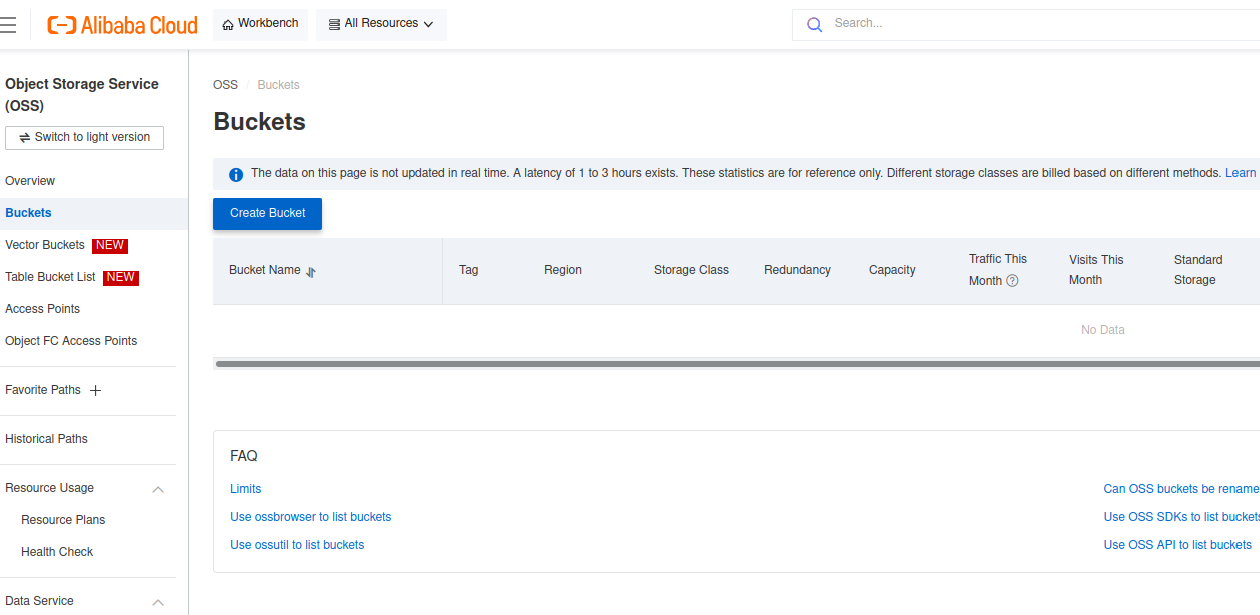
- Go to Object Storage Service (OSS).
- Click Create Bucket.
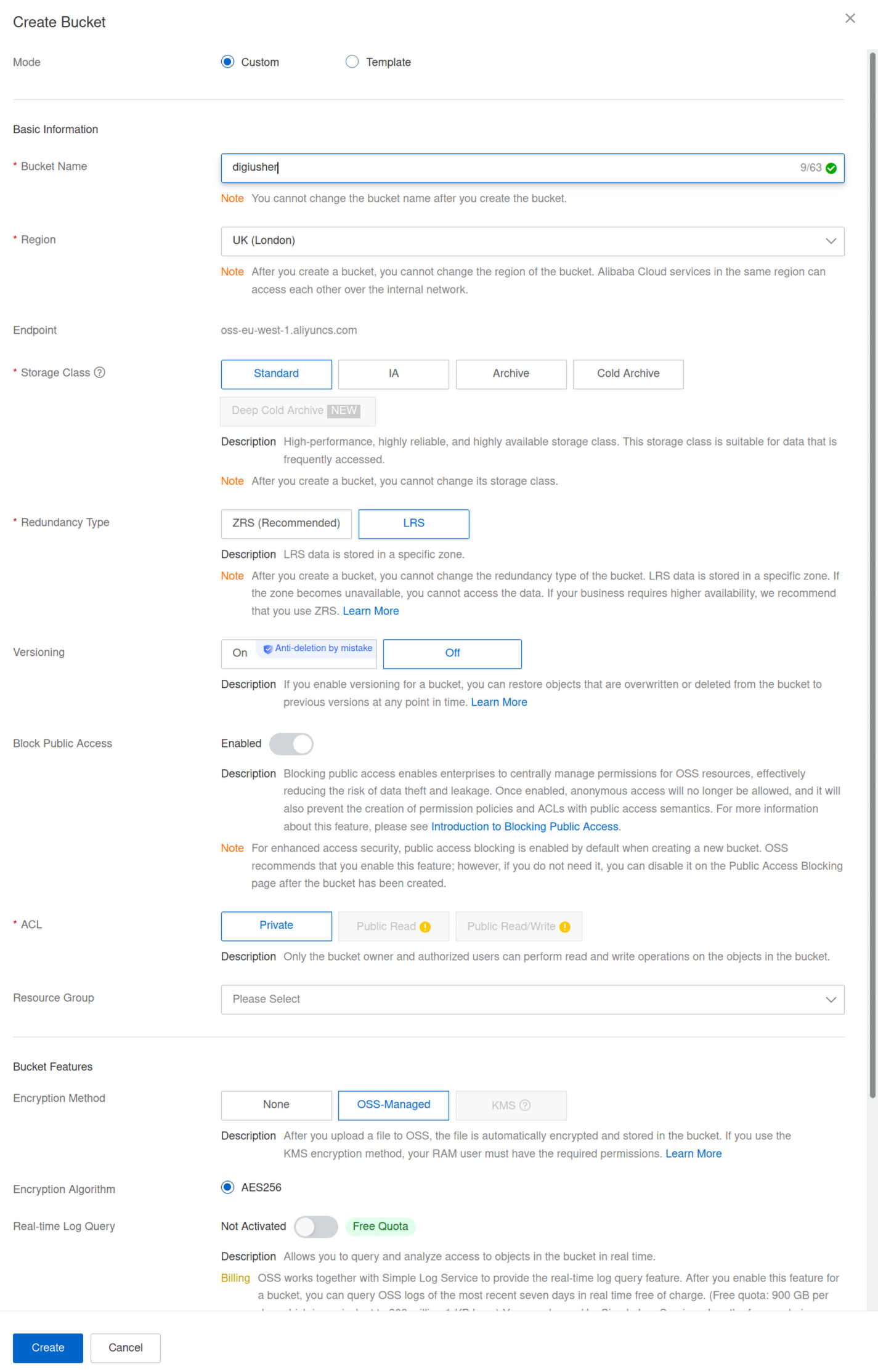
- Configure the bucket:
- Bucket Name:
my-focus-bucket, or another name. Note the name. - Region: Select the region that is nearest to your main workloads
- Storage Class: Standard
- Access Control List (ACL): Private
- Bucket Name:
- Click OK.
Choose a unique bucket name
An OSS bucket name is globally unique in Alibaba Cloud. You cannot use a name that another user has. Select your own name. The names in the examples and in the screenshots of this page are not available.
Keep the bucket private
Keep the bucket ACL at Private. The RAM policy from Step 4 controls the access.
Set Up the FOCUS Bill Subscription
This step lets the Expenses and Costs service write the FOCUS billing data into your OSS bucket automatically.
- In the Expenses and Costs console, go to Bills > Bill Subscription.
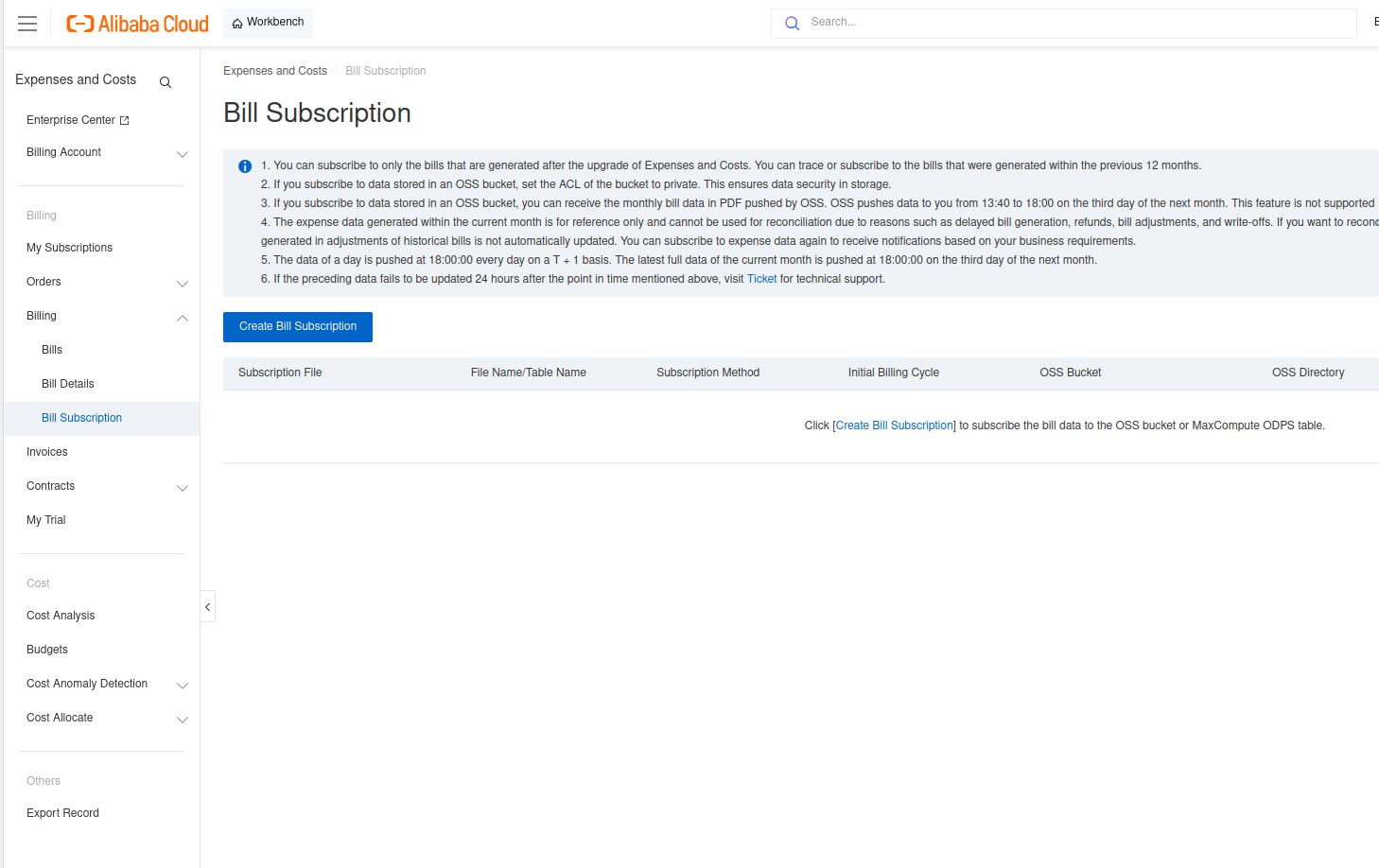
- Click Create Bill Subscription.

- If this is your first OSS subscription, give the authorization:
- Click Authorize.
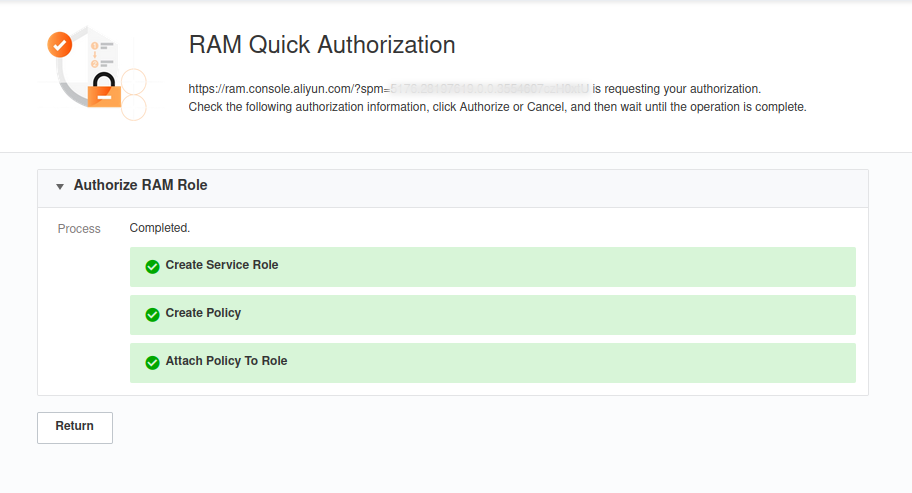
- On the RAM Quick Authorization page, read the role
AliyunConsumeDump2OSSRoleand click Authorize. The billing service then has write access to OSS, and it can write the files for you.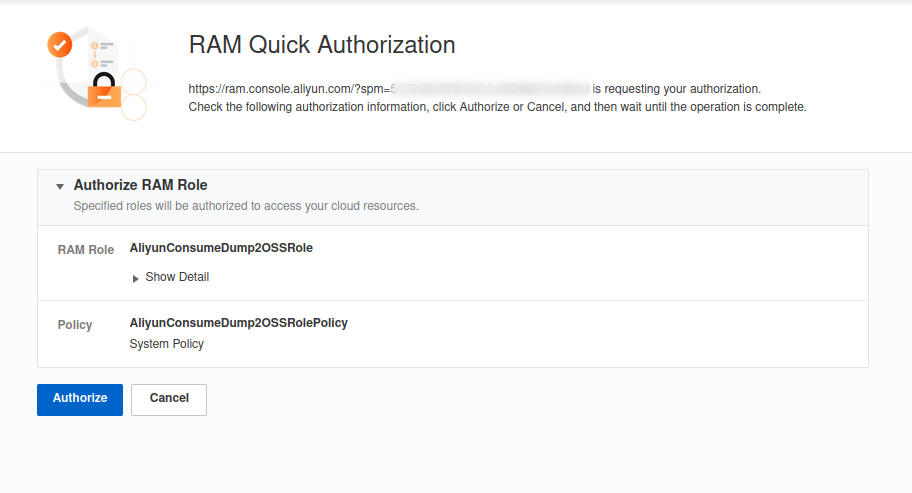
- Wait until Alibaba Cloud creates the role and attaches the policy. Then click Return.
- In the OSS Subscription tab, select FOCUS Billing Data as the export type.
- Set the Start Billing Month. You can select the current month, or an earlier month. The earliest month is the month when your account got the preview access.
- In OSS Bucket, enter the name of the bucket from Step 1, for example
my-focus-bucket. - In OSS Directory, enter
billing-focus. DigiUsher then finds the data on a known path.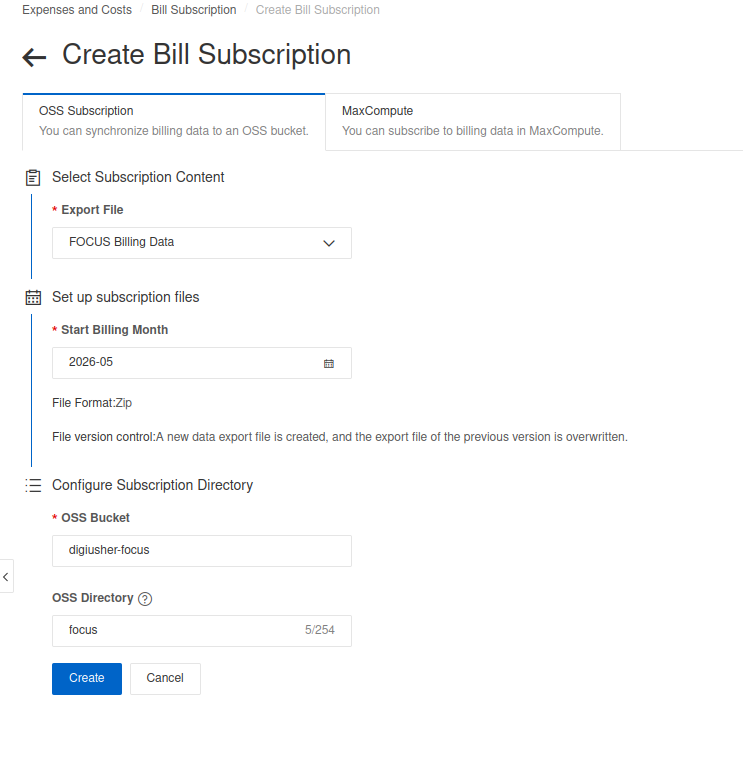
- Click Create.
Create a RAM User for DigiUsher
Create a separate RAM user with programmatic access only, through the API. This user gets read-only access to the billing export bucket, and to nothing else.
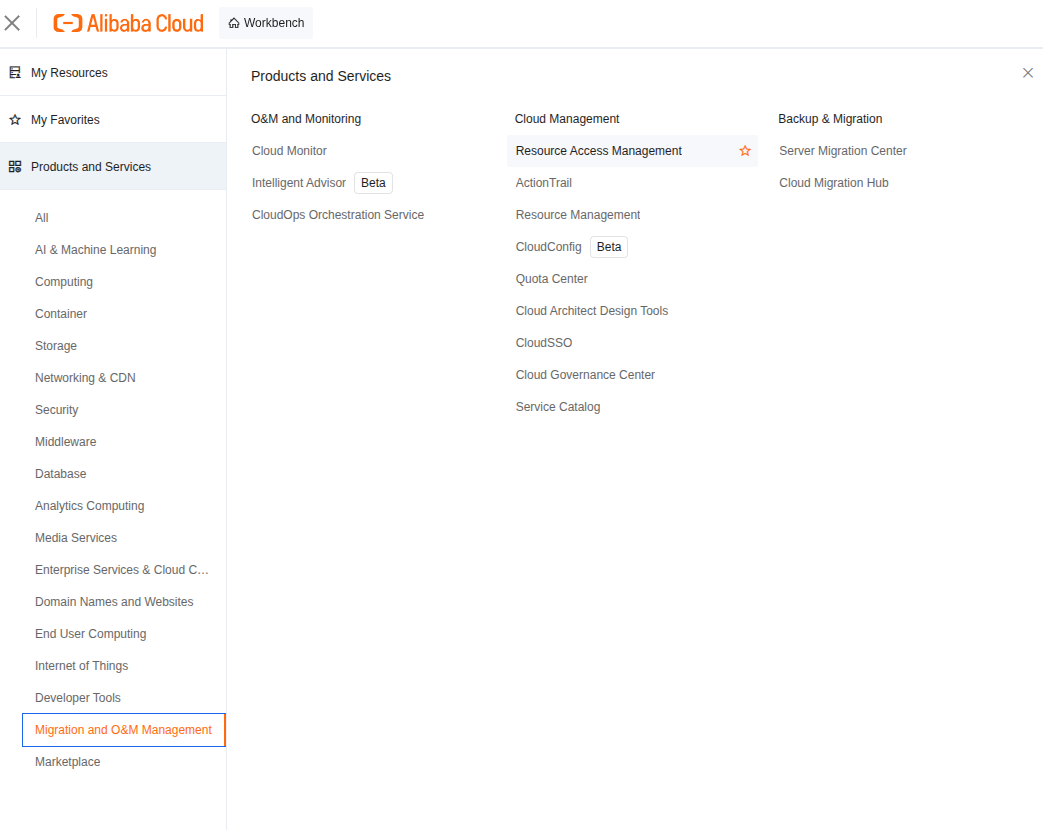
- Sign in to the Alibaba Cloud Console and open Products and Services > Resource Access Management. You can also open the RAM Console directly.
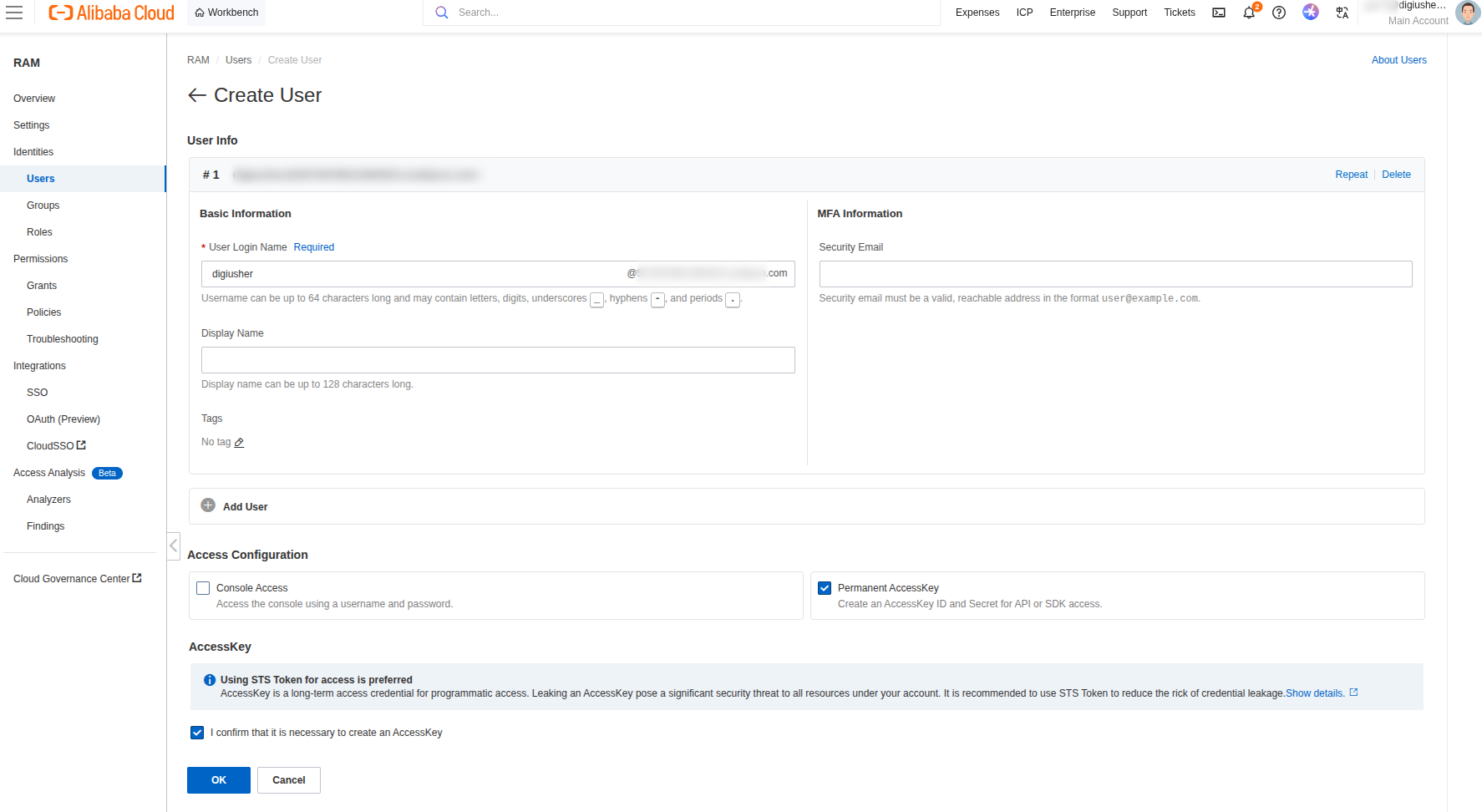
- In the left navigation, click Identities > Users, then click Create User.
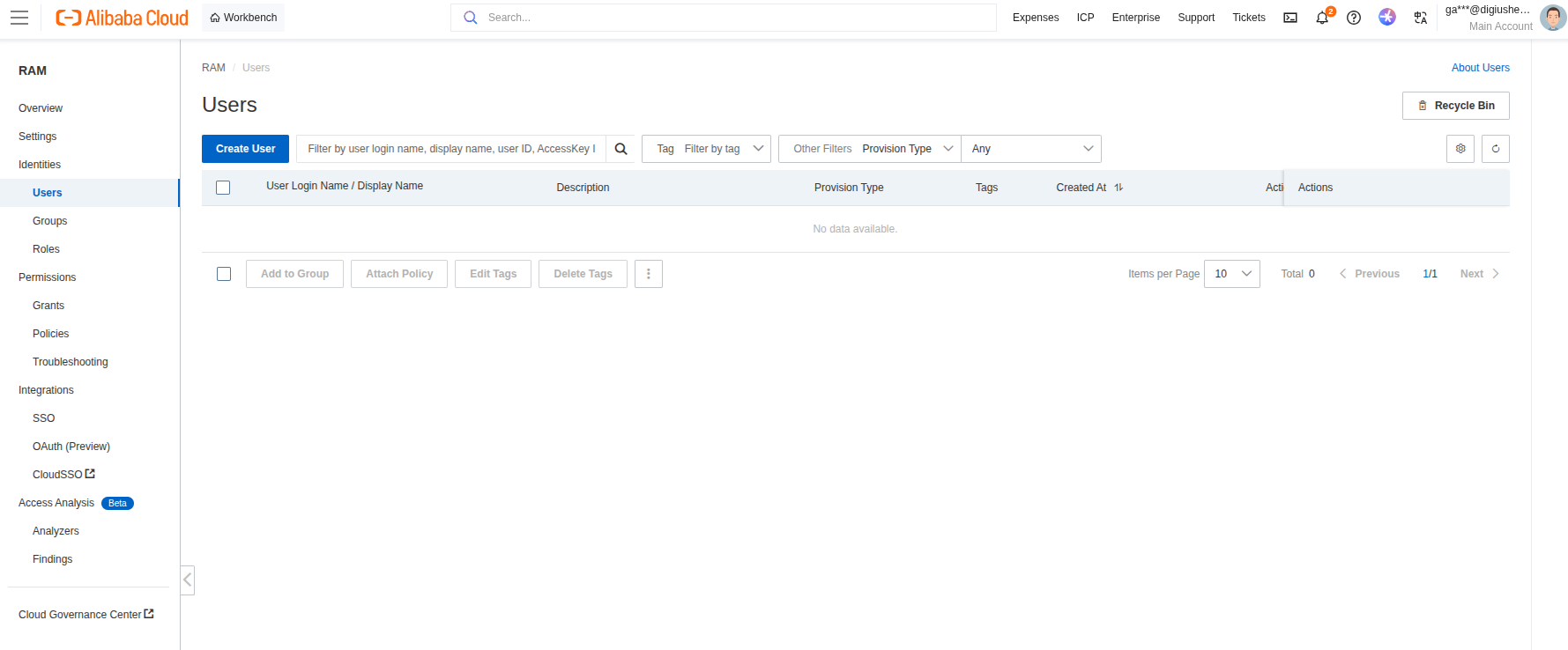
- Configure the user:
- User Login Name: for example
digiusher - Access Configuration: Select Permanent AccessKey. Do not select Console Access, because the user needs programmatic access only.
- Make sure that the user needs an AccessKey.
- User Login Name: for example
- Click OK.
Create an Access Key
You selected Permanent AccessKey, so Alibaba Cloud creates an AccessKey ID and an AccessKey secret with the user. To create a key pair later, open the detail page of the user and click Create AccessKey on the AccessKey tab.
Save the Access Key ID and the Access Key Secret immediately. The console shows the Secret one time only, and you cannot read it again. Download the AccessKey.csv file.
Save your credentials
CAUTION: Save these credentials in a safe place. You enter them in DigiUsher in the last step.
Attach a Read-Only OSS Policy to the RAM User
Create a custom RAM policy with read-only access to your billing export bucket only. Then attach the policy to the user digiusher.
Create the Custom Policy
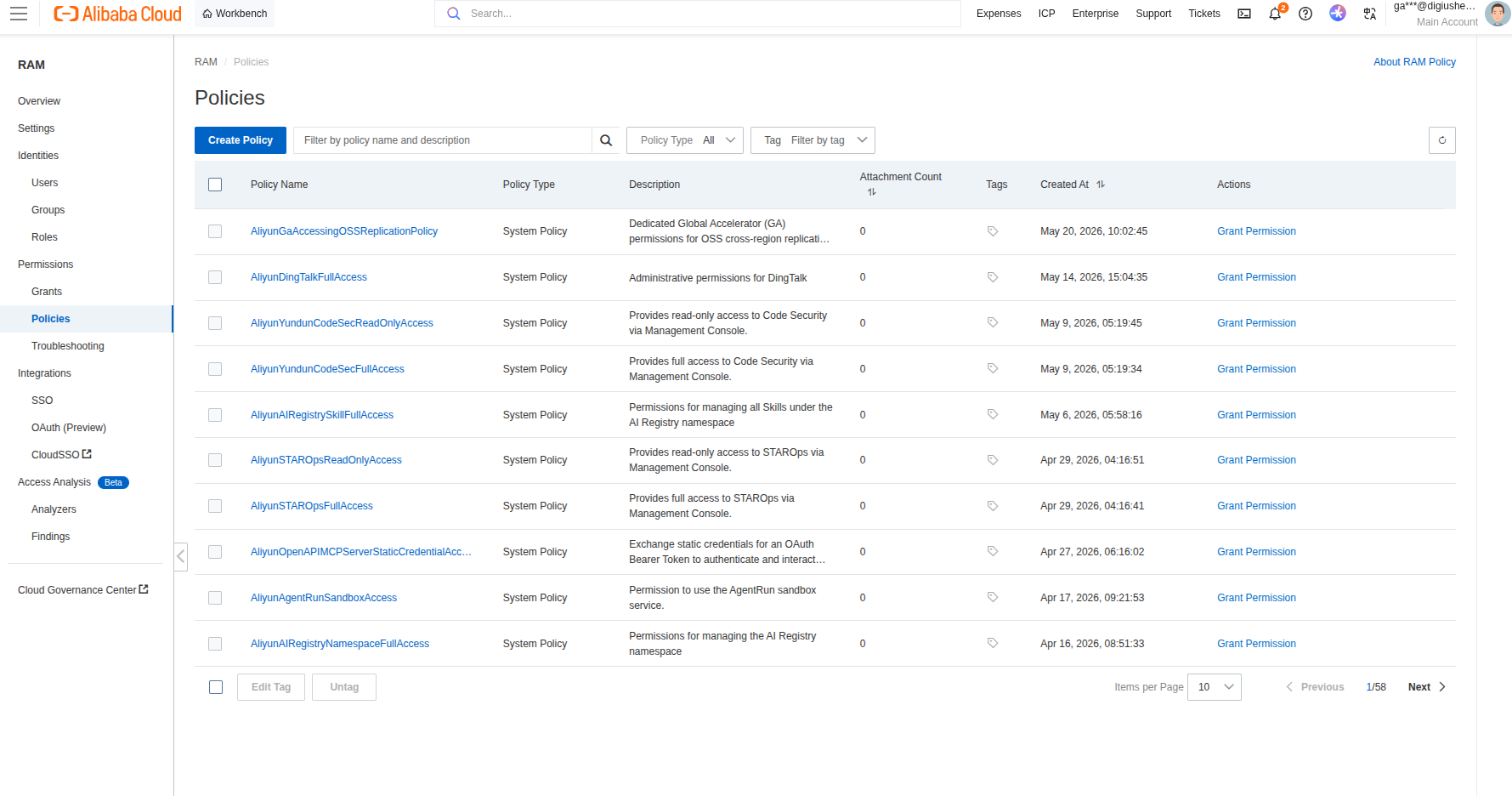
- In the RAM Console, go to Permissions > Policies, then click Create Policy.
- Click the JSON Editor tab.
- Paste this policy. Replace
your-bucket-namewith the name of your bucket from Step 1:
{
"Version": "1",
"Statement": [
{
"Effect": "Allow",
"Action": [
"oss:ListObjects",
"oss:ListObjectVersions",
"oss:GetObject",
"oss:GetObjectAcl",
"oss:GetBucketInfo",
"oss:GetBucketStat"
],
"Resource": [
"acs:oss:*:*:your-bucket-name",
"acs:oss:*:*:your-bucket-name/*"
]
}
]
}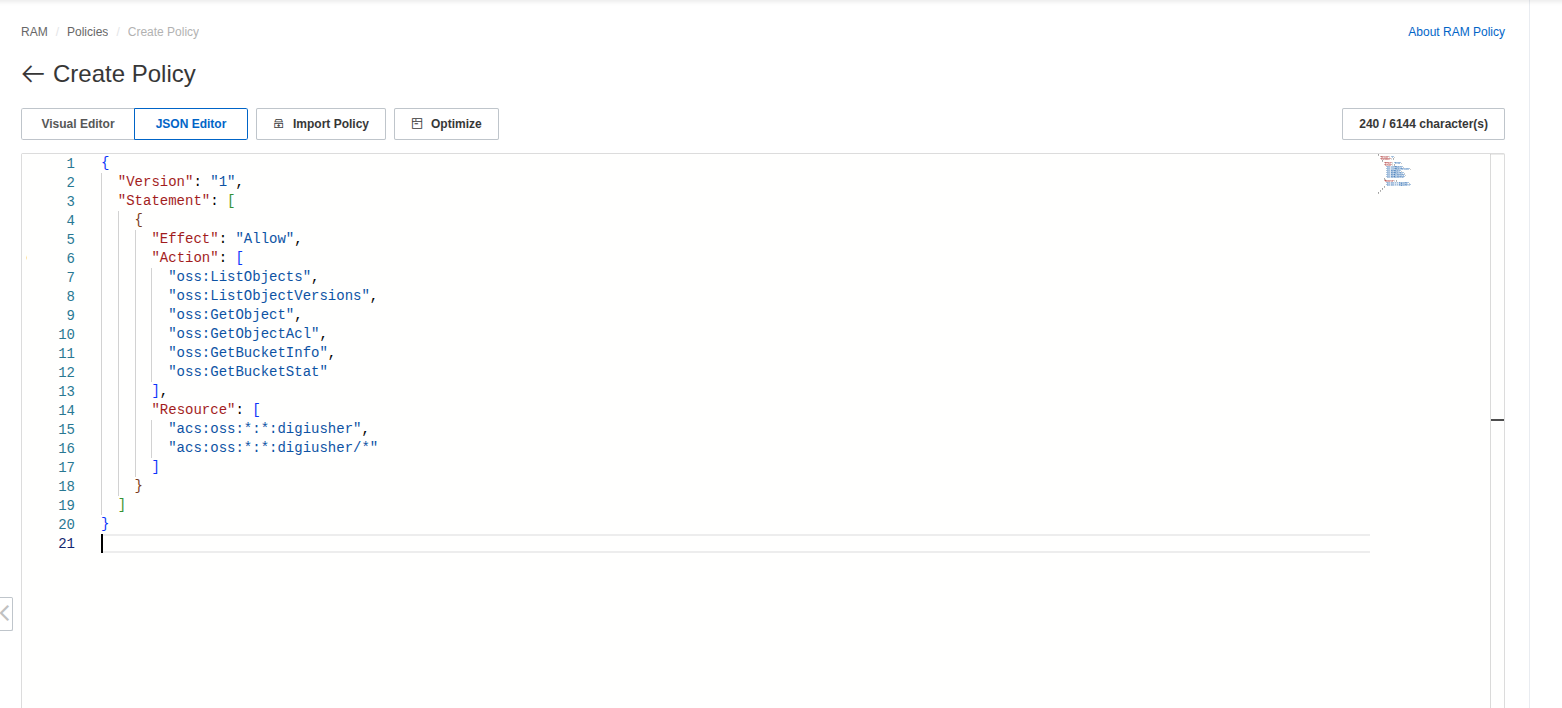 4. To let RAM make the scope of the policy narrower, click Optimize. This step is optional.
5. Click OK.
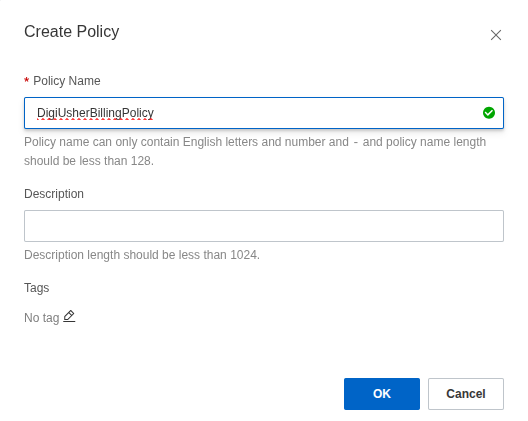
6. In the dialog, set the Policy Name to
4. To let RAM make the scope of the policy narrower, click Optimize. This step is optional.
5. Click OK.
6. In the dialog, set the Policy Name to DigiUsherBillingPolicy. You can also add a Description. Then click OK.
Attach the Policy to the RAM User
- In the RAM Console, go to Identities > Users.
- Click
digiusher. - Click the Permissions tab, then click Grant Permission.
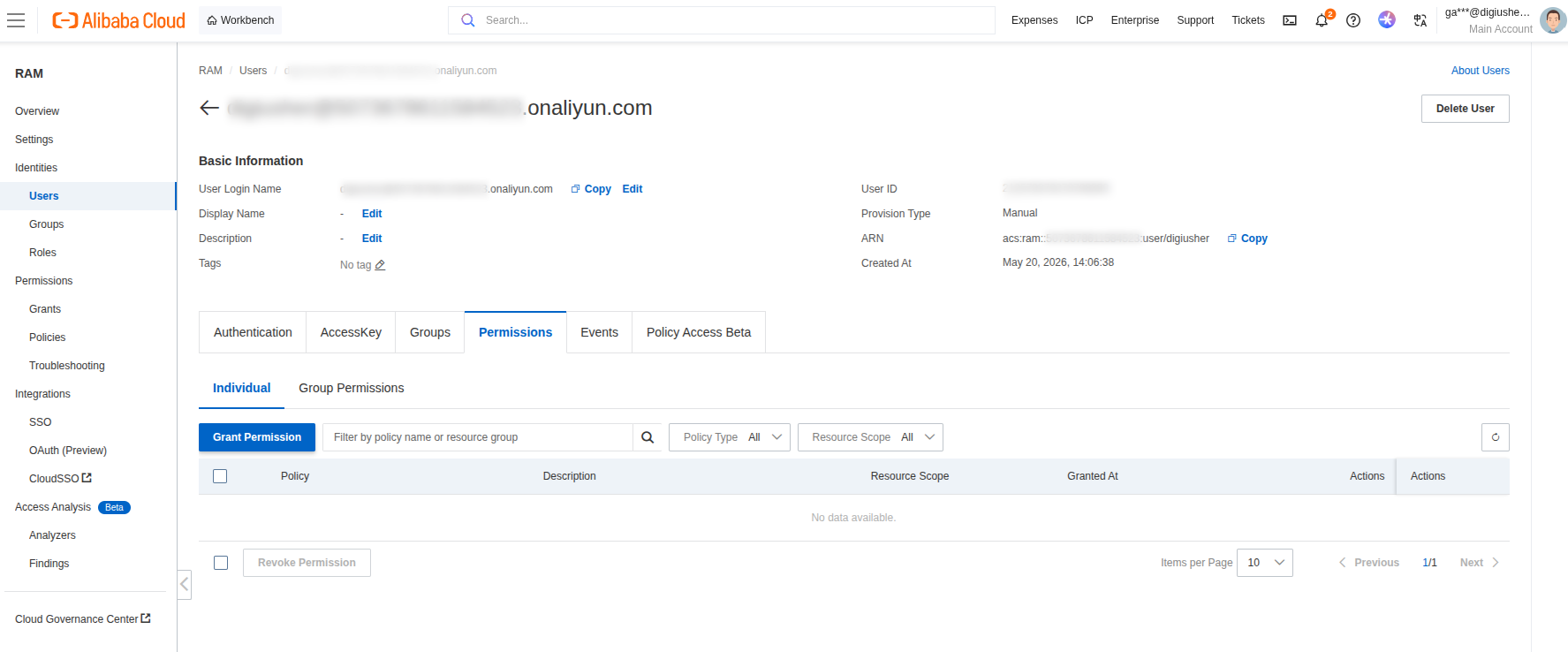
- In the Policy panel, search for
DigiUsherBillingPolicy, select it, and click OK.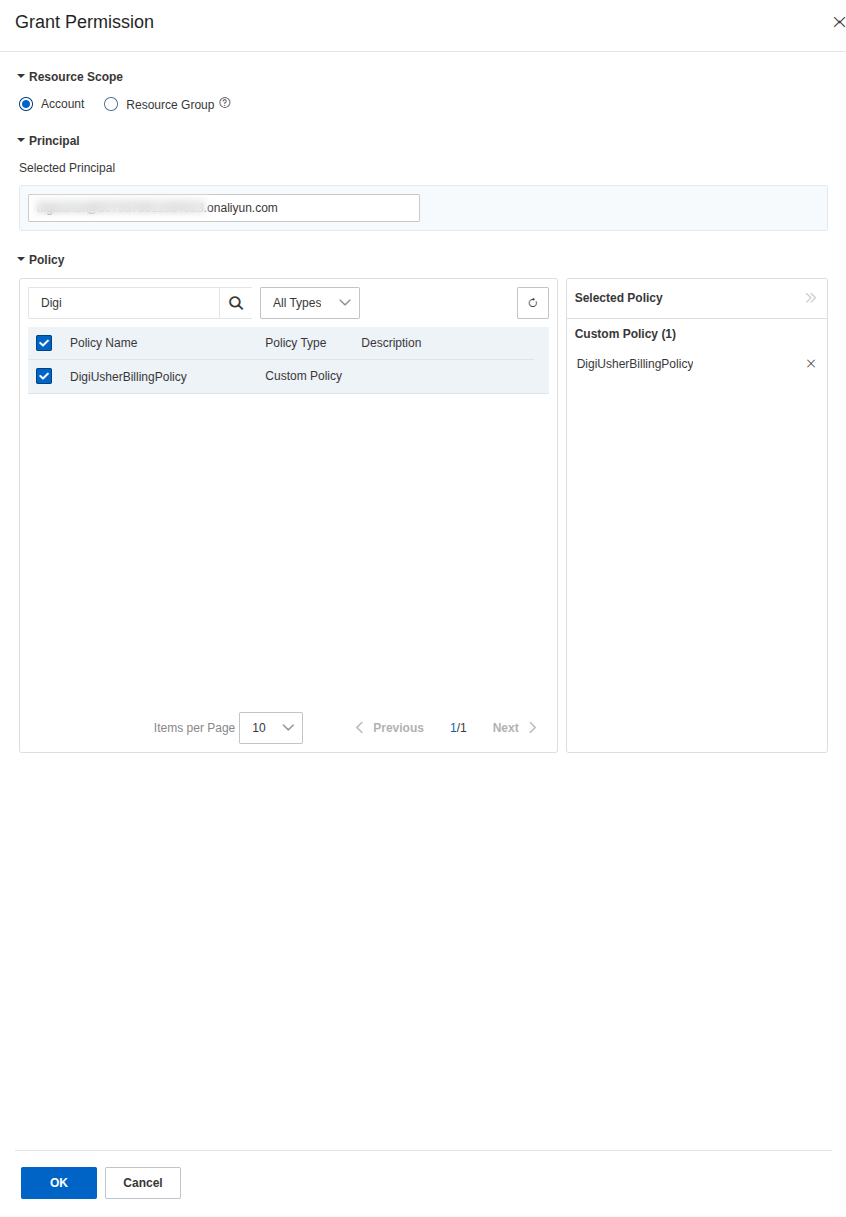
Scoped access
The RAM user now has read-only access to your billing bucket, and to nothing else.
Connect in DigiUsher
After you complete these steps, go to Connectors > Add Source and select Alibaba Cloud. On the Configure step, enter the values in the table, then click Review. On the Connect step, click Connect source.
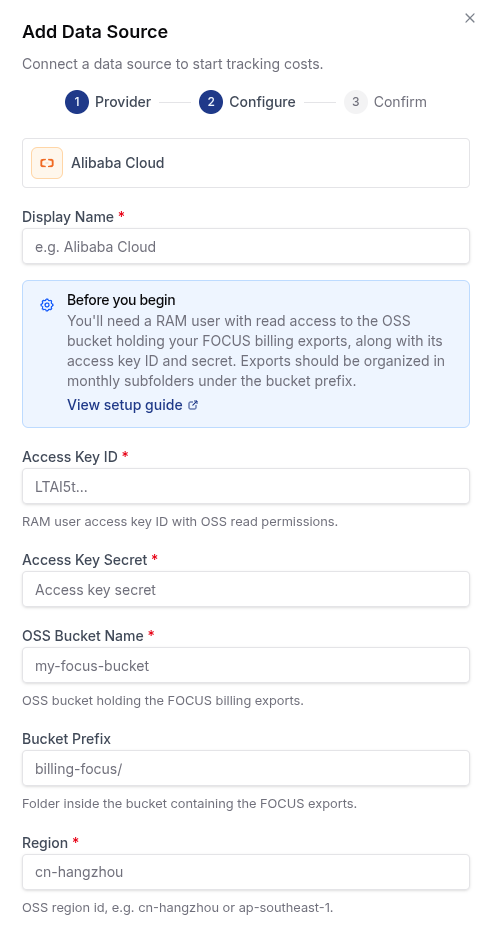
| Field | Where to Find |
|---|---|
| Display Name | Any label you prefer (for example Alibaba Cloud Production) |
| Access Key ID | The key ID from the AccessKey.csv file of the user |
| Access Key Secret | The secret from the AccessKey.csv file of the user |
| OSS Bucket Name | The bucket from Step 1 (for example my-focus-bucket) |
| Bucket Prefix | The directory of the subscription (for example billing-focus/) |
| Region | The OSS region ID of your bucket, for example cn-hangzhou or ap-southeast-1 for Singapore. Enter the region ID only, without the prefix oss-. |
Region IDs
DigiUsher builds the OSS endpoint from the region ID that you enter: https://oss-<region>.aliyuncs.com. The region ID of your bucket is in the OSS Console under Bucket Overview. The list OSS Regions and Endpoints also gives it.
Setup Checklist
- OSS bucket created with Private ACL
- FOCUS bill subscription created with export type set to FOCUS Billing Data
- OSS write authorization given to the billing service during the subscription setup
- Start Billing Month set, and the subscription is active on the Bill Subscription page
- RAM user created with programmatic access only, through the OpenAPI
- Access Key ID and Access Key Secret saved in a safe place
- Custom policy
DigiUsherBillingPolicycreated and attached to the RAM user - The policy names the correct bucket
- Connection details entered in DigiUsher
-
*.digiusher.comin the allowlist of your network and firewall (if your organization restricts this) -
digiusher.comin the allowlist of permitted sender domains in your email security gateway (if your organization restricts this)
Security
What DigiUsher CAN Access (Read-Only)
- The FOCUS billing export files in the OSS bucket and the directory that you give
- The object list of that bucket, which DigiUsher uses to find and download the new exports
What DigiUsher CANNOT Do
- Read another OSS bucket
- Create, change, or delete an object in OSS
- Read another Alibaba Cloud service, such as ECS, RDS, or VPC
- Read or change the billing configuration
- Read secrets, credentials, or key pairs
- Buy a product or change your account
Monitoring
To monitor the activity of digiusher, open the RAM Console under Identities > Users > digiusher > ActionTrail. You can also read the OSS access logs. To get them, enable the logging of the bucket under OSS Console > Bucket > Logging.
Credential Rotation
- In the RAM Console, go to Identities > Users > digiusher > User AccessKeys.
- Click Create AccessKey to create a new key pair.
- Enter the new credentials in DigiUsher immediately.
- Delete the old Access Key in the RAM Console.
Avoid ingestion gaps
Create the new key before you delete the old key. This prevents an interruption of the data collection.
Revocation
Delete the user digiusher in the RAM Console under Identities > Users. Alibaba Cloud then immediately invalidates the Access Key pair and all its permissions. To stop the access for a short time, disable the Access Key and keep the user.
Troubleshooting
Files not appearing in the OSS bucket
- Make sure that the status of the FOCUS bill subscription is Active on the Bill Subscription page.
- No file appears directly after the creation. Alibaba Cloud writes the files on a schedule, into directories with a date. The final file of a month arrives after 12:00 (UTC+8) on the 4th day of the next month.
- Make sure that the billing service still has the OSS write authorization. Without it, the export stops. To give the authorization again, click Authorize on the Bill Subscription page.
- Make sure that the bucket name in the subscription is exactly correct. Bucket names are case-sensitive.
OSS Permission Denied error on the Bill Subscription page
- The billing service cannot write to your bucket. Do the authorization again on the Bill Subscription page.
- Make sure that the bucket is in the same Alibaba Cloud account as the subscription.
DigiUsher cannot read files — Access Denied
- Make sure that the policy
DigiUsherBillingPolicyis attached todigiusher, and that the bucket name in the policy is the bucket name in DigiUsher. - Make sure that the Access Key in DigiUsher belongs to
digiusher, and not to another user. - Make sure that the status of the Access Key in the RAM Console is Active, and not disabled.
FOCUS export not available in Bill Subscription menu
- The FOCUS export is in an invitational preview. If the option FOCUS Billing Data does not appear, your account does not have the preview access yet. Write to Alibaba Cloud support and ask for it.
Need Help?
If this page does not answer your question, write to DigiUsher support at support@digiusher.com. The team will help you.