 DigiUsher Documentation
Connecting Google Workspace
Set up DigiUsher to track Google Workspace license costs, seat utilization, and Gemini AI adoption.
Overview
To connect your Google Workspace environment to DigiUsher, you need a GCP service account with Domain-Wide Delegation. Domain-Wide Delegation lets a service account act for a user of your domain. The account gets read-only access to your Workspace user directory, to the license assignments, and to the usage reports. You then get:
- Cost visibility. Your Google Workspace spend appears in FOCUS format beside your cloud costs. The breakdown by Organizational Unit (OU) gives you chargeback and showback for each team.
- License optimization. You see the suspended users that still hold a paid license, and the trend of the seat count over time.
- Gemini AI adoption. You see the Gemini usage of each user, and you can decide whether the AI Expanded or Ultra Access add-on licenses are worth their cost.
- Utilization data. You see the last login of each user, and the utilization of the storage pool of the organization.
Summary of Access Required
| Component | Details |
|---|---|
| Identity | GCP service account (digiusher-workspace). It uses the API only, and it has no Console login |
| Authentication | JSON key with Domain-Wide Delegation |
| Access level | Read-only. The user directory, the license assignments, and the usage reports |
| Scope | Google Workspace domain (all Organizational Units) |
| Data access | User metadata, license SKUs, and usage reports only. DigiUsher reads no email, no Drive content, and no Calendar content |
| Capability | What It Provides |
|---|---|
| License cost tracking | Per-SKU costs in FOCUS format alongside your cloud spend |
| Seat utilization | Seat counts per SKU per Organizational Unit |
| Suspended user detection | Identify unused licenses from suspended accounts |
| Gemini AI tracking | Usage events to evaluate add-on ROI |
DigiUsher cannot read email, documents, or other content of your users. DigiUsher cannot change users, licenses, or the structure of your organization.
Use Terraform for the fastest setup
DigiUsher recommends the Terraform configuration. It creates the service account and enables the necessary APIs automatically.
Terraform Repository: https://github.com/digiusher/digiusher-iac/
If the policies of your organization need a setup by hand, use the manual steps on this page.
Prerequisites
Information to Gather
| Item | How to Find |
|---|---|
| GCP Project ID | gcloud projects list or Console: select a project from the project picker |
Roles Required by the Person Performing Setup
| Role | Why |
|---|---|
| GCP Project Owner or Editor | To create the service account and enable APIs |
| Google Workspace Super Admin | To configure Domain-Wide Delegation and create custom admin roles |
Network & Email Access (For Regulated Environments)
If your organization restricts outbound internet access or email domains, make sure that these two items are in place before you start:
- Domain allowlist. Add
*.digiusher.comto the allowlist of your network and your firewall. The users of your organization can then open the DigiUsher platform in their browsers. - Email allowlist. Add
digiusher.comas a permitted sender domain in your email security gateway. DigiUsher sends onboarding confirmations, alerts, and reports from@digiusher.comaddresses.
Option A: Terraform (Recommended)
The DigiUsher Terraform configuration creates the service account and enables the necessary APIs in approximately 2 minutes.
git clone https://github.com/digiusher/digiusher-iac.git
cd digiusher-iac/google-workspace

cp terraform.tfvars.example terraform.tfvars
# Edit terraform.tfvars — set your GCP project ID
# Find yours with: gcloud projects list

terraform init
terraform plan
terraform apply
After Terraform Apply
You must do the remaining steps by hand, in the Google Admin Console. There is no API for Domain-Wide Delegation, and no API to create a custom admin role.
Extract the Service Account Key
terraform output -raw service_account_key | base64 -d > digiusher-workspace-key.jsonImportant
CAUTION: Save this key file in a safe place. Do not commit digiusher-workspace-key.json or terraform.tfstate to version control. Both files contain the private key.
Configure Domain-Wide Delegation
- Go to the Domain-Wide Delegation page in the Google Admin Console. The menu path is Security > Access and data control > API controls > Manage Domain Wide Delegation.
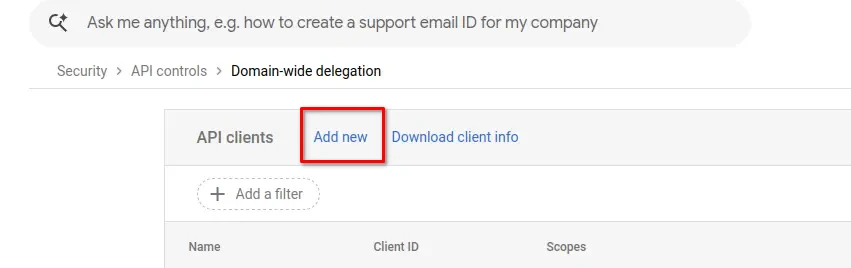
- Click Add new
- Client ID: copy from Terraform output:
terraform output -raw service_account_client_id - OAuth scopes: copy the entire comma-separated line from Terraform output:
terraform output -raw dwd_scopes - Click Authorize
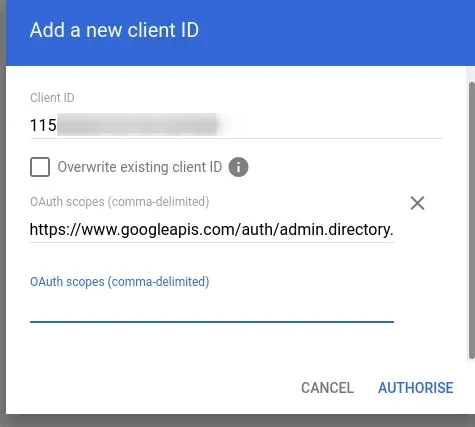
Propagation delay
A change to the Domain-Wide Delegation can take up to 24 hours to become active. If the DigiUsher connection fails directly after the setup, wait and try again.
Create a Custom Admin Role
- Go to Admin roles in the Google Admin Console
- Click Create new role
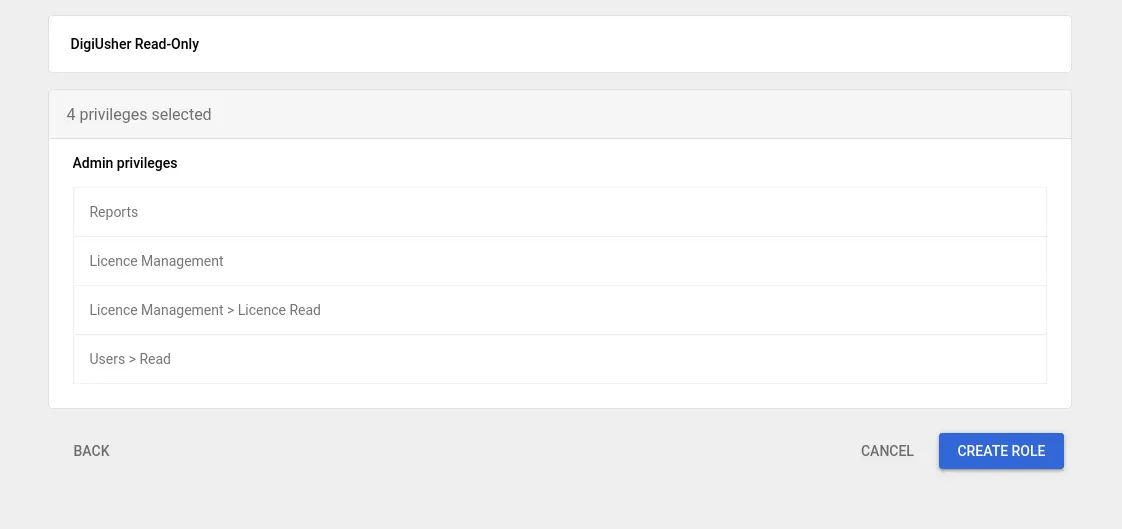
- Name: DigiUsher Read-Only
- Go through the privilege categories and enable these four privileges:
- Users > Read
- Reports
- License Management
- License Management > License Read
- Click Create
Assign the Role to a Delegated Admin
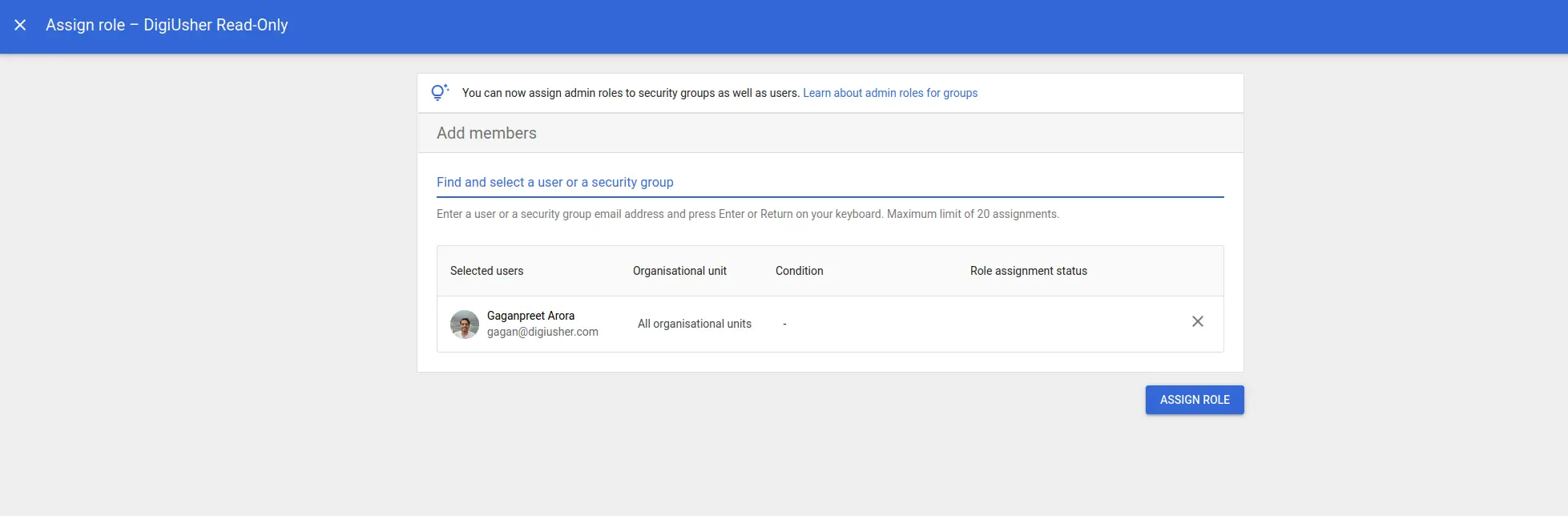
With Domain-Wide Delegation, the service account acts for a Workspace user. The admin privileges of that user decide which data the service account can read. The user must therefore have the custom role.
- Go to Admin roles in the Google Admin Console
- Click DigiUsher Read-Only > Admins > Assign members
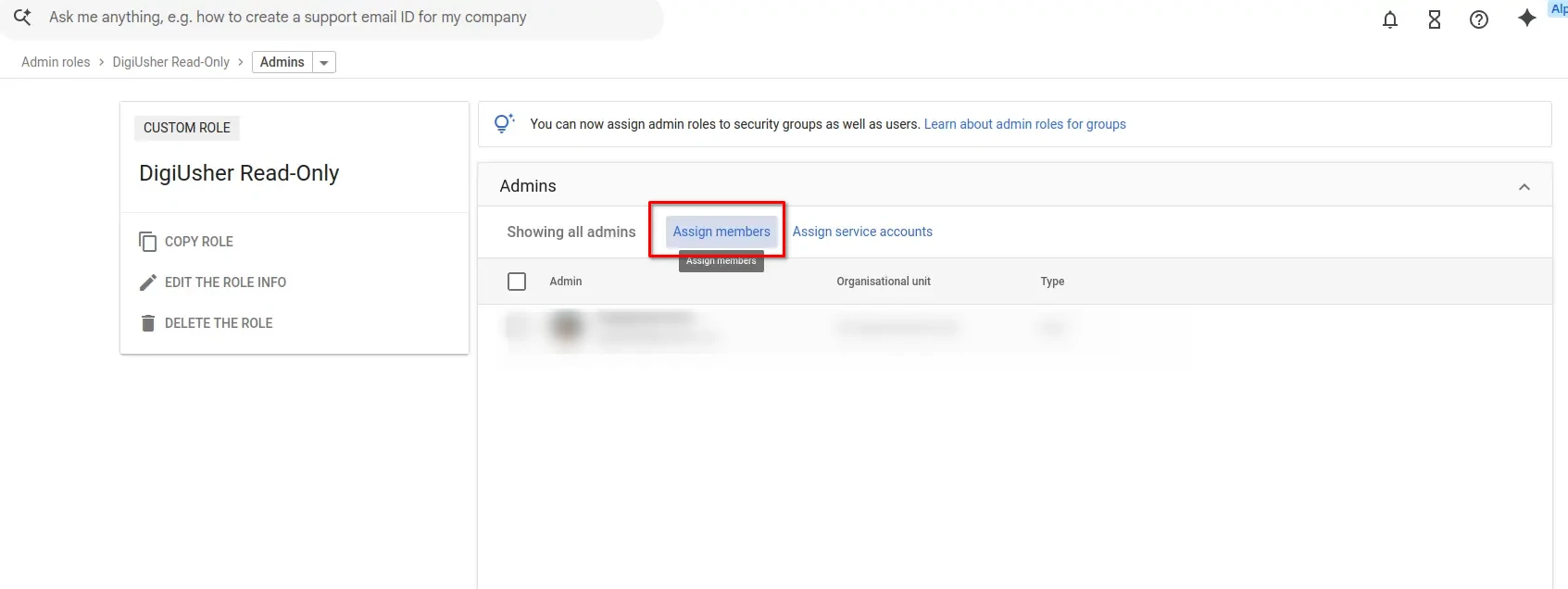
- Enter the email address of a Workspace user, for example
admin@yourdomain.com. This user is usually the Super Admin that does this setup. - Click Add > Assign role
Important
CAUTION: Use a real user account here, and not the email address of the service account. With Domain-Wide Delegation, the service account acts for this user.
Connect in DigiUsher
Enter the credentials in the DigiUsher platform. The section Connect in DigiUsher gives the fields.
The digiusher-iac README is the full Terraform documentation. It also gives the troubleshooting steps.
Option B: Manual Setup
Use these steps for a setup with the GCP Console or the gcloud CLI.
Enable APIs
Go to APIs & Services > Library in the GCP Console and enable each API. You can also run this command:
gcloud services enable \
  admin.googleapis.com \
  licensing.googleapis.com \
  iam.googleapis.com \
  --project=<PROJECT_ID>
Create Service Account and Key
2a. Create the Service Account
- Go to IAM & Admin > Service Accounts > Create Service Account
- Service account ID:
digiusher-workspace - Display name:
DigiUsher Workspace Integration - Description:
Read-only service account for DigiUsher Google Workspace license tracking - Click Create and Continue, then Done. The account needs no role here. Domain-Wide Delegation gives the access.
2b. Create and Download JSON Key
- Click the service account, then Keys > Add Key > Create new key > JSON > Create.
- The browser downloads the key as a
.jsonfile.
Important
CAUTION: Save this key file in a safe place. You enter it in the DigiUsher platform in the last step.
2c. Note the Client ID
For the Domain-Wide Delegation you need the numeric Client ID of the service account. Google also calls it the Unique ID.
- Go to IAM & Admin > Service Accounts
- Click on
digiusher-workspace - Copy the Unique ID. It is a numeric string, for example
115820021521931207848.
Configure Domain-Wide Delegation
- Go to the Domain-Wide Delegation page in the Google Admin Console. The menu path is Security > Access and data control > API controls > Manage Domain Wide Delegation.
- Click Add new
- Client ID: the numeric Client ID from Step 2c
- OAuth scopes: paste this text. It is one line, and commas separate the scopes:
https://www.googleapis.com/auth/admin.directory.user.readonly,https://www.googleapis.com/auth/admin.reports.usage.readonly,https://www.googleapis.com/auth/admin.reports.audit.readonly,https://www.googleapis.com/auth/apps.licensing- Click Authorize
Propagation delay
A change to the Domain-Wide Delegation can take up to 24 hours to become active. If the DigiUsher connection fails directly after the setup, wait and try again.
Create a Custom Admin Role
- Go to Admin roles in the Google Admin Console
- Click Create new role
- Name: DigiUsher Read-Only
- Go through the privilege categories and enable these four privileges:
- Users > Read
- Reports
- License Management
- License Management > License Read
- Click Create
Assign the Role to a Delegated Admin
- Go to Admin roles in the Google Admin Console
- Click DigiUsher Read-Only > Admins > Assign members
- Enter the email address of a Workspace user, for example
admin@yourdomain.com. This user is usually the Super Admin that does this setup. - Click Add > Assign role
Important
CAUTION: Use a real user account here, and not the email address of the service account. With Domain-Wide Delegation, the service account acts for this user.
Connect in DigiUsher
After you complete the Terraform setup or the manual setup, go to Connectors > Add Source in DigiUsher and select Google Workspace. On the Configure step, enter these values:
| Field | Where to Find |
|---|---|
| Display Name | A name for this data source (for example Google Workspace) |
| Service Account Key | Upload the digiusher-workspace-key.json file, or the output of terraform output -raw service_account_key | base64 -d |
| Delegated Admin Email | The Workspace user with the DigiUsher Read-Only role (for example admin@yourdomain.com) |
SKU Pricing
The Google Workspace wizard has three steps: Configure, SKU Pricing, and Connect. On SKU Pricing, which is step 2 of 3, DigiUsher makes sure that your credentials work. It then finds your Workspace SKUs and your seat counts, and it asks you for the monthly price of one seat of each SKU. DigiUsher needs these prices because Google has no pricing API for Workspace licenses.
You can change the prices later. You can therefore finish the setup first, and enter the real prices after that, in the settings of the data source.
Go to Connect and click Connect source to finish.
Important
CAUTION: The Delegated Admin Email is the Workspace user from the role assignment step. It is not the email address of the service account from the JSON key. The two addresses are different.
OAuth Scopes Reference
| Scope | Purpose |
|---|---|
admin.directory.user.readonly | Read user list: email, last login, suspended status, Organizational Unit |
admin.reports.usage.readonly | Read org-level usage reports: storage utilization |
admin.reports.audit.readonly | Read activity audit logs: Gemini AI usage events |
apps.licensing | Read license assignments: which users hold which SKUs, seat counts |
Note on apps.licensing
This scope has no read-only variant. The custom admin role gives only the privilege "License Read", so only read operations are permitted.
Setup Checklist
- GCP APIs enabled: Admin SDK, Enterprise License Manager, and IAM
- Service account
digiusher-workspacecreated, with a JSON key - Domain-Wide Delegation configured with the correct Client ID and all 4 OAuth scopes
- Custom admin role
DigiUsher Read-Onlycreated with the correct privileges - Admin role assigned to a real Workspace user, and not to the service account email
- Credentials entered in DigiUsher: the service account key and the delegated admin email
- SKU pricing entered in the connection wizard
-
*.digiusher.comin the allowlist of the network and the firewall (if your organization restricts this) -
digiusher.comin the allowlist for incoming email (if your organization restricts this)
Security
What DigiUsher CAN Access (Read-Only)
- The user directory: email addresses, the time of the last login, the suspended state, and the Organizational Unit of each user
- The license assignments: the Workspace SKUs of each user, and the number of seats of each SKU
- The usage reports: the storage utilization of the organization, and the Gemini AI usage events
- DigiUsher reads no email content, no Drive files, no Calendar events, and no other content of your users
What DigiUsher CANNOT Do
- Read email, documents, or other content of your users
- Change users, groups, or the structure of your organization
- Add, remove, or change a license
- Read passwords, security keys, or the configuration of the two-factor authentication
- Buy a product, or change the billing configuration or the subscriptions
Scope Controls
- The Domain-Wide Delegation gives 4 OAuth scopes. Three of them are read-only. The fourth is
apps.licensing, and the custom admin role limits it to read operations - The scope
apps.licensinghas no read-only variant. The custom admin role gives only the privilege "License Read", so only read operations are permitted - The service account has no GCP IAM role outside its own project. It therefore cannot read your cloud resources
Monitoring
To monitor the activity of the service account, open the Google Admin Console under Reports > Audit and investigation > Admin log events. Filter by the email address of the delegated admin user.
Credential Rotation
- With Terraform, run
terraform apply -replace="google_service_account_key.digiusher_workspace". - By hand, open the service account and click Keys > Add Key to create a new key. Then delete the old key, and enter the new key in the DigiUsher platform.
Revocation
- With Terraform, run
terraform destroy. It removes the service account and invalidates the key. - By hand, delete the service account
digiusher-workspacein IAM & Admin > Service Accounts. GCP then immediately invalidates the key. - In both cases, also remove the Domain-Wide Delegation entry in the Admin Console. You can also delete the custom admin role.
Troubleshooting
"Permission denied" when running Terraform
You need the access of a Project Owner or a Project Editor on the GCP project. This command gives your roles:
gcloud projects get-iam-policy <PROJECT_ID> \
  --flatten="bindings[].members" \
  --filter="bindings.members:user:<YOUR_EMAIL>" \
  --format="table(bindings.role)"
DigiUsher connection verification fails
- The Domain-Wide Delegation is not active yet. A change can take up to 24 hours. Wait and try again.
- The scopes are wrong. Make sure that the scopes in the Admin Console are the 4 scopes of the OAuth Scopes Reference.
- The admin role is not assigned. Make sure that the delegated admin user has the custom role "DigiUsher Read-Only".
- The delegated admin email is wrong. The email address in DigiUsher must be the Workspace user with the role "DigiUsher Read-Only". It is not the service account email from the JSON key.
"API not enabled" errors
Terraform enables the APIs automatically, but an API needs a minute to become active. If you get this error, run terraform apply again.
Cannot find GCP Project ID
gcloud projects listNeed Help?
If this page does not answer your question, write to DigiUsher support at support@digiusher.com. The team will help you.