 DigiUsher Documentation
Connecting a MongoDB Atlas organization
Overview
To onboard your MongoDB Atlas organization to DigiUsher, create a service account in your Atlas organization and provide DigiUsher with its Client ID and Client Secret, along with your Organization ID. The service account grants read-only access to the organization's billing data through the Atlas Administration API. This document describes exactly what access is requested, why it is needed, and what to provide.
Summary of Access Required
| Component | Details |
|---|---|
| Identity | Atlas service account (OAuth 2.0 Client ID and Client Secret) — programmatic access only |
| Access level | Read-only — organization billing information |
| Data | Invoices and billing charges |
| Scope | Single Atlas organization |
| Capability | What It Provides |
|---|---|
| Billing data | Cost analytics, chargeback/showback, budgeting, forecasting, anomaly detection |
DigiUsher cannot create, modify, or delete any clusters, databases, projects, or settings in your Atlas organization.
Prerequisites
Information to Gather
| Item | How to Find | DigiUsher Field |
|---|---|---|
| Organization ID | Atlas > Organization Settings > General Settings — the Organization ID field | Organization ID |
| Client ID | Atlas > Applications > Service Accounts — the Client ID of the service account you create | Client ID |
| Client Secret | Shown once when you create the service account (store securely) | Client Secret |
Roles Required by the Person Performing Setup
Creating a service account requires the Organization Owner role in the Atlas organization.
Network & Email Access (For Regulated Environments)
If your organization restricts outbound internet access or email domains, ensure the following are in place before starting:
- Domain allowlist: Add
*.digiusher.comto your network/firewall allowlist so that users in your organization can access the DigiUsher platform from their browsers. - Email allowlist: Add
digiusher.comas an approved sender domain in your email security gateway. DigiUsher sends onboarding confirmations, alerts, and reports from@digiusher.comaddresses.
Setup
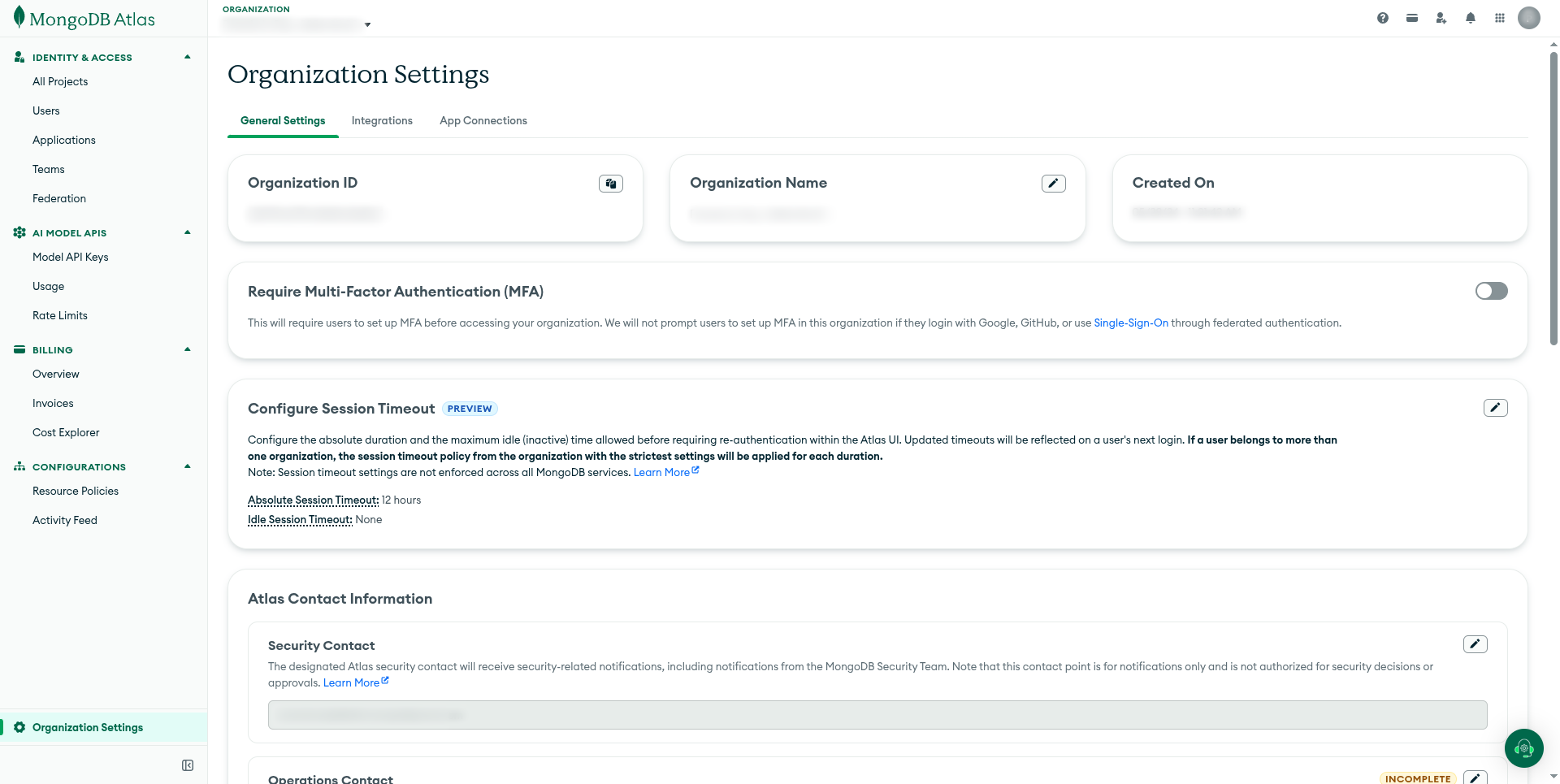
Find your Organization ID
- Sign in to MongoDB Atlas and select the organization you want to track.
- Open Organization Settings from the left navigation.
- On the General Settings tab, locate the Organization ID field and copy the value.
Create a service account
Create a dedicated service account for DigiUsher, scoped to organization billing only.
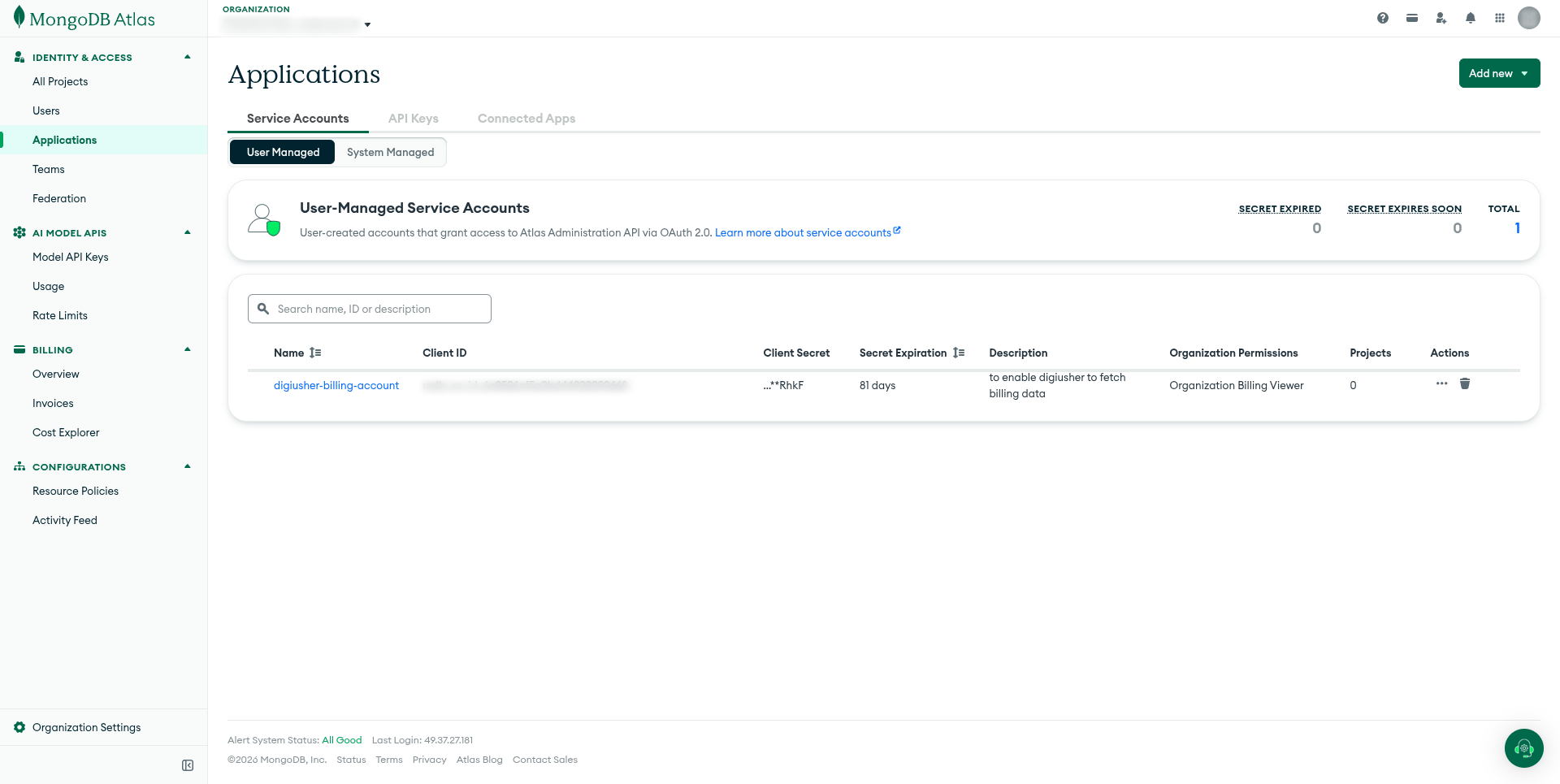
- In the left navigation under Identity & Access, open Applications.
- On the Service Accounts tab, click Add new and choose to create a service account.
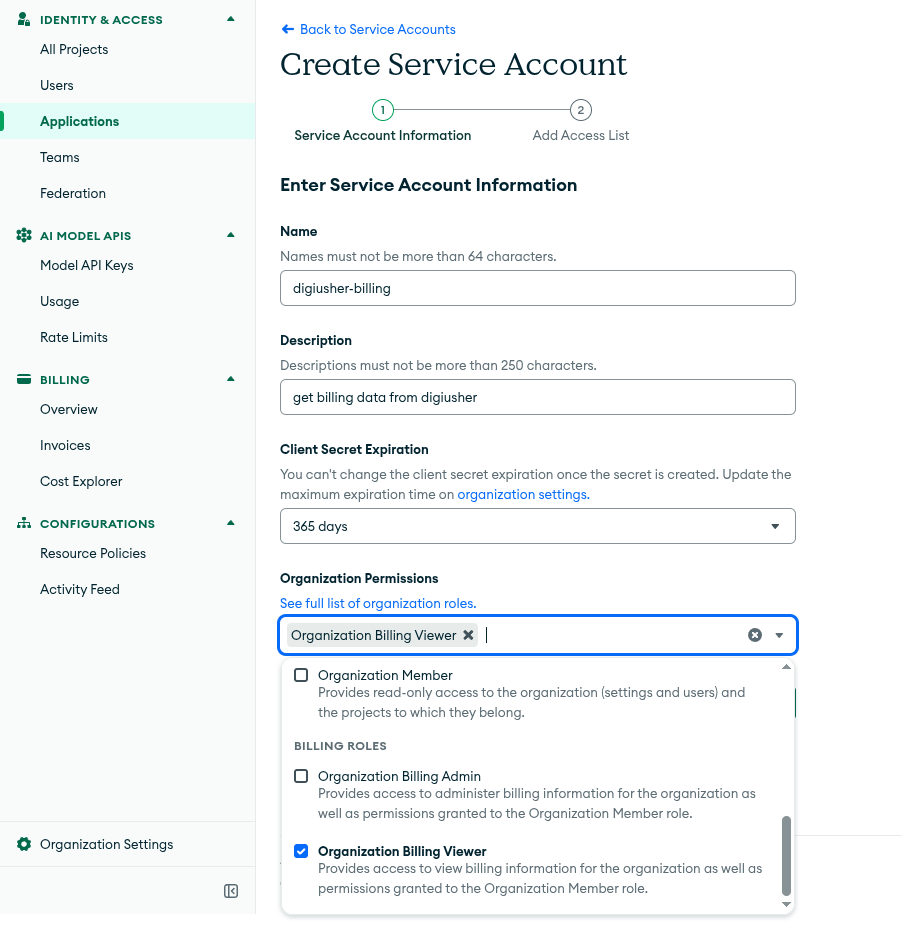
- Enter a recognizable Name, e.g.
digiusher-billing, and a Description. - Choose a Client Secret Expiration (for example,
365 days). - Under Organization Permissions, select the Organization Billing Viewer role. This grants read-only access to billing information and nothing more.
- Complete the wizard. On the Add Access List step ensure the DigiUsher IP is allowlisted for access to billing data.
Save your Client Secret
The Client Secret is shown only once when the service account is created and cannot be retrieved again. Copy and store both the Client ID and Client Secret securely — you will enter them into DigiUsher below.
Connect in DigiUsher
After completing the steps above, enter the following into DigiUsher to complete the connection:
| Field | Where to Find |
|---|---|
| Connection Name | Any label you prefer (e.g. MongoDB Atlas Production) |
| Organization ID | The Organization ID from General Settings |
| Client ID | The service account's Client ID from the Applications page |
| Client Secret | The secret shown once when the service account was created |
When you connect, DigiUsher validates the credentials and begins ingesting your organization's billing data. After the initial sync, DigiUsher ingests new cost data daily.
Verification Checklist
- Organization ID copied from General Settings
- Service account created with the Organization Billing Viewer role
- Client ID and Client Secret saved securely
- Connection details entered in DigiUsher
-
*.digiusher.comallowlisted in your network/firewall (if applicable) -
digiusher.comallowlisted as an approved sender domain in your email security gateway (if applicable)
Security
What DigiUsher CAN Access (Read-Only)
- Organization-level invoices and billing charges
What DigiUsher CANNOT Do
- Create, modify, or delete clusters, databases, projects, or network settings
- Change organization members, roles, or teams
- View or modify payment methods or billing configuration
- Make purchases or any changes to your organization
Credential Rotation
The service account's Client Secret expires on the schedule you chose when creating it. Rotate it before expiry to avoid an interruption in data ingestion:
- In Atlas, open the service account under Applications > Service Accounts and generate a new Client Secret.
- Update the credential in DigiUsher immediately.
- Remove the old secret in Atlas.
Avoid ingestion gaps
Always create the new secret and update it in DigiUsher before removing the old one to avoid an interruption in data ingestion.
Revocation
To revoke access, delete the service account on the Atlas Applications page. This immediately invalidates the credentials and stops all access. DigiUsher will no longer be able to ingest cost data until a new service account is provided.
Troubleshooting
Invalid credentials or insufficient permissions
- Confirm the Client ID and Client Secret were copied correctly and the secret has not expired.
- Confirm the service account has the Organization Billing Viewer role.
- Confirm the Organization ID matches the organization the service account belongs to — a mismatch prevents data from being ingested.
- Re-create the service account in Atlas and re-enter the credentials in DigiUsher.
No cost data appearing
- If your organization has had no billable Atlas usage in the period, there will be no cost data to show.
Need Help?
If you encounter any issues not covered above, contact DigiUsher support at support@digiusher.com and the team will help you get set up.
Connecting a ClickHouse Cloud account
Connect your ClickHouse Cloud organization to DigiUsher with an organization ID and an API key (key ID + secret) to track usage-based spend across your ClickHouse Cloud services.
Connecting a Claude.ai account
Connect your Claude.ai Enterprise organization to DigiUsher with an Analytics API key to track AI spend and usage per user and per model.