 DigiUsher Documentation
Allocation Hub
Configure the dimensions, splits, pools, redistribution, and shared parts of the allocation engine, then publish a version and watch it run.
In the Allocation Hub, you configure how DigiUsher turns raw bills into a cost for each pool. Open it from System > Allocation Hub in the left sidebar. The Allocation page reports the result of this configuration.
How the pieces fit together
The engine works in a fixed order, and the tabs follow that order:
- A dimension gives a value to every cost row. The value is a business unit, a team, or an environment. The rules of the dimension decide the value.
- A split takes one shared cost and divides it across several dimension values, by usage.
- A pool takes the cost of the rows with a dimension value that matches its binding.
- Redistribution moves the cost of a pool to the pools that it serves.
- A run does all of this for one month and creates the values.
The header strip under the page title reports the state of every tab. It shows the number of dimensions and rules, and the live configuration version. It also shows how many changes wait in the draft, and when the last run finished.
What is versioned, and what is not
Some parts of the configuration take effect only when you publish. Others take effect at once. This difference matters when you trace why a value changed.
| Configuration | When it takes effect |
|---|---|
| Dimensions and their mapping rules | When you publish, as part of a version |
| Saved filters, tag sets, lookup tables | When you publish, as part of a version |
| Split rules | When you publish, as part of a version |
| Pool bindings | When you publish, as part of a version |
| Pool name, parent, code, owner, description | Immediately. You do not publish it |
| Redistribution rule sets | At the next run. You do not publish it |
Overview
The Overview tab shows the state of the draft, the results of the selected month, and the dimension with the weakest coverage.
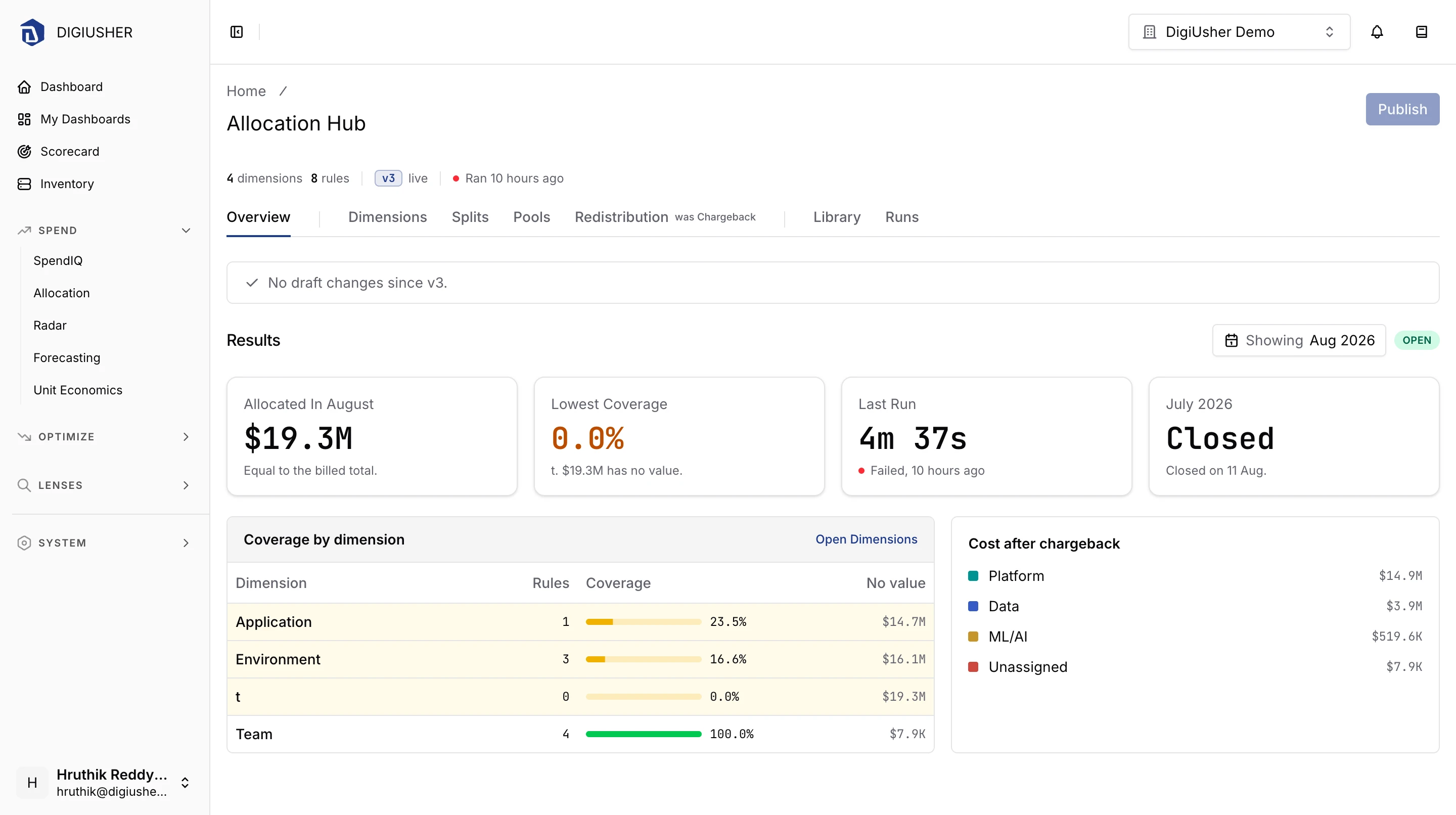
If the draft holds unpublished changes, a banner at the top says so and opens the publish review.
Four cards report the selected month. Select the month with the control beside the Results heading:
- Allocated in (month) shows the total cost that the run allocates to the pools in that month. This value must be equal to the billed total.
- Lowest coverage names the dimension with the smallest percentage of cost that carries a value. It also shows the cost with no value at all. Correct this dimension first.
- Last run shows how long the last run took, its result, and the time since it completed.
- (Previous month) says whether the month before is still Open or Closed.
Under the cards, Coverage by dimension lists every dimension with its number of rules, its coverage in percent, and the cost with no value. Select a row to open that dimension. Cost after chargeback lists the pools with their final cost, after the redistribution.
Dimensions
A dimension holds one value for every cost row. On the Dimensions tab, you create the dimensions and the rule pipeline that fills them.
Click New dimension to add one. Give it a Name. The reports use a generated id, and the id appears under the name field. You can also turn on Use in redistribution, which keeps the dimension in the result of the redistribution. Such a dimension gets the badge In redistribution.
The rule pipeline
Each dimension has an ordered list of rules. The first rule that matches a row sets the value. To change the priority of a rule, drag it. The last step is built in, and you cannot move it or remove it: All other rows get Unallocated. The cost that reaches this step is the cost that the coverage percentage does not contain.
Mapping rule types
| Rule type | In the UI | What it does |
|---|---|---|
tag_value | A tag | Uses the value of a tag. It reads one or more tag keys in order, or a tag set. |
filter_value | A fixed value | Uses one value for every row that matches a filter. The filter is a saved filter or a condition that you write here. |
lookup_table | A lookup table | Changes one value into another value, with a lookup table from the Library. |
expression | An expression | Computes the value from an expression. You find it in the rule editor, under Advanced: write an expression. |
Comparators
A condition compares a native column, a tag value, or the value of another dimension. It uses one of these operators:
| Comparator | In the UI |
|---|---|
equals | = |
in | in |
starts_with | starts with |
ends_with | ends with |
contains | contains |
regex | regex |
A condition can use these columns:
data source, service name, service category, region, provider, charge category, SKU name, resource ID, resource type, resource group, sub-account ID, sub-account name, billing currency.
A column that holds an id accepts equals and in only.
Checking your work
The right side of the tab shows the Coverage of the selected dimension and month. With Test a row, you send a real sample row through the pipeline and see which rule matches it, or that no rule matches it.
Splits
A split divides one shared cost between targets. A split does not change the total. You publish split rules as part of a version. The usage that divides the cost arrives with your data, so the shares move between two runs without an edit.
Click + New split to add a split rule. A split rule has three required parts:
- Name.
- Cost that it divides. Select a saved filter from the Library. A split rule cannot hold a condition of its own, so build the filter in the Library first. One filter can drive several rules.
- Dimension that receives the shares. Each split row lands on one value of this dimension.
The rule then needs a method for the shares:
| Weight method | In the UI | How shares are decided |
|---|---|---|
metric | A usage metric | From the measured usage of each target. |
lookup_table | A lookup table | From the weights in a lookup table. |
fixed | Fixed shares | From the weights that you enter. |
even | Split evenly | Equally between the targets that you give. |
A panel beside the form reports what the rule would do over the last 30 days, before you save it. It lists the targets it resolves and the cost each one receives. It also warns you about a rule that resolves no target, that resolves only one target, or that resolves more than 1,000 targets. A run stops on a rule above that limit.
Where a usage metric is measured
A metric rule also states which resources it measures. The cost filter selects what to divide. This setting selects the resources that divide it, and the two are not always the same set. A bill and a metric pipeline can name one resource differently.
| Option | In the UI | What it measures |
|---|---|---|
source_rows | The same resources as the cost | Only the resources whose cost the rule divides. |
resources | Specific resources | A named set of data sources, or resource ids that match a pattern. |
organization | Everything reporting this metric | Every resource in the organization, whatever cost the rule divides. |
Select the option deliberately. A rule scoped to one database that measures organization-wide CPU produces shares that look correct and are not.
Order, fallbacks, and results
When there is more than one split rule, the rules run in their order. The first rule that matches a row divides that row, and no later rule reads the row again. To change the order, use the arrows on a card.
A metric or lookup_table rule can find no data, for example on a day with no usage. Such a rule also takes a fallback: leave the cost unallocated, divide it equally, reuse the shares of the day before, or use fixed shares. A day without weights therefore still gets a result, and the cost stays in the allocation.
Three values report the result of the splits in the period. Cost in a split reports the cost that a rule divides. Divided reports the cost that reaches a target, and the number of days that used a fallback. No usage data reports the cost that reaches no target. If No usage data is not zero, examine it. That cost is not divided as you want.
Pools
A pool takes the cost of the rows that match its dimension value. The Pools tab holds the pool management and the cost of each pool in the selected month.
The table lists the pool hierarchy. The values contain the pools under a pool, so a parent row totals its own cost and the cost of every pool under it.
| Column | Description |
|---|---|
| Pool | The pool, indented by its place in the hierarchy. A parent with a cost of its own gets the badge has its own cost. |
| Charge-out | The role of the pool in the redistribution. |
| Direct | Cost before the redistribution. |
| Moved | Net cost that the redistribution adds to the pool or removes from it. |
| Final | Cost after the redistribution. |
The engine computes a role for each pool from your redistribution flows:
| Role | Meaning |
|---|---|
| Retaining | The pool keeps its cost after the redistribution. |
| Clearing | The pool goes to approximately zero, because it charges its cost onward. |
| Hybrid | The pool does both. |
To remove the pass-through pools from the table, use Hide clearing pools. You then see only the pools where the cost stays.
Creating and editing a pool
Click + New pool, or click Edit on the detail card. A pool's name, parent, code, owner, and description become active as soon as you save them. You do not publish them.
| Field | Description |
|---|---|
| Name | Necessary. Two live pools under the same parent cannot have the same name. |
| Parent | Leave it empty for a top-level pool. You cannot move a pool into its own subtree. A closed month keeps the hierarchy of its run. |
| Code | The identifier your finance team already uses, for example a cost center code. It must be unique across the live pools. |
| Owner | Who answers questions about the pool. Select a user in your organization. |
| Description | Free text. |
Pool bindings
A pool receives its cost through its binding. The binding is the rule that decides which rows the pool takes. Edit it on the detail card of the pool. The binding editor has two modes:
- In Simple mode, select a Dimension and a Comparator (
equalsorin). Then enter the Value the row must match, or several Values separated by commas. - In Advanced mode, point the binding to a Saved filter from the Library. One filter can then drive several pools.
You cannot edit a binding in Simple mode when it is a full predicate tree from the Library. If you save over it there, the editor replaces the tree.
What blocks deleting a pool
You cannot delete a pool while another part of the configuration uses it. The delete dialog lists the blockers, so that you can remove them first:
| Blocker | Meaning |
|---|---|
| Child pool | Another pool is under it in the hierarchy. |
| Pool binding | A binding still sends cost to it. |
| Redistribution rule set | It is the source of a rule set, one of its targets, or the reference pool of a target. |
| Unit economics formula | A unit economics formula uses the cost of this pool. |
| Assignment rule | An old assignment rule names it. |
DigiUsher reports a unit economics formula or an assignment rule only when you confirm, and then rejects the deletion.
Redistribution
Redistribution charges the cost of a pool to the pools that it serves. An example is a shared platform pool that charges its cost to the product pools that use it. The tab holds one rule set for each pool that charges out.
A rule set is not part of the published configuration. An edit becomes active at the next run, and you do not publish it. When you edit a rule set, DigiUsher replaces all of its rules at the same time.
Click + New rule set to create one. Then set these three items:
- Pool that charges out is the source. It is the identity of the rule set, and you cannot change it later. To use another source, delete the rule set.
- How the share is decided is Weighted or Proportional.
- The target pools. A weighted rule set assigns a weight to each target. A proportional rule set assigns a Reference pool to each target. The editor shows the resulting share.
| Strategy | How each target's share is decided |
|---|---|
weighted | From the weights that you enter. Any total works, so the weights do not need to add up to 100. |
proportional | From the balance of the target's reference pool, at the time of the run. |
To keep a part of the cost in the source pool, name that pool as one of its own targets. This target gets the badge retains.
DigiUsher works out the order of the rule sets for you. A pool that charges out to another pool runs earlier.
The shares on this tab are configuration, and not results. To see the result of the redistribution in a month, open Detailed View on the Allocation page.
Library
The Library holds the parts that many rules use together. When you edit one part, every rule with that part changes.
- Saved filters are conditions for more than one rule. You build one as a predicate tree of AND groups and OR groups. A saved filter can drive a mapping rule or a pool binding.
- A tag set is a named chain of tag keys. DigiUsher reads the keys in order. Use a tag set when the accounts of your organization tag the same concept with different keys.
- A lookup table holds rows that translate one value into another value, for example an application id into the team that owns it.
Publishing
The changes of the configuration collect in a draft. The Publish button in the page action bar counts the changes that wait, as Publish (n) changes.
Review the changes
The publish dialog lists every change after the current version. Each change has the label added, removed, or modified, and the name of its object. An object is a dimension, a rule, a saved filter, a pool binding, a tag set, a lookup table, or a split rule.
Preview the effect
The right side of the dialog shows the effect of the changes on the cost. You can therefore make sure that the change is correct before it reaches your reports. DigiUsher cannot compute the preview in time for a very large draft, or for one with too many changed values. It then does not show the preview.
Publish the version
Publishing saves the configuration as the next version number. The engine then computes the open months again. These months are the current month, and the month before it until that month closes. A closed month keeps the version of its run.
Watch the run
The confirmation names the version that is now live, and offers Watch the run. This action opens the Runs tab. The reports change after the run completes.
Publishing can also raise a warning that does not stop it. An example is a split target that the redistribution does not carry and that no pool binds. The results of that split therefore have no effect on the redistribution.
To publish, you need the permission of an organization administrator.
Runs
A run executes the configuration for one month. The Runs tab holds the history and the controls of the open month.
A banner names the open month and the date it closes. The engine starts a new run by itself when new bill data arrives. Run now computes the open month again immediately.
The history lists one row for each month, with the newest month first:
| Column | Description |
|---|---|
| Month | The period of the run |
| Result | A status chip and the result: the allocated total, or why the run failed |
| Started by | The cause of the run |
| Version | The configuration version of the run |
| Time | The duration of the run |
| Status | Meaning |
|---|---|
| In use | The reports show the values of this run. |
| Closed | The month is final, and DigiUsher does not compute it again automatically. |
| Rejected | A data-integrity check rejected the run, so DigiUsher does not use its values. |
| Failed | The run did not complete. |
| Superseded | A later run replaced this run. |
| Running | The run still computes. |
Select a row to open the details of the run, with its coverage reports and the failed checks.
Checks on every run
Before the values of a run become the visible data of its period, the run must pass three integrity checks:
- Allocated cost equals billed cost.
- Split shares add up to the whole.
- Usage totals match the bill.
A run that fails a check gets the status Rejected, and the values of the run before it stay in use. A bad change of the configuration therefore cannot corrupt the reports of a month.
A run that has not finished yet reports no checks.
Closed months
DigiUsher does not compute a closed month again automatically. You can compute the current month and the month before it again. To do this, open a run in the list. The older months are final. No publish and no new run changes their values.
The rail on the right also shows the Exchange rates of the last run. It marks the rows with a currency that DigiUsher cannot convert into the currency of your organization.